Safari can open WebP images on a Mac, including animated ones. Try the file in Safari when Preview won't open a download or shows only a still frame. If Safari opens it, the file is readable; the other app may lack WebP support.
An image failing in an old Preview release doesn't mean modern macOS has no WebP support. The important distinction is whether you need to view the animation, edit a still picture, or produce a JPEG for another app.
In this guide
1. Open the saved WebP in Safari
Find the actual .webp file in Finder. Control-click it, choose Open With, then select Safari if offered. This opens that file with a different app without changing the default for every image of the same type.
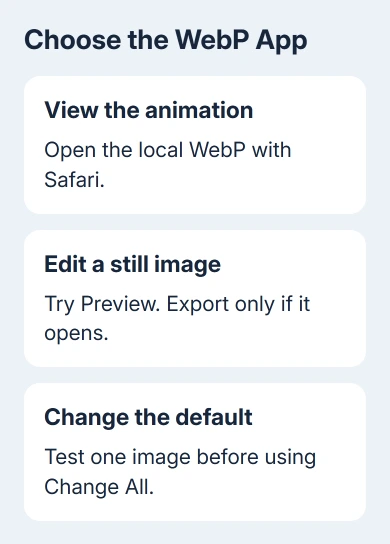
If Safari isn't offered, open Safari first and drag the image onto its Dock icon. Apple's app selection instructions describe dragging a file onto an app as another way to open it.
Check the picture itself. For an animated WebP, wait through its sequence rather than assuming the first frame is the whole image. For a still picture, check that the expected subject and edges appear instead of an empty browser tab.
Safari 14 added WebP support, including animation and transparency. A successful browser opening lets you view the picture without a Quick Look plug-in. If it won't open, check the file and browser version next.
2. Check the file and Safari version
In Finder, select the file and press Command+I. Expand Name & Extension to inspect its complete name, and check the file size in the information window. An unfinished or empty download needs another copy, not a new file association.
Keep the original extension. Renaming picture.webp to picture.jpg changes the name without converting its contents. An app expecting JPEG data can still reject it, even though Finder now displays a different suffix.
Request a replacement for the failing image. Compare another saved WebP: if that one opens, the first file may be damaged. If several fail in an older Safari release, check for an update.
Check Safari > About Safari for its version. Updates come with macOS. For Ventura 13 and newer, use System Settings > General > Software Update; for Monterey 12 and earlier, use System Preferences > Software Update.
Apply a compatible update, then retry that original image. If your Mac can't get a suitable supported update, ask the sender for a PNG or JPEG version of a still image. For an animation, ask for another animated format their app can export.
3. Treat a still frame differently from an opening failure
Pressing Space on a selected Finder file uses Quick Look. Double-clicking it may open Preview. Those viewers don't necessarily play the animation as Safari does, even when all three recognize the file.
One owner confirmed in a 2024 update that Safari played animated WebP on Ventura 13.6, while Preview and Quick Look showed static content. Preview opened still WebP images, so the older claim that it couldn't read them was outdated.
If Safari animates the file while Preview shows its first frame, the file isn't empty. Keep using the browser for playback. Reinstalling Preview or changing the filename won't turn a static display into the original animation.
For still-image editing, try the file directly in Preview using File > Open. If it opens, work on a copy. The Preview cropping procedure covers selecting the part of that still picture to keep.
If Preview rejects the WebP while Safari reads it, use a compatible image editor or ask for a different format. Opening it in Safari won't change what Preview can export or what another editor can open.
4. Export a compatible still image when Preview opens it
Continue here only for an image Preview has opened successfully. Choose File > Export and open the Format menu. Select JPEG for a normal still photo, or PNG when you need a format that can retain transparency.
Give the result a new name and choose its destination folder. Adjust the JPEG quality control if offered, then select Save. Open the exported copy to confirm the right image was saved before sending it or selecting it in another app.
Export creates a new file in the format you chose. Changing the extension in Finder only changes its name. Keep the WebP alongside the new copy until you've checked the exported result and any transparency you need.
Don't use an ordinary JPEG or still PNG export to preserve an animation. For moving content, keep the WebP or ask the sender for another animated format. A readable still export can be useful, but it isn't the original sequence.
For iPhone photos saved as HEIC instead, use the separate HEIC-to-JPEG steps for Mac. The export controls are similar, but a file ending in HEIC isn't a WebP download.
5. Change the default only after the file opens correctly
I'd open one file successfully before changing every WebP's default app. That gives you a known working choice instead of making a failing application launch each time you double-click an image.
Select a WebP in Finder and press Command+I. Expand Open with, then choose the app that worked. Use Change All only when you want that choice applied to the file type, and confirm the change when prompted.
Skip Change All when changing just this file. A browser suits animation, while an editor may suit still pictures. Choose the default for your usual task; you don't need one app to do both jobs.
Changing the default doesn't convert the files, change their image quality, or add playback support to an app. If a later image fails in your chosen app, use the file and compatibility checks again before changing system settings.
When the same image fails in every compatible app
Describe the opening failure to the sender and ask for another original or an exported copy. If several known-good WebP files fail after supported updates, give Apple Support your macOS and Safari versions and the exact error.
Include whether Safari displays the image, whether it animates, and whether Preview opens a still version. Those details tell support which app or step fails, and help them choose the next check.
The Short Version
Try the saved file in Safari, then check its extension and browser version if it fails. Use Preview export only for a still image it can already open. Test the chosen app before applying it to every WebP file.
Checked November 17, 2026.