
Battlefield 6 crashing on PC doesn't mean you need to reinstall it. Start by restarting Windows, finishing pending game updates and verifying the installation in the launcher where you own it.
The next step depends on what you see. A DirectX graphics error, an anticheat warning and a game that suddenly closes need different checks. Losing the server connection while the game stays open is a separate problem.
1. Restart and finish the available updates
Save your other work, choose Start > Power > Restart and reopen your launcher. Let any Battlefield 6 update finish before starting the game. Check that the download has finished and isn't paused.
Try whatever caused the crash: starting the game, loading a particular map or entering a match. Does it close at the same point? Use that same action to judge the next fix.
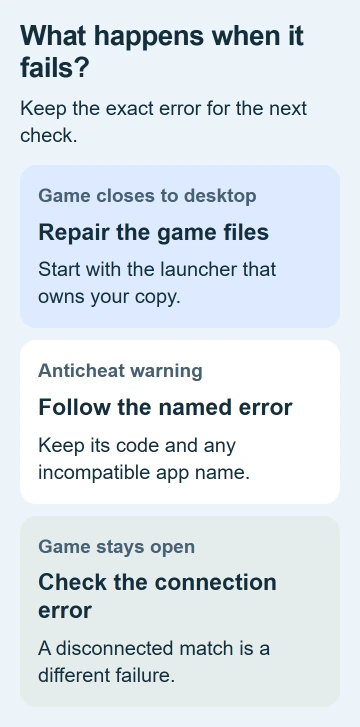
EA lists separate fixes in its game-specific error guide. If the game simply closes, try repairing it next. If you see a warning, note the exact text so you can follow the matching check.
An old launch-day workaround may target a bug that's already fixed. Update the game before trying settings meant for an earlier build or beta.
2. Repair Battlefield 6 in the launcher you use
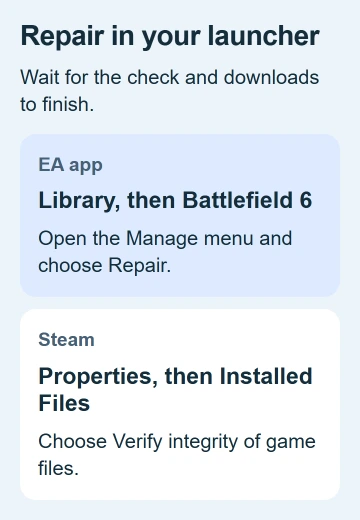
In the EA app, open Library, find Battlefield 6 and select its three-dot Manage menu. Choose Repair, wait for it to finish, then launch the game again.
For a Steam copy, right-click Battlefield 6 in Library, select Properties > Installed Files, then choose Verify integrity of game files. Let Steam finish its check and any required downloads.
The Steam file-verification procedure checks your installed game files for missing content or a crashing game. You don't need to reinstall the whole launcher to run it.
I'd try this before a large reinstall. If the launcher replaces files and the same map now loads, stop changing unrelated settings. If it crashes again, use the error message or try the background-app checks next.
3. Compare without overlays and extra background apps
For one test, close recording tools, performance displays and other apps you don't need. Keep the launcher and required game services running. You'll see whether an app running alongside the game is causing trouble.
If your game uses the EA Shift+F1 overlay, the controls shown over the game, select your profile thumbnail in the EA app. Open Settings > Application and turn In-game overlay off for this test.
The EA app loading checks include this overlay test. Turn the overlay back on if it makes no difference. If switching it off helps, tell support.
If anticheat, the game's software for blocking cheats, names an incompatible program, close that program and restart if asked. Don't use compatibility tricks to keep it running when anticheat rejects it.
If the game starts normally with those extra apps closed, reopen them one at a time. When the crash returns, stop and note the app, its version and what you were doing so you can report it.
4. Follow DirectX or driver errors to the graphics check
Write down the full error, including any DXGI or DEVICE_HUNG wording. If it says the graphics device has hung, restart your PC first. If the error returns, check the graphics driver next.
Use the Windows 11 graphics-driver procedure to match the download to your graphics model. A laptop may have built-in graphics and a separate gaming graphics processor, so note which one the error names.
Install a current driver using your hardware maker's instructions, then restart if asked. Don't use a driver for an unrelated model just because its graphics name looks similar.
Try another demanding game too. If several games fail, support needs to look at your graphics hardware or Windows more broadly. If only one Battlefield map or action triggers the crash, include that detail in your report.
5. Treat Secure Boot and anticheat warnings separately
Secure Boot verifies trusted startup software before Windows runs. If Battlefield reports that it isn't enabled, follow the Windows Secure Boot checks for the PC's actual startup configuration.
Leave the PC's startup settings alone unless the game reports that issue. Switching startup modes at random can stop Windows from starting, so follow your PC maker's instructions if you need to change them.
For EA Javelin anticheat encountered an error, including 94, relaunch the EA app as administrator and start the game from it. Do this even if your copy came from Steam or Epic.
Close the EA app, right-click its shortcut and choose Run as administrator for this test. If the warning stays, follow the anticheat repair instructions linked from the error guide or give support the code.
6. Reduce load when the crash happens during play
If the game runs before crashing, try a frame-rate cap, which limits frames per second, or V-Sync in the graphics settings. V-Sync keeps the game's frames in time with how often your display updates.
The PC crash troubleshooting includes these options. Change one setting, try the same activity again and keep the change only if it helps or suits how you normally play.
Tell support if reducing the graphics load helps, though that alone won't tell them which part is faulty. Include whether crashes happen only during a match, in menus or in other games too.
7. Use a clean startup before the final reinstall
If repair and the narrower checks haven't helped, try a clean Windows startup. This temporarily stops optional startup software from loading.
Hide Microsoft services before disabling optional ones, as the steps explain. Restore normal startup afterward. If the game works only with a clean startup, turn items back on in groups to find what's interfering.
If it still crashes, send EA Support your game build, launcher, graphics hardware and driver, exact error and repair results. You can try reinstalling next, but protect personal files and saved-game data before removing anything.
The Short Version
Update and repair the game, then test without optional overlays. Match DirectX, Secure Boot and Javelin messages to their own checks. Compare a lower graphics load or clean startup before reinstalling, and report the exact repeatable crash.
Checked November 5, 2026.

Isaac Smith is the founder and editor of PC Glance, a website that covers computers, laptops, and technology. He is a tech enthusiast and a computer geek who loves to share his insights and help his readers make smart choices when buying tech gadgets or laptops. He is always curious and updated about the latest tech trends.