Dropbox's missing right-click commands can be tucked into the Show more options menu. Check there on a file inside Dropbox first. If its commands are missing from both menus, check the desktop app and its installation permissions.
A missing sharing command and a file that isn't syncing are different problems. Check the menu first, then the running app, before reinstalling anything.
In this guide
1. Open the full menu on a Dropbox file
Open File Explorer and select Dropbox in the navigation pane. Right-click an actual file or folder there, then choose Show more options. Clicking empty space opens a different menu, so it isn't a useful check for file commands.
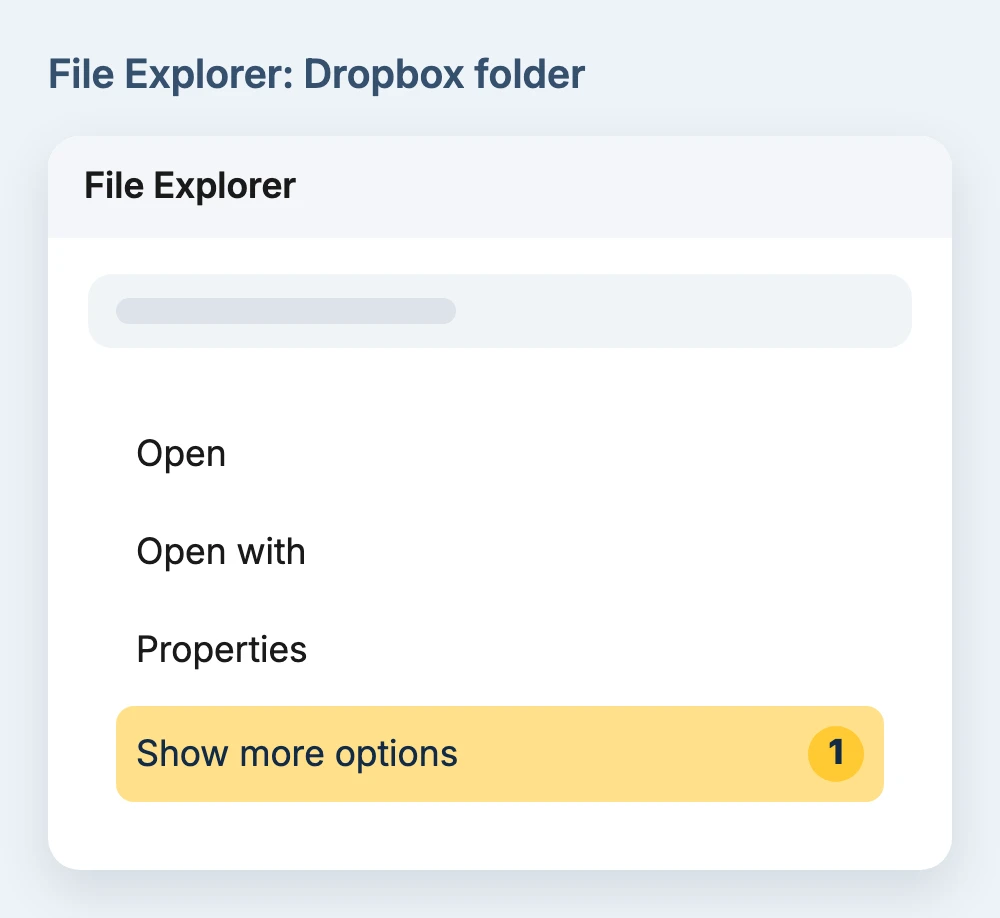
Windows 11 uses a shorter first menu. Older app extensions can still appear in its expanded menu, as the File Explorer instructions explain. If the command appears there, it hasn't disappeared from your computer.
Look for the Dropbox action you need in that expanded menu. The commands you'll see depend on the item and your account. Not every file offers every sharing or storage action.
If the command works there, keep using that route. You don't need to replace Windows' entire right-click menu to restore one app's commands. If both menus lack Dropbox actions, check the running desktop app next.
The same distinction explains 7-Zip's missing right-click commands. Fixing an app's menu entry doesn't require changing unrelated Windows settings.
2. Confirm the desktop app is running and signed in
Look for the Dropbox icon beside the taskbar clock, including its hidden icons. If it isn't present, open Start, search for Dropbox, and launch it. A shortcut to a Dropbox website isn't the desktop sync app.
Click the taskbar icon and read its account details and syncing status. Finish any sign-in or setup prompt before testing another file. The folder can remain from an earlier installation even when the app isn't running.
Test a file in that account's Dropbox folder. A downloaded copy in Downloads, or an attachment saved elsewhere, isn't the same synced item just because its name matches.
If the taskbar panel opens, the app is running. Its File Explorer extension, which adds the commands, could still be missing. If only the menu fails, quit Dropbox through its app controls, launch it again, then right-click that file.
If reopening the app changes nothing, save your files and restart Windows. Check after Dropbox starts. If the commands return briefly and vanish again, tell support when that happens. Another restart adds little.
3. Reinstall with the permissions Dropbox requires
Dropbox's desktop installation guide lists right-click context menus and sync icons among the features that require administrator privileges. A partial installation can leave the folder visible while those features are missing.
I'd try this supported reinstall before editing shell-extension registry entries. It gives Dropbox the access it needs without changing how other apps add their right-click commands.
Before removing the app, save your work and confirm that important recent changes have synced. Copy files with pending uploads to a separate backup location. Uninstalling the app is a separate step from deleting your Dropbox folder.
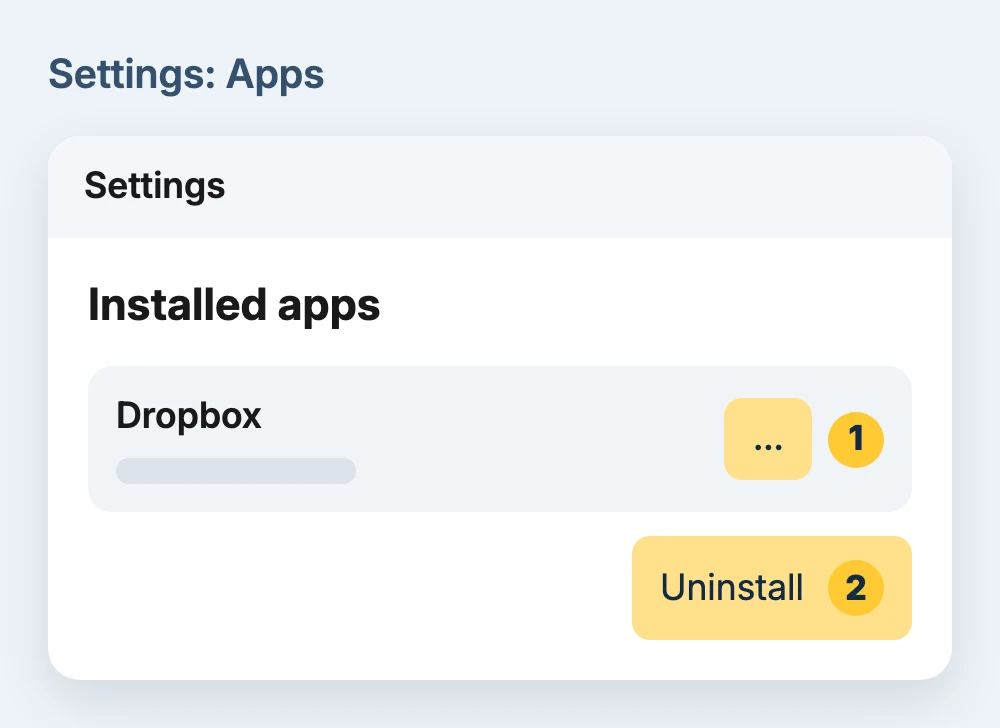
- Open Start > Settings > Apps > Installed apps.
- Find Dropbox, open its three-dot menu, and select Uninstall. Complete the removal prompts.
- Download the desktop installer from the official installation guide and open it normally.
- Follow the installation wizard. When it asks for an administrator username and password, enter the authorized credentials or ask the computer's administrator to approve the request.
- Complete the wizard using your intended Dropbox login, then test a file inside the synced folder.
The install guide specifically says not to launch the installer using Run as administrator. Open it normally and let the wizard request the access it needs. On a work computer, passing that request to IT is the practical next step.
Once setup finishes, check both the taskbar app and the file's expanded menu. If the commands return, Dropbox's connection to Explorer is working again. If the folder also isn't updating, treat that as a separate sync problem.
4. Keep file access separate from the menu repair
A missing context menu doesn't automatically mean your cloud files are gone. Open the Dropbox desktop panel and check its status. Finish signing in, resume paused syncing, or address any error so your files can catch up.
For an urgent file, try your account in the Dropbox mobile app. Confirm the latest changes are present before editing. Avoid making two independently edited copies while the computer catches up.
The mobile app can help you get work done while you repair the Windows menu. It doesn't restore the missing Explorer commands, and downloaded copies won't behave like online-only items inside the synced folder.
If the problem is another sharing app's menu, LocalSend's context-menu settings follow a different path. Reinstalling Dropbox won't repair a command supplied by a different app.
5. Give support the menu and installation results
After a failed reinstall, use the support options in Dropbox's installation guide. Ask about the Windows 11 File Explorer context-menu integration, rather than reporting only that Dropbox doesn't work.
Include your Windows version, Dropbox version, whether its taskbar panel opens, and whether commands are missing from both the short and expanded menus. Say whether this affects every file inside Dropbox or only one folder.
Mention a command that appears once after setup and then vanishes. That tells support when the problem returns. On a managed PC, IT should also check whether the desktop integration is restricted for your account.
An advanced reinstall changes more than the ordinary app removal. Use it only if support recommends it for your case. Follow the full Windows procedure rather than picking out individual registry deletions.
The Short Version
Check Show more options on a file inside Dropbox, then confirm the desktop app is running and signed in. If the commands are missing from both menus, reinstall through the normal wizard with the requested administrator permissions.
Checked November 29, 2026.
 If you have any business, I can build it online