
LocalSend's older Windows integration uses Show more options > Send to. Turn on Show LocalSend in context menu in the app's settings and check that submenu. The modern Windows Share panel needs LocalSend 1.18 or later.
These are two separate ways to send a file. A working Send to entry doesn't mean an older copy should also appear beside Windows' sharing targets, and a missing icon beside an existing entry is a third, smaller problem.
In this guide
1. Look in the classic Send to submenu
Open File Explorer and select a small file you recognize. Right-click it, choose Show more options, then open Send to. Look for LocalSend there before changing the app or reinstalling it.
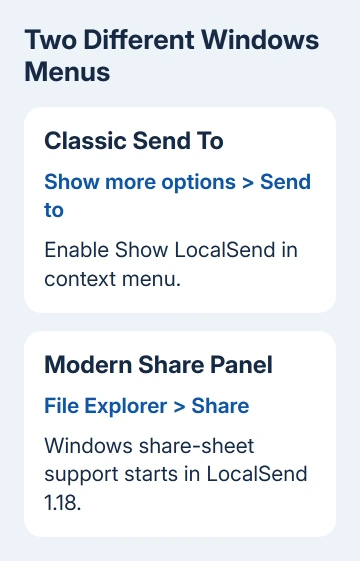
Windows 11 has a streamlined context menu and a longer classic menu. Microsoft's File Explorer instructions explain that older extensions can remain under Show more options even when absent from the first menu.
If LocalSend is present, select it. The chosen file should appear in LocalSend, ready to send. Complete a small transfer before trying a large folder, so a later transfer problem isn't confused with a missing menu entry.
The Share command opens another Windows interface. LocalSend 1.17 introduced Send to integration; 1.18 added Windows share-sheet support. A working installation can seem incomplete when you're checking the other menu.
If Send to contains the app, skip the shortcut repair. If you specifically want the modern Share target, go to the version check. If neither place has LocalSend, turn on its context-menu option first.
2. Enable LocalSend's own context-menu option
Open LocalSend and select Settings. Find Show LocalSend in context menu and turn it on. Return to File Explorer, close the old menu, and right-click the file again to check Show more options > Send to.
On Windows, the app creates a shortcut in your user account's SendTo folder. This is why that switch belongs to the classic submenu. It doesn't also add LocalSend to every Windows sharing menu.
If the setting already appears enabled but the entry is missing, switch it off, enable it again, then reopen the file's right-click menu. That asks the app to recreate the shortcut instead of keeping an outdated entry.
If turning it on gives you an error, don't skip it. Note the wording and check that LocalSend still opens normally from Start. On a managed PC, ask the administrator whether script execution or creation of per-user shortcuts is restricted.
Don't weaken the computer's security policy to force the switch. The app's direct file picker still gives you a way to send while an administrator checks why its shortcut creation failed.
If the switch succeeds and the entry appears, try the same small file again. If the entry is present but can't open the app, check the shortcut target next.
3. Repair a shortcut pointing to an old location
Press Windows key + R, type shell:sendto, and press Enter. This opens your account's SendTo folder. Look for the LocalSend shortcut, right-click it, and open Properties.
Check Target against the LocalSend executable you currently use. A shortcut to a portable copy can stop working if that copy was moved, renamed, or removed. An entry can remain visible even when its target no longer exists.
Open the intended copy of LocalSend from its current location and toggle Show LocalSend in context menu off and on again. The app creates the shortcut using the location of the LocalSend program that's currently running.
I'd settle on one installed or portable copy before recreating the shortcut. With several copies, it's harder to tell which LocalSend program the shortcut opens.
After recreating it, return to shell:sendto and inspect Target again. Then use the menu on a fresh file selection. This checks both the stored path and whether Windows can launch it.
If your SendTo folder has no LocalSend shortcut after the app reports success, include that detail in a bug report. That tells the developer the shortcut wasn't created, rather than the menu just needing to be reopened.
4. Update when the modern Share target is missing
Check LocalSend's version in its app information. The report about a missing Share target in 1.17.0 asked for a feature that wasn't in that release. The official changelog records Windows share-sheet integration in 1.18.0.
Use the project's official download page, select Windows, and choose the current package that matches your computer. Close the running copy when the installer requests it, finish installation, then open the updated app.

If you installed through an app store or package manager, use that installation's update route first. Avoid launching an older portable copy afterward and assuming the update failed because its version hasn't changed.
Select a file in Explorer and choose Share again. Check the app targets in the Windows sharing interface. If LocalSend appears, choose it and confirm the selected file reaches the app before testing transfer to another device.
A label that already says LocalSend but lacks its small icon is different from a missing target. Record that visual symptom separately; repairing the classic SendTo shortcut doesn't directly repair an icon in the modern share sheet.
If a current version still doesn't appear, keep using the classic submenu or send directly from the app while you report it. Repeated reinstalls won't explain which integration failed unless you record the app version and menu involved.
5. Send directly while the menu is being repaired
Open LocalSend on both devices. On the sending computer, use Send and its file selection control to choose your file. Select the receiving device and accept the transfer there when prompted.
This sends the file without using Explorer's menus. If direct sending works, you can keep transferring files while fixing the missing shortcut or Share target. If it fails too, the menu isn't the only problem.
Keep the devices on the same local network and check the app's troubleshooting guidance for discovery or firewall issues. If the receiving device doesn't appear, check the network rather than repairing the context menu again.
For comparing connection behavior, the Ethernet and Wi-Fi guide explains the two connection types. It doesn't replace LocalSend's own discovery checks.
If Windows is choosing the wrong active connection, the Windows connection-priority guide covers that separate setup. Use those changes for a connection-priority fault.
For an unresolved menu failure, open the project's GitHub Issues page from its download site's support links. Include Windows version and build, LocalSend version, installation type, exact menu path, and whether direct sending works.
The Short Version
Enable LocalSend's context-menu setting, then check Show more options > Send to. Recreate a shortcut with an outdated target. Windows Share needs version 1.18 or later; the app's Send screen works without either menu.
Checked November 13, 2026.





