
You plugged a cable into your PC, yet Windows keeps sending your traffic over Wi-Fi, so downloads stay slow or a machine on the wired network cannot be reached.
I would look at one number before touching any driver: the interface metric. Windows sends new traffic down the connection with the lowest one, and a fast Wi-Fi card can tie with a cable or even beat it.
A docked laptop owner asked this on Super User in February 2011, and the page has reached 448,305 views; the asker later found both connections sitting on the same metric.
Why Windows can pick Wi-Fi over the cable
Unless you set it by hand, Microsoft says, "Windows automatically assigns a route metric based on the link speed of the adapter." Lower wins.
Its table for Windows 10 and later gives a wired link from 200 Mbps up to 2 Gbps a metric of 25. A wired link from 80 to 200 Mbps gets 35.
Wireless is different. It counts at half: "the effective speed is half of the advertised speed".
So a Wi-Fi link advertising 1.2 Gbps counts as 600 Mbps and gets 30. Plug in a cable that only came up at 100 Mbps, and its 35 loses to your Wi-Fi.
Faster Wi-Fi makes it worse. A Wi-Fi 7 link advertising more than 4 Gbps counts as over 2 Gbps, gets 25, and ties with a gigabit cable.
Ours: this laptop's MediaTek Wi-Fi 6 card shows a 300 Mbps link and metric 40. Halved, that link is 150 Mbps, which is exactly where Microsoft's table puts a metric of 40. Step 1 reads yours.
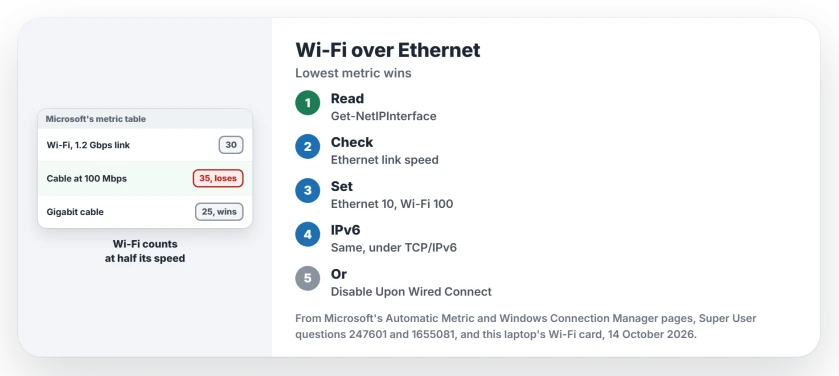
Status: Microsoft's metric table compared with this Windows 11 25H2 laptop's own Wi-Fi card, 14 October 2026. Wi-Fi still counts at half speed, and the card's metric fits.
1. Read both metrics and both link speeds
Open PowerShell and run these two lines, which only read and change nothing on your PC.
Get-NetAdapter | Format-Table Name, Status, LinkSpeed
Get-NetIPInterface -AddressFamily IPv4 | Sort-Object InterfaceMetric | Format-Table InterfaceAlias, InterfaceMetric, ConnectionState
Compare the connected adapters. The lowest metric wins. If Wi-Fi's number is lower than Ethernet's, or the same, you have found your reason.
The Windows 7 asker saw exactly that in route print: "the problem occurs when both interfaces have the same metric (20)".
Check Ethernet's link speed while you are there. A gigabit port that came up at 100 Mbps or 10 Mbps points at the cable or the switch port, and a cable that made no proper link has its own checks.
2. Give the cable the lower number
Set the cable first. Press Win+R, type ncpa.cpl and press Enter, then right-click Ethernet and choose Properties.
Select Internet Protocol Version 4 (TCP/IPv4), then Properties and Advanced, where Microsoft's own steps are to "clear the Automatic metric check box, and then enter the metric that you want in the Interface Metric field."
Its Automatic Metric page has the full table, too. Now do the Wi-Fi adapter: open it the same way and give it a much higher number.
Owners leave a wide gap on purpose. One owner set "10 for wired and 1000 for wifi", and another commenter replied "Confirmed. It works".
A third had small numbers ignored in route print, so that owner went to "Wired = 1, Wireless = 999" and got the order they wanted.
Close every box with OK. Skip none of them. On a separate Super User question, an owner warned that nothing applies until the last dialog box closes.
Prefer PowerShell? Run it as administrator, with your own adapter names from step 1.
Set-NetIPInterface -InterfaceAlias "Ethernet" -InterfaceMetric 10
Set-NetIPInterface -InterfaceAlias "Wi-Fi" -InterfaceMetric 100
3. Still on Wi-Fi? Set your IPv6 metric too
IPv6 keeps its own metric. You will find it under Internet Protocol Version 6 (TCP/IPv6), in the same Properties list, and you set it the same way, with the cable lower.
One asker had set both and still saw Wi-Fi in use. The answer they accepted turned IPv6 off on the adapter, noting "by default Windows favors IPv6 addresses over IPv4 addresses".
I would keep IPv6 on and fix its metric first. Turning it off is a last test for you, not a setting to leave in place.
4. Or let your Wi-Fi card step aside
Some Wi-Fi drivers carry an option named Disable Upon Wired Connect, under Configure and then Advanced in your adapter's Properties.
Set it to Enabled. Your card then switches itself off while a cable is in. I would try this before touching metrics, if your driver offers it.
An owner shared it on the 2011 question. A commenter added, "This isn't available for all adapters."
Ours: this laptop's MediaTek card lists twelve driver options. That one is not among them.
Why does Wi-Fi drop when you plug in the cable?
That is the opposite complaint, and on one Q&A post 500+ people pressed Same question. Microsoft documents it as normal behavior.
A policy that keeps your connections to a minimum "is on by default for Windows 8, Windows 8.1, and Windows 10". Microsoft also states that "Ethernet is always preferred when connected."
Windows then soft-disconnects Wi-Fi. That is by design. Your open connections finish, while new ones take the cable.
Ours: the policy key for it exists on this laptop but holds no values. So the default applies here.
Wi-Fi stepping aside is Windows working as designed. Deciding whether the cable earns its place at all? I measured both on this laptop.
The Short Version
- Windows sends traffic down the connection with the lowest interface metric.
- Wi-Fi counts at half its link speed, yet a fast Wi-Fi link can still tie with or beat a slow cable.
- Read both with Get-NetIPInterface, then set Ethernet lower under TCP/IPv4, Advanced.
- Do the same under TCP/IPv6 if Wi-Fi still wins.
- Wi-Fi dropping when the cable goes in is Windows' default policy.
Where to Next
Post your two metrics and both link speeds in the comments. Four numbers are enough for me to say which connection wins on your PC, and why.

Isaac Smith is the founder and editor of PC Glance, a website that covers computers, laptops, and technology. He is a tech enthusiast and a computer geek who loves to share his insights and help his readers make smart choices when buying tech gadgets or laptops. He is always curious and updated about the latest tech trends.