KB5085516 fixes a Windows 11 Microsoft account sign-in error that can claim the internet is unavailable even while websites load. If that sign-in error continues, install the cumulative update Windows Update offers for your version.
An installation error, a failure to start Windows, and an app problem after installation need different steps. KB5085516's release notes list no known issues, so don't assume every symptom seen after it is a confirmed fault in this update.
In this guide
1. Check the update and Windows version together
KB5085516 was an out-of-band update released March 21, 2026. That means it arrived outside the normal update schedule to address a specific problem. It applies to Windows 11 versions 24H2 and 25H2.
Installing it brings Windows to build 26100.8039 for 24H2 and 26200.8039 for 25H2. Press Windows key + R, enter winver, then press Enter. Read the version and complete build in that dialog.
Next, open Settings > Windows Update > Update history and check whether KB5085516 is recorded as successfully installed. Write down the name and date of the latest quality update too, rather than relying on a remembered notification.
A later build can already contain this fix. Because cumulative updates carry earlier changes forward, an old KB number missing from history isn't by itself a reason to force its standalone package onto a newer installation.
Microsoft's KB5085516 release notes identify the supported versions and the original sign-in fix. Check that the versions match before comparing your problem with a report from another PC.
This isn't a Windows 10 update. A computer running a different Windows release needs updates for its own version; a matching-looking error message doesn't make this package suitable for it.
2. Fix the false no-internet message during sign-in
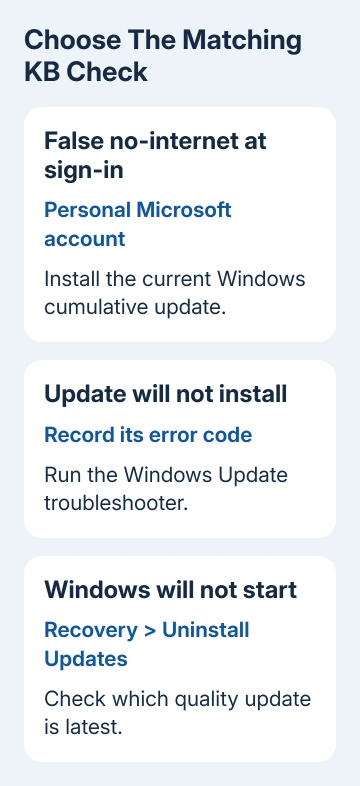
The fault affected some Microsoft account sign-ins after updates released on or after March 10, 2026. Teams Free and OneDrive were affected. Websites could work while the app's account screen reported a connection failure.
Try opening a normal webpage first. If web browsing also fails, work on the network connection before treating this as the account bug. This update fixes a false sign-in error; it won't fix every loss of internet access.
For an affected 24H2 or 25H2 PC, go to Settings > Windows Update, then select Check for updates. Install the supported cumulative update it offers, restart when requested, and reopen the affected app afterward.
Check the same account and app action that originally failed. Make sure you can reach your files or complete the sign-in. A completed download doesn't mean the sign-in error is fixed.
The original fault concerned personal Microsoft accounts. It didn't affect Microsoft Entra ID, used for organizational sign-ins. Check a work-account login error separately.
Devices using Hotpatch had a separate fix, KB5085518. If your organization manages updates, give the administrator the account type and Windows build instead of installing the consumer package yourself.
If a current build still gives the error, note the app name, exact message, and whether other Microsoft-account apps can sign in. That helps narrow down whether the problem affects one app, without removing your account or its local files.
3. Handle a download or installation failure
An error while installing KB5085516 is different from a fault caused by an installed copy. In Update history, record the error code and whether Windows says the attempt failed, needs a restart, or completed successfully.
Restart when Windows requests it, reconnect the charger on a laptop, and try Check for updates again. A pending restart can leave an update waiting even though the download has already finished.
Open Settings > System > Troubleshoot > Other troubleshooters and run Windows Update. Follow the repair flow it opens, including Get Help when offered. After it finishes, return to Windows Update and retry.
Check available space in Settings > System > Storage if Windows reports insufficient room. Remove files you recognize or move personal files to another drive. Don't delete Windows servicing folders to create space.
For a repeated failure, the Windows Update stuck guide covers the broader installation checks. Use the recorded error code to choose the next action instead of running every repair command in one session.
I'd use the current update offered by Windows Update before looking for a March package. That keeps the repair aligned with the build the computer should be running now.
The original release was also available through Microsoft Update Catalog. The manual steps differ for x64 and Arm64 processors and can require multiple packages in a stated order. Don't substitute one architecture for the other.
For an offline installation, an administrator should follow the KB's package steps exactly. If the file says it isn't applicable, check your Windows version, processor type, and installed updates rather than forcing installation.
4. Respond to a problem after a successful installation
If an app fails after a normal startup, compare the first failure time with Update history. Check for driver and app updates from that period too. The timing helps you choose what to check, but dates alone can't confirm the cause.
Use the app's own error and repair instructions first when only that program is affected. For an organization-managed app, ask its administrator to compare another PC with the same Windows build and account type.
Back up your files and locate your BitLocker key before recovery; uninstalling a security update removes its protections. On a work device, ask the administrator to choose the rollback.
When Windows still opens, go to Settings > Windows Update > Update history > Uninstall updates. Select the relevant removable update and choose Uninstall. Some updates don't offer removal.
Your current cumulative update may be newer than KB5085516. Removing an old entry won't reliably reverse changes added since March. Ask Support before uninstalling several releases in succession.
If Windows won't start, enter Windows Recovery Environment and choose Troubleshoot > Advanced options > Uninstall Updates > Uninstall latest quality update.
That recovery option targets the latest quality update, which might be a different KB. The Getting Windows Ready guide covers a PC stuck on that particular preparation screen rather than at the desktop.
When the fault still needs support
Open Get Help on a working Windows session and request Windows Update support. Provide your version and build, current cumulative KB, exact error, account type, and what changed after the troubleshooter or rollback.
If a managed PC won't start, give those details to the organization's help desk and ask for recovery assistance before resetting it. Make clear whether you're reporting the original sign-in error or a new problem.
The Short Version
KB5085516 fixed false no-internet sign-in errors for Microsoft accounts in Windows 11 versions 24H2 and 25H2. Check your installed build, get the current cumulative update, and treat installation or startup failures separately.
Checked November 13, 2026.