
You select a few PDFs in File Explorer, right-click, and Print is missing. Word files and photos in the same folder still offer it.
Before you blame Windows, I would check which app opens your PDFs. Print appears only when that app tells Windows it can print, and Edge, the default on most new PCs, does not.
Asked in April 2017, the largest Microsoft Q&A question about it has 1100+ clicks on Same question. Its two top answers drew 300+ and 200+ helpful votes.
Why Print disappears
Windows builds that menu from the default app for the file type, as a volunteer moderator put it plainly on Q&A. You need a program installed that "will open and print the document", associated with the file type.
Ours: on this laptop, PDFs open in Edge. Edge's PDF entry in the registry offers just two verbs, open and runas, so File Explorer has no print verb to show you.
That is why the Super User asker lost Print only for PDFs, and their own accepted answer shows the menu with Edge as default. Print is not in it.
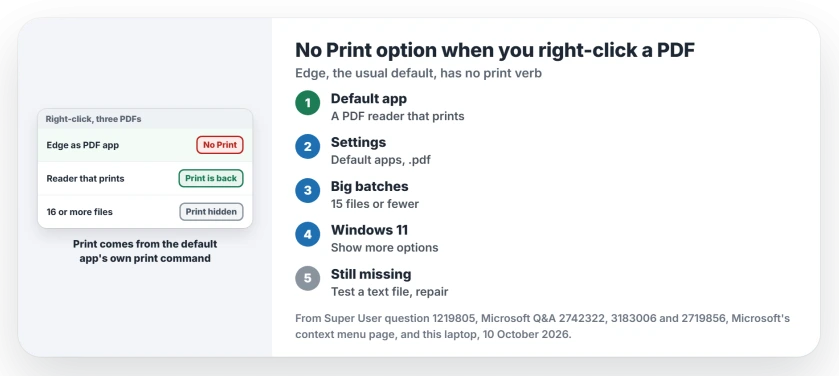
Status: tested against this laptop's PDF registry entry, Microsoft's context menu page and owner fixes on 10 October 2026. A default PDF app that can print brought Print back.
1. Make a PDF app that prints your default
The Super User asker installed Adobe Acrobat Reader and associated PDFs with it, and Print came back. An owner on Q&A did the same and wrote that "the print option came up in the right click menu".
Install the reader, then open Settings, Apps, Default apps. Search for .pdf and pick it. Right-click a few PDFs, and Print sits there as it does for Word files.
What follows is quick: that owner saw Windows open the reader, print to the default printer and close again. So I would set your default printer first.
On Windows 11, check Show more options if the short menu lacks it. That opens the full menu where Print lives.
7-Zip sits in that full menu too, and when it is missing even there, the cause is in 7-Zip's own setup.
If the reader you installed will not show up when you pick a default, its Open with entry may still point at an old folder.
2. Select 15 files or fewer
The second cause hits any app. Microsoft documents it on its context menu page: Open, Print and Edit "won't appear if selecting more than 15 items". It calls this by design.
A Q&A answer with 100+ helpful votes works inside that limit: type *.PDF in the folder's search box and select up to 15. Right-click one of them, pick Print, then repeat for the next group.
Microsoft also names a registry value, MultipleInvokePromptMinimum, under HKCU\Software\Microsoft\Windows\CurrentVersion\Explorer, with a default of 15. A higher number keeps Print for bigger selections once you sign in again.
Ours: this laptop has no MultipleInvokePromptMinimum value, so 15 applies. Microsoft says to raise it only "to a reasonable number in a controlled environment", and I would go only as far as the batches you really print.
3. Print still missing with a reader as default
A Q&A question with 100+ same-question clicks describes exactly that, with Acrobat already the default on at least 20 workstations. No answer there fixed it, so the reader's install is the suspect.
The moderator's test takes a minute. Right-click an empty spot on your desktop, choose New, Text Document, then right-click the new file.
Print showing for that file means the PDF app is at fault, so repair or reinstall it. Print missing there too? Then your default printer setup needs a look first.
Print shows, but nothing prints
Pages going nowhere is a different fault. The printer error state page starts at your printer. If the whole right-click menu is slow or blank, right click not working covers that.
Text that will not copy out of a PDF is a separate fault, and the PDF copy page tells a scan from a lock.
The Short Version
- Print shows only when the default PDF app registers a print command.
- Edge, the usual default, offers none, so set a reader that prints as the default.
- Select 15 files or fewer, or raise MultipleInvokePromptMinimum.
- On Windows 11, check Show more options.
- Still missing with a reader set: test a text file, then repair the reader.
Where to Next
Got Print back in your menu? Write in a comment which PDF app you set, and whether the 15 file limit caught you too. I will fold it in.

Isaac Smith is the founder and editor of PC Glance, a website that covers computers, laptops, and technology. He is a tech enthusiast and a computer geek who loves to share his insights and help his readers make smart choices when buying tech gadgets or laptops. He is always curious and updated about the latest tech trends.