
Acrobat Reader doesn't automatically print every PDF better than Chrome. Try the same saved file with matching printer, paper and scale settings, then use Reader's extra controls if Chrome cuts off content or prints it incorrectly.
For everyday documents, both apps may give you the same useful result. Start with what looks wrong: small text, missing edges, broken characters and blurry pictures in the PDF each need a different check.
Compare one page with matching settings
Save the PDF to your computer and open that exact file in both apps. Choose a page that shows the problem, such as small type, a diagram or a picture. Print just that page from each app before printing the whole document.
In Chrome, press Ctrl+P on Windows or Command+P on Mac. Choose your physical printer under Destination. Save as PDF creates another file, so it won't show you what comes out on paper.
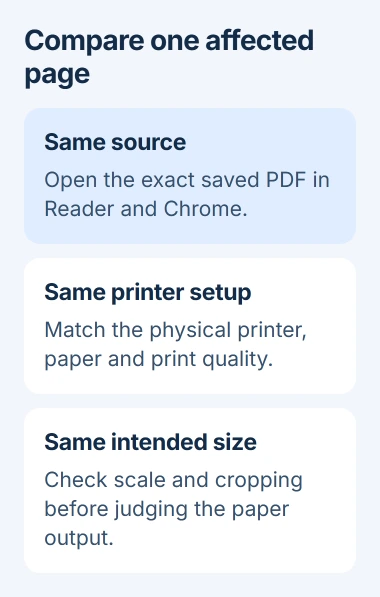
In Reader, open the file and use its printer button or File > Print, depending on the layout. Pick the same printer and paper size. Check that one job hasn't selected grayscale while the other uses color.
Google's Chrome printing instructions explain choosing a destination and print settings. Compare the PDF viewer's print output rather than a screenshot of the page or the surrounding website.
Use the same paper type and quality setting in the printer's own properties too. If one app uses draft quality and the other uses a higher-quality mode, you won't get a fair comparison.
Fix scale and paper size before judging sharpness
If text looks smaller or the edges disappear, check the page sizing first. In Reader's print dialog, choose Size under Page Sizing & Handling and inspect the preview before printing again.
Fit adjusts the page to the area your printer can print. Actual size keeps the PDF's size, but may cut off content outside that area. Shrink oversized pages makes large pages smaller without enlarging small ones.
Adobe's page sizing instructions describe those choices. Choose Actual size for a document that must keep its dimensions, then confirm that the paper and printable area can hold it.
In Chrome, expand More settings and check Paper size and the available scale choices. Choose whether to fit the full page or keep its size. Similar option names can still give you different layouts.
If text is already cut off in the preview, fix the layout before using another sheet. Your printer can't recover content the app has placed outside the printable area.
I'd compare the preview and paper size before changing print quality. A page shrunk to fit different paper can look different even when both apps reproduce the source correctly.
Use Print as Image for a PDF that prints incorrectly
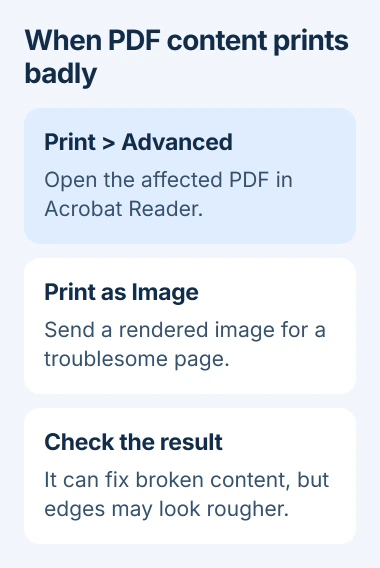
When normal Reader output has missing characters or broken artwork, open its print dialog and choose Advanced. Turn on Print as Image, select OK, then print the affected page again.
This turns the document into an image for the printer, so it doesn't have to process the PDF's content in the usual way. That can get around a font or image that causes trouble during normal printing.
The Print as Image workaround applies to Acrobat and Reader. Its controls can appear in different positions across versions, so look inside Advanced rather than the PDF editing tools.
This mode can make text or image edges slightly rougher. If you see a resolution control, it changes the detail in the image sent to the printer. Use this mode to fix a printing problem, rather than as a quality upgrade for every document.
Use whichever result fixes the problem you can see. If ordinary printing is clean, leave Print as Image off. If only image printing works, tell the file's author or printer support team.
Check whether the PDF itself is already blurry
Zoom into the troublesome picture on screen in both apps. If the same image is visibly soft or blocky in both, changing the printing app won't put missing detail into that source image.
A scanned page is often a picture of text, rather than text you can edit. Enlarging a small scan to fill a large sheet can make its lack of detail more obvious. Ask for the original PDF or a better scan if important details aren't readable.
Compare another PDF with clear text and graphics on the same printer. If that document prints well, keep troubleshooting the first file instead of buying ink or reinstalling the printer immediately.
Download the original PDF again if it may be incomplete or damaged. Open the saved copy directly in Reader. Avoid using a screenshot of the browser preview as your replacement document, because that creates a different print source.
For a missing Windows right-click command, follow the PDF Print menu guide. That fixes how Windows starts a print job, rather than the quality of a job that already reaches paper.
Follow defects that appear in both apps to the printer
If both prints have the same missing bands or color problem, try the printer's own test page or nozzle check. If the defect appears there too, check the printer and its supplies.
For an inkjet with gaps in its nozzle pattern, use the print-head cleaning guide. Run the model's maintenance procedure after reading the result, rather than cleaning simply because Chrome was used.
For a laser printer, follow its own print-quality troubleshooting instructions. Inkjet cleaning controls don't apply to a toner cartridge or drum. Tell support your model and describe the defect that keeps appearing.
If other documents also print incorrectly, update the correct printer driver from the manufacturer's support page and check the printer's paper settings. If one PDF alone fails, send its author the affected page number and both app results.
Use Reader when its extra controls fix the problem with your file. Chrome is a practical choice when the preview and printed page look right. Let those results guide you instead of assuming one app always wins.
The Short Version
Match the PDF, printer, paper and scale before comparing apps. Use Reader's Print as Image for broken content, check the source when it is blurry, and follow defects shared by both apps to the printer.
Checked November 5, 2026.

Isaac Smith is the founder and editor of PC Glance, a website that covers computers, laptops, and technology. He is a tech enthusiast and a computer geek who loves to share his insights and help his readers make smart choices when buying tech gadgets or laptops. He is always curious and updated about the latest tech trends.