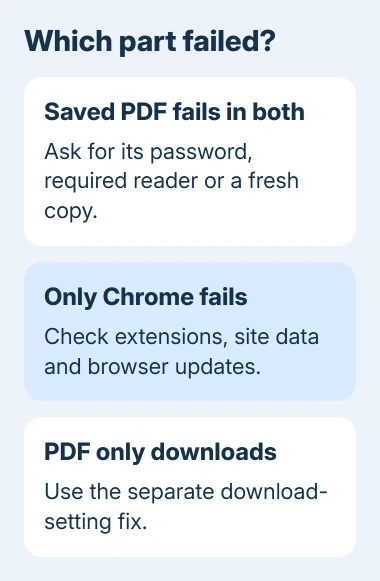
A blank PDF tab or Failed to load PDF document in Chrome can mean a damaged download or a problem with the viewer. Save the document and try that same copy in another reader. That tells you whether to replace the file or check Chrome.
If the PDF simply downloads instead of appearing in a tab, use the separate Chrome PDF download settings guide. The checks here are for a PDF that actually fails to display, not a successful download sent to the wrong viewer.
In this guide
1. Compare the saved file with another PDF
Download the affected document using the site's download control or the link's Save link as command when available. Once downloading finishes, open that local copy in Chrome instead of refreshing the website repeatedly.
Try a second PDF you already trust. If that opens, Chrome's viewer is working for at least that document. Focus on the first file or its website before changing Chrome settings.
On Windows, open the same saved file in Microsoft Edge or a PDF reader you already have. On a Mac, try Preview. A document that fails in those apps too needs a fresh download or a replacement from its sender.
Check the download's size in your file manager. A zero-byte file contains no document to display. A tiny file isn't automatically damaged, but a saved sign-in page or download error isn't the promised PDF either.
Sign back into the original service and use its download button again if the link needs an account. Copying a temporary document address into another session may lose the permission that made the original link work.
I'd compare the saved copy before clearing browser data. That takes a minute and can spare you signing back into sites when the actual problem is an incomplete attachment.
2. Check whether an extension is handling the document
Open Chrome's three-dot menu and choose New Incognito window. Visit the original site, sign in there if needed, and try the PDF. A private window starts a separate site session, so an account-only link needs its login again.
If the document opens there, return to your normal window and enter chrome://extensions. Temporarily switch off a PDF extension first, followed by recently added extensions that change downloads or website content.
Try the PDF after each change. When it starts working, turn the other extensions back on. Leave the extension that triggers the failure off while checking for its update or contacting its developer.
Extensions with Incognito permission can run there too, so that comparison alone doesn't settle whether an extension is responsible. Check the switches on the extensions page to see which ones can still run in your private window.
A tab showing an extension's name or logo can be using that extension's viewer rather than Chrome's built-in viewer. Read the page title and controls. Changing Chrome's download preference alone may not change an extension's behavior.
3. Clear data for a website that serves a broken copy
Use this step when the saved document works but the site's preview keeps failing. Close that site's other tabs, open its page, and select the site information control beside the address. Open Site settings and use Delete data if shown.
Removing this data ends that site's signed-in session and may erase its stored preferences. Return to the service, sign in, and download the document again. Save any unsent work in the site's tabs before doing this.
For a cache-only check, open Settings > Privacy and security > Delete browsing data. Select Cached images and files, clear unrelated boxes, and choose a time range covering when the problem began.
Retest the same link afterward. A working preview after this change suggests the old cached files or sign-in session caused the failure. If it still fails, stop repeating the deletion and check for a browser update next.
4. Update Chrome or ChromeOS
Google says to open More > Help > About Google Chrome in its update instructions. Let Chrome check for an available update, then choose Relaunch when offered. Save browser work before restarting it and try the same saved PDF afterward.
On a Chromebook, system and browser updates are handled through Settings > About ChromeOS > Check for updates. Complete the requested restart. Don't look for a Windows-style Chrome installer on ChromeOS.
Once the file opens, the Chrome PDF typing guide separates editable fields from a scanned page. Filling a form is a later task; it won't repair a document that hasn't loaded.
If the PDF opens but prints incorrectly, compare the Reader and Chrome print settings after the PDF displays correctly. A missing page preview and a badly scaled print need different changes.
5. Ask for a compatible copy when one file alone fails
A password prompt needs the document's password from its sender. It isn't asking for your Windows, Google or Apple password unless the website itself is at its sign-in screen. Check which window is asking for the password.
If an interactive form tells you to open it in a particular reader, download it and follow the provider's instructions. Keep the original file rather than printing the error page to another PDF and treating that as the completed form.
For a damaged attachment, ask the sender to export the original document again and send the new copy. Renaming another file's extension to .pdf doesn't change its contents to the PDF format.
When the same document still won't load
Ask the sender or website support team for a fresh PDF, naming the file and whether it opens in another reader. For a Chrome-only failure, report the Chrome version, exact error, extension comparison and whether a local copy works.
On a work device, give IT that report and any notice identifying a managed setting. Don't upload a private medical, financial or work document to a public forum to demonstrate the error.
The Short Version
Compare the saved PDF in another reader first. For a Chrome-only failure, check extensions, site data and updates. A file that fails everywhere needs its password, a compatible reader or a replacement from its sender.
Checked November 13, 2026.