
Bluetooth keeps cutting out when interference weakens its signal, batteries run low, or computer power saving interrupts the adapter. Charge the accessory, bring it near your phone or computer, and try downloaded audio.
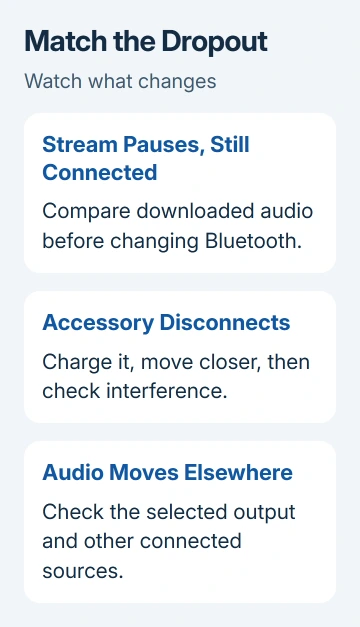
A buffering song with Bluetooth still connected points toward streaming trouble. An accessory that disappears from the connected-device list needs connection checks. Watch which happens before changing settings.
The distinction matters for mice and keyboards too. A jumpy pointer can come from a poor wireless connection, while repeated disconnect sounds or a changing connection status point to the Bluetooth link itself.
1. Charge the accessory and shorten the connection
Charge the headphones, speaker, mouse, or keyboard, or fit fresh batteries where the maker allows it. Put it close to the phone or computer with no wall or metal furniture between them. Then repeat the task that normally breaks up.
For headphones, play a song or recording already stored on the source device. Avoid streaming for this check. If downloaded audio plays cleanly while an online stream pauses, check the app or internet connection before resetting Bluetooth.
Apple's wireless-headphone sound checks use stored audio with the source a few feet away to check the connection. Keep the same audio playing as you move between locations so you can hear whether moving helps.
Clean playback nearby but repeated breakup across a room points toward distance, obstacles, or interference. Bluetooth doesn't have one dependable indoor distance; the Bluetooth range explanation covers why the room and devices change it.
If the problem continues nearby with downloaded audio, move to the next checks. Internet buffering is less likely to explain that, but you'll still need to check which device is causing the drops.
2. Move away from interference and busy USB gear
Move the source and accessory away from a crowded wireless area, microwave oven, or poorly shielded cable. Keep their path clear rather than leaving the phone behind your body or a computer tucked against metal furniture.
Bluetooth shares the 2.4 GHz radio band with some Wi-Fi networks. When your router and devices support it, use the router's 5 GHz Wi-Fi network for the computer or phone. This reduces competition without turning Bluetooth off.
USB 3 and Thunderbolt 3 equipment can also interfere with nearby wireless devices. Move a hub or external drive away from the Bluetooth receiver and computer, and use a suitable shielded cable.
Safely eject a storage drive before disconnecting it. For a comparison, remove unused USB equipment and play the same downloaded track again. If the skips stop, change that equipment's placement or cable before altering system settings.
The wireless interference steps apply to more than audio: a Bluetooth mouse can become erratic for the same reason. If moving helps several accessories, interference in that spot could be the cause.
3. Check whether audio is switching rather than dropping
Watch the selected output when sound disappears. If audio starts coming from another phone, computer, display, or speaker, the connection hasn't necessarily failed. The system or headphones may have switched the active device.
Temporarily disable Bluetooth on nearby sources that also use the accessory. Leave only your intended source connected. If that stops the switching, check the accessory's multipoint or automatic-switching setting.
Multipoint means an accessory can connect to more than one source. The switch that controls it belongs to that product's app or manual, so don't expect the same menu on every brand of headphones.
For AirPods specifically, the AirPods cutting-out checks cover automatic switching and playback features that can resemble a broken link. Those controls aren't shared by every Bluetooth headset.
If the accessory remains connected to the intended source and still stutters, continue with a fresh pairing. If only one app pauses, try playback in a second app before making system-wide changes.
4. Rebuild the accessory connection
First, remove the accessory from your device's list of saved Bluetooth connections. Its own instructions explain how to enable pairing mode. Just turning it on can reconnect it to an old device instead of making it available to pair.
On iPhone or iPad, open Settings > Bluetooth, open that accessory's information button, then Forget This Device. Restart the phone or tablet and pair the accessory again from Bluetooth settings.
For Google Pixel, go to Settings > Connected devices, open the settings beside the saved accessory, then tap Forget. On Galaxy phones, Bluetooth is under Settings > Connections > Bluetooth; use the device's settings to unpair it.
On Windows 11, use Settings > Bluetooth & devices > Devices, open the accessory's menu, and choose Remove device. On Windows 10, use Settings > Devices > Bluetooth & other devices, select it, and choose Remove device.
On a current Mac, open System Settings > Bluetooth, open the accessory's information or context menu, and choose Forget. Then use its pairing mode and connect again. Older macOS versions use System Preferences instead.
After reconnecting, repeat the same local playback or accessory task. If it stays connected now, the old saved pairing could have been the problem. If it still drops, try the computer checks or compare it with a second device.
5. Check Windows power saving and its Bluetooth driver
For drops after idle time, turn off Energy saver in Windows 11 Quick Settings, or Battery saver in Windows 10 Action Center, and see whether the drops stop. If that helps, check the adapter's power setting next.
Search Start for Device Manager. Expand Bluetooth, open the computer's Bluetooth adapter properties, and select Power Management if available. Clear Allow the computer to turn off this device to save power, then confirm.
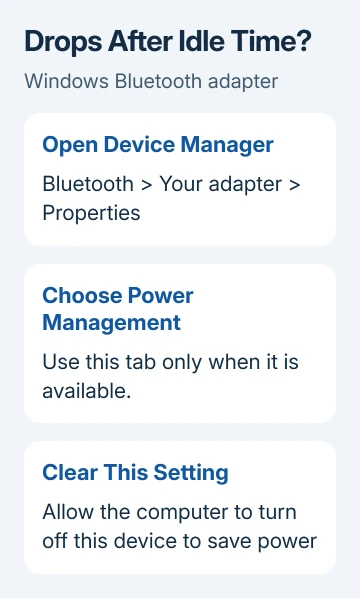
Some adapters don't expose that tab. Skip this setting when it isn't present. Don't change unrelated USB controllers to recreate a Bluetooth option your hardware doesn't offer.
Microsoft says to try Get Help, the Bluetooth service and driver updates for repeated Windows disconnects.
Open Get Help from Start and search for the Bluetooth troubleshooter. For the service check, press Windows+R, enter services.msc, find Bluetooth Support Service, and choose Restart from its context menu.
For the driver, return to Device Manager, right-click the Bluetooth adapter, and choose Update driver. If it finds nothing newer, ask the computer maker for the Bluetooth driver for that model and installed Windows release.
6. Compare another source before requesting repair
Pair the accessory with a second compatible source and replay the local audio nearby. If possible, also try a different accessory on the original source. These two checks help you work out which device needs attention.
If the accessory fails with both sources, ask its maker about repair. Multiple accessories failing on one computer point toward its adapter, driver, or surroundings. Give support both results.
Ask the accessory maker about firmware and its reset procedure, or request a Bluetooth adapter check from the computer maker. Include both models, system versions, and whether connection status changes when the sound skips.
The Short Version
Charge the accessory and compare downloaded audio nearby. Reduce interference, check switching, then pair again. Windows also has adapter power and driver checks. Use another source to help decide which device needs service.
Checked November 8, 2026.

Isaac Smith is the founder and editor of PC Glance, a website that covers computers, laptops, and technology. He is a tech enthusiast and a computer geek who loves to share his insights and help his readers make smart choices when buying tech gadgets or laptops. He is always curious and updated about the latest tech trends.