

Bluetooth adapter error Code 43 means Windows stopped the radio after its driver reported a failure. Restart the PC, check its connection, then reinstall the device entry if needed. Headphone pairing won't fix a stopped adapter.
The important distinction is where the code appears. Code 43 on a Bluetooth radio needs adapter checks. The same code on an Unknown USB Device needs attention to that USB connection before changing accessory-pairing settings.
In this guide
1. Confirm which device has Code 43
Right-click Start, choose Device Manager, then expand its Bluetooth category. Double-click the adapter, then read General > Device status. Record the adapter name and complete status; a yellow warning alone doesn't identify the error.
The Code 43 explanation says a driver notified Windows that the device failed. The code doesn't identify one universal cause, such as a broken dongle or a particular Windows update.
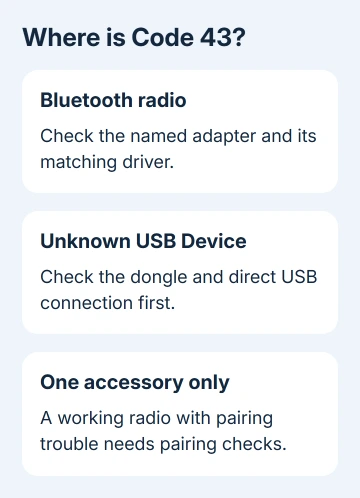
If the warning belongs to Unknown USB Device under Universal Serial Bus controllers, note that exact entry. For an external dongle, unplugging it and watching which entry disappears helps identify the device without guessing from its name.
A working Bluetooth adapter with one accessory that won't connect is a different case. Use pairing checks for that symptom. Follow these steps if the adapter itself keeps reporting Code 43.
Keep a wired keyboard, mouse or laptop touchpad available before disabling or removing the adapter. Accessories connected through that radio can disconnect while its device entry is being repaired.
2. Restart, then check an external adapter's connection
Save any open work, then select Start > Power > Restart. When Windows returns, reopen the same device's properties. Check that the warning is gone and an accessory works. The Bluetooth icon returning isn't enough on its own.
For a USB Bluetooth dongle, unplug it, then insert it into the computer's own USB port. Leave a hub or dock out for this comparison. Check whether Device Manager now recognizes the adapter without the Code 43 warning.
Try a second suitable port if needed, checking Device status after each change. If a direct port works but the dock fails, keep using the direct port while checking the dock's power and support guidance.
This comparison applies to a removable USB adapter. An internal laptop radio doesn't have an external plug to reseat, so don't open the laptop as part of this step.
For an Intel internal radio, use the Intel Bluetooth error procedure for its model-sensitive power-reset instructions. Avoid applying another laptop's power-button timing to every Bluetooth adapter.
I'd check the direct USB connection before replacing a driver package. That lets you check whether the connection changes the error without changing any installed software.
3. Obtain the matching Bluetooth driver
In the affected device's properties, open Driver and record its provider name and version number. For a built-in radio, use the PC manufacturer's support page to find its model-specific Bluetooth package for your Windows installation.
For a removable dongle, match its printed model and hardware revision. Two similar-looking adapters can use different Bluetooth hardware. A Bluetooth driver won't necessarily work with every Bluetooth adapter.
Keep the matching installer on the PC before removing anything. If that PC can't get online, use a second computer and transfer the download. You'll then have the driver available even if networking stops during repair.
Try Update driver > Search automatically for drivers on the affected entry. If Windows finds nothing newer, check the hardware maker's package and follow its installation instructions.
The USB Bluetooth setup guide covers hardware revisions and replacing an internal radio with a dongle. Its advice about radios that interfere with each other applies to specific models; don't disable every Bluetooth entry.
After installing the appropriate package and completing any requested restart, read Device status again. If the same code remains, move to reinstalling the device entry rather than downloading unrelated driver tools.
4. Reinstall the stopped device entry
Microsoft says its Bluetooth repair procedure can remove the adapter and let Windows detect it again. Select the actual adapter or radio in Device Manager, rather than an accessory such as your headphones.
Right-click that entry, choose Uninstall device, then confirm Uninstall. Leave any driver-package removal box unchecked for this ordinary reinstall. The saved installer remains available if Windows needs it.
Select Start > Power > Shut down. Wait a few seconds after the computer shuts down, then turn it on again. Windows then attempts to detect the adapter and install its driver again.
For an adapter still missing, use Device Manager's Action > Scan for hardware changes command. Supply the saved matching package if Windows requests it. Keep it specific to this adapter, even if another installer is easier to find.
Open General > Device status once more. Check that Windows reports the device is working and Code 43 is gone. Then connect an accessory and check its actual function, such as typing or audio playback.
If the code clears but the accessory still won't pair, handle that as a separate pairing problem. Uninstalling a working adapter again interrupts its connections without fixing the accessory's pairing problem.
5. Report a recurring code with useful hardware details
For an external adapter, compare it on another compatible computer if one is available. Record whether Code 43 follows that same dongle or appears only on the original computer. Use the supported driver for that second system too.
If it fails on both PCs, the maker has more reason to check the dongle itself. A working adapter on the second PC points support toward the first computer's connection, driver or compatibility. It still doesn't identify the exact fault.
Contact the adapter maker for a removable dongle, or the PC maker for an internal radio. Supply the exact model, hardware revision, Windows version, adapter name, complete code, plus your direct-port and reinstall results.
For a managed computer, give those details to IT. Ask whether the device needs a model-specific driver, firmware guidance or warranty service. A Code 43 that survives the supported recovery steps needs advice for that exact hardware.
The Short Version
Confirm which device reports Code 43, restart, and try a USB dongle directly on the PC. Use its matching driver and rebuild the device entry. Report a lasting or recurring code to the hardware maker with your results.
Checked November 16, 2026.






