
Intel Wireless Bluetooth driver errors need different fixes depending on the Device Manager code. For Code 10 or 43, reset the computer's power first, then install the driver for your exact PC.
A headset that won't pair is a different problem from Windows reporting that its Bluetooth adapter can't start. These checks deal with the adapter itself, including failures that take Wi-Fi down at the same time.
1. Read the adapter's error before changing drivers
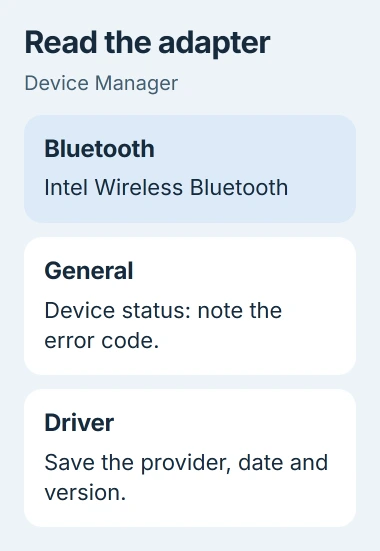
Right-click Start and choose Device Manager. Expand Bluetooth, open Intel Wireless Bluetooth, then read Device status on the General tab. Write down the whole message and its code.
If Bluetooth isn't listed, select View > Show hidden devices. A faded entry can be a record of hardware Windows can't currently detect. Check Network adapters too if your Wi-Fi stopped working alongside Bluetooth.
The Device Manager code list separates several problems that look similar:
- Code 10: Windows couldn't start the device.
- Code 22: The device is disabled. Use Enable Device if it's your personal PC and the option is available.
- Code 28: Its drivers aren't installed.
- Code 43: Windows stopped the device after it reported a problem.
- Code 45: Windows doesn't currently see the hardware as connected.
For Code 22, check the status again after enabling the adapter. For Code 28, move to the driver download step. Try the power reset first for Codes 10 and 43; neither code alone tells you that a physical part has failed.
If the adapter reports that it's working properly, try the Windows Bluetooth pairing checks. Keep the working adapter's driver when only one accessory won't pair.
2. Reset power to the computer
Intel recommends a cold reboot for wireless device errors. Shut down the computer and disconnect external power so its hardware can reset. Closing apps alone won't do that.
Save your work, shut down your laptop, unplug its charger, and disconnect the dock and any USB devices you don't need. If it has a built-in battery, hold power for about 15 seconds. Reconnect the charger, then start the laptop.
Don't open a laptop to disconnect its internal battery for this check. If your model has a battery designed for user removal, follow its manual to remove it before the power-button hold, then reinstall it afterward.
For a desktop, shut it down and unplug its cables, leaving the motherboard battery in place. Hold power for about 20 seconds, reconnect the normal cables, and turn it on.
Open the same adapter's properties when Windows starts. If the warning is gone, connect your Bluetooth accessory and use it normally. If the error comes back on a later startup, note when it happens before checking the driver.
I'd try this before downloading several driver packages. You'll see whether removing power brings Bluetooth back without changing the installed software.
3. Save the driver for the exact PC and adapter
In Device Manager, open the adapter's Driver tab and note Driver Provider, Driver Date, and Driver Version. Keep those details with the error code so you can compare them after installation.
Find your exact laptop or motherboard on its maker's support site. Download its Bluetooth package for your Windows version. An Intel processor doesn't mean the wireless adapter is also Intel, so check that the package matches the adapter.
Save the installer locally before removing anything. If Wi-Fi also fails, use another computer to download the matching package and transfer it with a USB drive. That avoids leaving the affected PC without a way to install its driver.
Install the computer maker's package first, then restart and check Device Manager. Intel's wireless error procedure recommends trying your PC maker's drivers before Intel's general-purpose packages.
If that package doesn't solve the error, check whether the Intel Bluetooth download supports your adapter and Windows version. An installer labeled Wi-Fi isn't a substitute for the Bluetooth package, even when both functions share one card.
4. Use a clean driver installation if updating fails
A clean installation replaces the old driver package after removing it. Try this if updating didn't fix the adapter error. Only remove the affected adapter's driver, keeping the other Bluetooth items in Device Manager.
If you use a Bluetooth keyboard or mouse, switch to the laptop's keyboard and trackpad or connect a USB keyboard and mouse. Bluetooth controls can disconnect as soon as you remove the adapter's driver.
With the replacement installer already saved, right-click the Intel Wireless Bluetooth adapter and select Uninstall device. Select the offered option to remove its driver software, then complete the uninstall and restart Windows.
If that option isn't offered, Windows may be using one of its included drivers. Keep that automatically restored version and run the installer you saved. Follow its prompts, including the request for administrator permission.
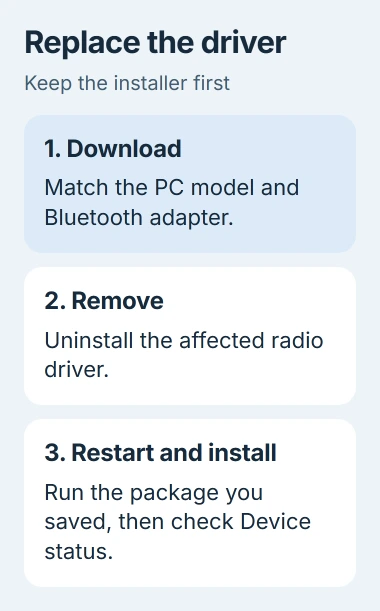
Reopen General and Driver afterward. Check both the device status and the version that actually installed. If the installer finishes but the warning remains, the adapter still has a problem.
An ordinary Bluetooth driver reinstall lets Windows reuse the existing driver. With this clean install, you're replacing that package with the one you've already downloaded.
5. Take recurring errors to the computer maker
If the code survives the power reset and matching driver, give the manufacturer your PC model, Windows version, adapter name, and the results of both checks. Mention whether Wi-Fi disappeared too and whether this began after an update.
Support may next check the BIOS, which controls how your PC starts, or update its built-in software, called firmware. Ask for your model's exact steps; a wireless error alone isn't a reason to reset all those settings.
For a work laptop, send the same details to IT. If support suspects the wireless card or its connection, they can decide whether hardware service is needed. Repeated pairing attempts won't repair an adapter Windows can't start.
The Short Version
Read the Device Manager code, reset power for a Code 10 or 43 failure, and try the computer maker's Bluetooth driver. Save a replacement package before a clean install. Ask the manufacturer or IT to handle an error that keeps returning.
Checked November 4, 2026.

Isaac Smith is the founder and editor of PC Glance, a website that covers computers, laptops, and technology. He is a tech enthusiast and a computer geek who loves to share his insights and help his readers make smart choices when buying tech gadgets or laptops. He is always curious and updated about the latest tech trends.