
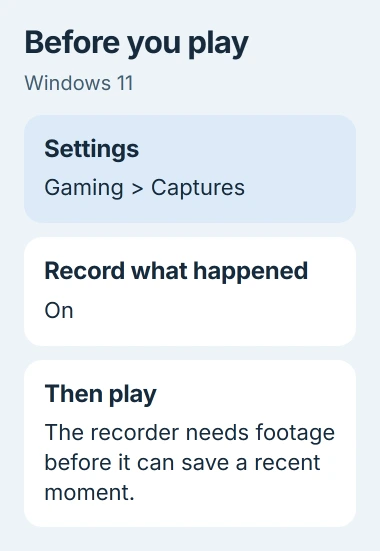
Press Windows key + Alt + G to clip recent gameplay on a PC, if background recording was already on. Turn on Record what happened in Settings > Gaming > Captures before your next game so the shortcut has footage to save.
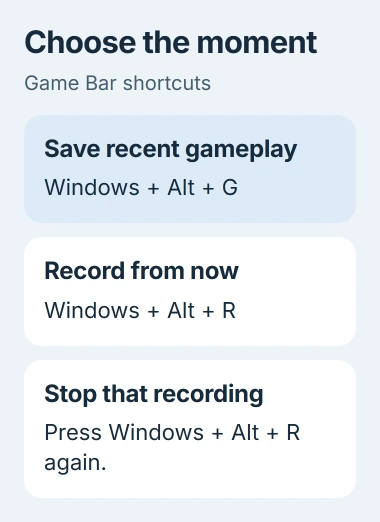
That shortcut saves footage from before you pressed it. To begin recording now, use Windows key + Alt + R instead. Neither option can recover a moment that passed before any recorder was running.
Set up clips before the match starts
Open Start > Settings > Gaming > Captures. In Windows 11, enable Record what happened. Windows 10 uses Record in the background while I'm playing a game for the same purpose.
Microsoft's capture settings guide says background recording is off by default. Starting a video with the manual shortcut doesn't turn on background recording for future clips.
Expand the recording options and choose how much recent gameplay to save. The choices depend on your version. Start with a short clip length, then increase it if your clips keep missing the beginning of the moment you wanted.
The maximum length for recordings you start manually is a separate setting. Raising that limit doesn't necessarily let the replay shortcut save more of your previous gameplay.
Return to your game and play for a while before testing. The recorder can only save what happened since it started, even if you've chosen a longer clip length.
I'd make this first test in a practice area. It's much easier to correct a recording setting there than to discover the missing footage after a match you wanted to keep.
Save the moment with the right shortcut
With the game active, press Windows key + Alt + G after the event. The default recent capture is 30 seconds; the saved duration can differ if you've changed the background recording setting.
Don't hold the keys down or press them repeatedly. Use the shortcut once, then check the saved clip. Several presses can leave you sorting through overlapping recordings instead of one useful file.
To start recording now, press Windows key + Alt + R. Press those keys again when you're finished. Use this for a planned demonstration or a full attempt you know you want to keep.
Press Windows key + G when you want the on-screen controls. Open Capture from the widget menu if its panel isn't visible. The overlay also gives you access to Gallery, where saved game clips appear.
Some games take over the whole display in exclusive full-screen mode. Game Bar may still record even when you can't see its controls. Try the shortcut, check the file, then use the Game Bar troubleshooting instructions if needed.
Find the file and check its beginning
In Windows Settings, return to Gaming > Captures and choose Open folder. This takes you to the folder Game Bar currently uses, even if you moved it from its original location.
The usual destination is Videos > Captures. Game Bar saves video as an MP4 file, with the app or game name and recording time in its filename. Sort by date to find the test you just made.
Open the newest clip and watch both the beginning and the end. If it plays but starts too late, choose a longer clip length or start a manual recording earlier. That doesn't call for repairing Game Bar.
Check the sound too. Game audio, your microphone, and other programs' audio are separate choices. Seeing the game in the saved video doesn't tell you whether it recorded your voice too.
Keep the original recording while making an edited version for sharing. An editor's project file isn't the finished video; send the exported movie when the recipient needs something they can play directly.
Choose which sounds the clip should include
Open the audio options in Settings > Gaming > Captures. Turn on audio recording if you want sound, then check the microphone and system-audio levels. A slider at zero can mute that sound even when audio recording is on.
Inside Game Bar, newer layouts put these choices under Settings > More Settings > Widgets > Captures. Older layouts use Settings > Capturing. Use the capture page your installed app offers.
Choose Game only for the game soundtrack without other app sounds. All includes other audio too. Listen to your test clip before sharing it so a conversation or unexpected notification sound doesn't slip through.
To switch your microphone on or off during a manual recording, press Windows key + Alt + M. The keyboard recording instructions explain this control separately from the video start-and-stop shortcut.
If your voice is missing, open Game Bar's Audio widget and check which microphone it uses. Both a headset microphone and your laptop's built-in microphone can appear, so choose the one you're speaking into.
When the shortcut saves nothing
Try starting a new recording, then compare it with saving recent gameplay. If only the new recording works, check the background recording setting. The two shortcuts use different recording modes.
If neither works in a full-screen game, open Game Bar over it once. Accept Enable gaming features for this app to record gameplay if offered, then retry. Also test the game's windowed or borderless mode to see if that helps.
Some games block capture, and protected content can produce blank results. If capture fails in just one game, try another supported game before resetting the recording app.
For an overlay that won't open or record in any supported app, follow the Game Bar repair checks. Tell support whether the overlay opens, the manual shortcut works, and the recent-capture button is available.
To record desktop instructions or a selected screen area, use the Windows screen recording options. Game clips and a recording of File Explorer need different capture tools.
If background recording makes the game less smooth, compare a session with it off. Lower video quality or frame rate if needed, or record planned moments manually. Keep the setting that gives your PC acceptable playback and gameplay.
The Short Version
Enable background capture before playing, then use Windows key + Alt + G for the recent moment. Alt + R with the Windows key starts a fresh recording. Open the Captures folder and check the video and sound before relying on it.
Checked November 4, 2026.

Isaac Smith is the founder and editor of PC Glance, a website that covers computers, laptops, and technology. He is a tech enthusiast and a computer geek who loves to share his insights and help his readers make smart choices when buying tech gadgets or laptops. He is always curious and updated about the latest tech trends.