An Aura frame that won't connect to Wi-Fi often has an old saved password or needs a different Wi-Fi band. Restart it, then check the network settings in the Aura app.
If no pairing code appears, check your phone's permissions and the frame's setup. If the frame rejects your Wi-Fi password, start with the network checks.
In this guide
1. Restart the frame and match the message
Unplug the frame's power cord, reconnect it, and wait for the display to start. If the app reports that the frame is unavailable but the frame has no power, get it powered on before changing your router settings.
If the display stays black after you reconnect power, try another outlet. A display showing store demonstration pictures without a pairing code needs Customer Care, rather than repeated password attempts.
Notice where setup stops. When Aura keeps searching for your frame, check phone permissions. If it can't find your network, check Wi-Fi compatibility. If it rejects the password, replace the saved network details in section 4.
If other devices have lost internet access too, handle the router first. The difference between Wi-Fi and internet access matters: a phone can join a router during an outage at the provider.
2. Allow the phone to pair inside the Aura app
Bluetooth sends the network details from your phone to the frame during setup. Pair through the Aura app, rather than adding the frame in your phone's Bluetooth device list. The app and frame should show matching four-digit codes.
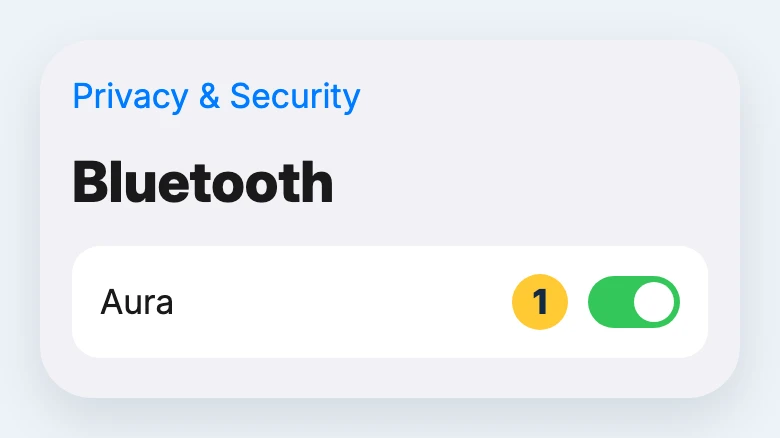
On iPhone, close Aura, open Settings > Privacy & Security > Bluetooth, and turn on Aura. Also check Settings > Bluetooth and turn Bluetooth on. Reopen Aura and try setup again while standing near the frame.
On Android, open Settings > Apps > Aura > Permissions and allow Nearby devices if offered. Older Android versions may also need Location permission and the phone's Location setting enabled. Menu names differ between phone makers.
Aura's current Bluetooth troubleshooting steps say Android 12 and later don't need Location turned on for Bluetooth access. Don't keep changing location settings on a newer phone when Nearby devices is the missing permission.
A matching code means the phone has reached the frame. Continue to the network choice. If the app keeps searching despite the permissions and a frame restart, send Customer Care the phone model and the exact message.
3. Choose a band the frame supports
Use a 2.4 GHz Wi-Fi network for models that don't support 5 GHz. The current connection guidance lists Walden, Aspen, and Ink as supporting both bands. A phone seeing a 5 GHz network doesn't mean every Aura model can join it.
For separately named bands, join the 2.4 GHz network on your phone before setup. For a shared name, check the router manual for its 2.4 GHz controls first. You may not need to rename every household connection.
A cellular 5G home internet service is different from 5 GHz Wi-Fi. The service itself doesn't prevent the frame from working; the router still needs to offer a compatible Wi-Fi band.
Move the frame near the main router for setup, particularly if it normally sits behind walls or uses an extender. If it connects nearby but drops at its usual location, work on the weak Wi-Fi signal rather than repeating account setup.
For a missing network, leave the connection screen and try again. The network can take two or three attempts to appear. If it remains missing, restart the router, wait until its internet service returns, then restart the frame and retry.
4. Replace the old network details
After a new router, password, network name, or move, the frame can keep looking for its old network. To change that, you must be beside the frame and an invited frame member. You can't do it remotely.
Open Aura, choose the frame, and tap its settings icon in the upper-right corner. Tap the name beside WiFi Network, then Change WiFi Network. Allow Bluetooth access when requested, choose the correct network, and enter its password.
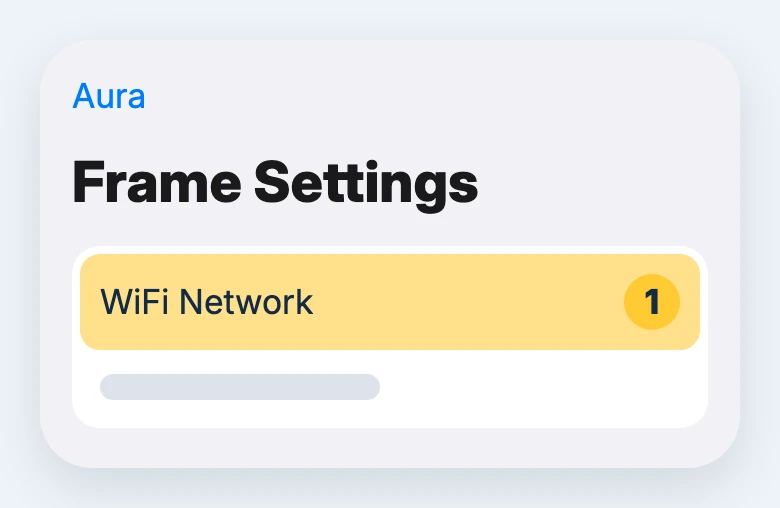
Tap Save or Join, depending on the screen. Check the password's capital letters and characters rather than using the router's administrator password. When the frame reconnects, it should resume showing its photos.
If changing networks fails, open Aura's three-line menu and choose + New Frame > It's for me. Complete the connection there. This reconnects your existing frame and keeps its photos and contributors, as long as you leave the frame in Aura.
I'd use that reconnection route before considering a reset. Don't factory reset the frame unless Customer Care asks you to; you don't normally need one just because the password changed.
5. Handle a hotel or assisted-living network separately
A network that opens a webpage before granting access uses a captive portal. Its Wi-Fi password alone won't finish setup. Aura's iOS app supports this process; the Android app doesn't.
Using an iPhone or iPad, choose + New Frame > It's for me > It's plugged in from Aura's menu. Check the matching codes. Select Connect Now and the network, then follow the captive-portal notice into additional setup.
The app becomes a touchpad for the frame's browser. Use that cursor to select the sign-in field, enter the requested details through the app, and select the portal's login control. Once you're signed in, finish setup.
This process doesn't support networks that need approval by text message first. For a workplace firewall, ask IT to check the frame's access rather than disabling the firewall. A portal may also ask you to reconnect from time to time.
When the frame still won't connect
Send Aura Customer Care the frame model, phone model, displayed message, and how it behaved beside your router. Say whether this is first setup, a changed network, or a working frame that suddenly went offline.
Tell Customer Care where setup stopped and ask whether your network is compatible before agreeing to a reset. If photos don't return after the new-frame reconnection method, tell them so they can help get the frame's content back.
The Short Version
Restart the frame, allow Aura's Bluetooth access, choose a supported band, and replace old Wi-Fi details in frame settings. Use the iOS portal setup for networks with a webpage sign-in. Keep the existing frame in the app.
Checked November 27, 2026.
 If you have any business, I can build it online