
Your phone has full bars in the same room. Somebody else's laptop is fine on the same sofa. Yours sits at one bar. Two on a good day. And pages take an age to load.
Being the only person in the house with a problem is its own kind of annoying, and I have written this for that position.
Because that gap between your machine and every other device is the whole story. Nearly every page about weak Wi-Fi is about moving your router. If the router were the problem, everything here would be slow.
So this is a walkthrough in the order that narrows it down. Stop when you find yours.
Step one: prove it is the machine and not the house
Stand in the same spot with your phone and your laptop at the same time, and look at both.
If the phone is strong and the laptop is weak, in the same place, at the same moment, the router is not your problem and nothing you do to it will help.
This test alone saves people a lot of money. One owner on Microsoft's boards had already bought an extender, a powerline adapter and a replacement laptop before establishing this.
Step two: find out what your adapter can actually do
Nobody writes about this step. On an older or cheaper machine it is often the entire answer.
Press Windows + R, type cmd, and run this:
netsh wlan show driversRead the Radio types supported line. That tells you which Wi-Fi standards your machine can speak.
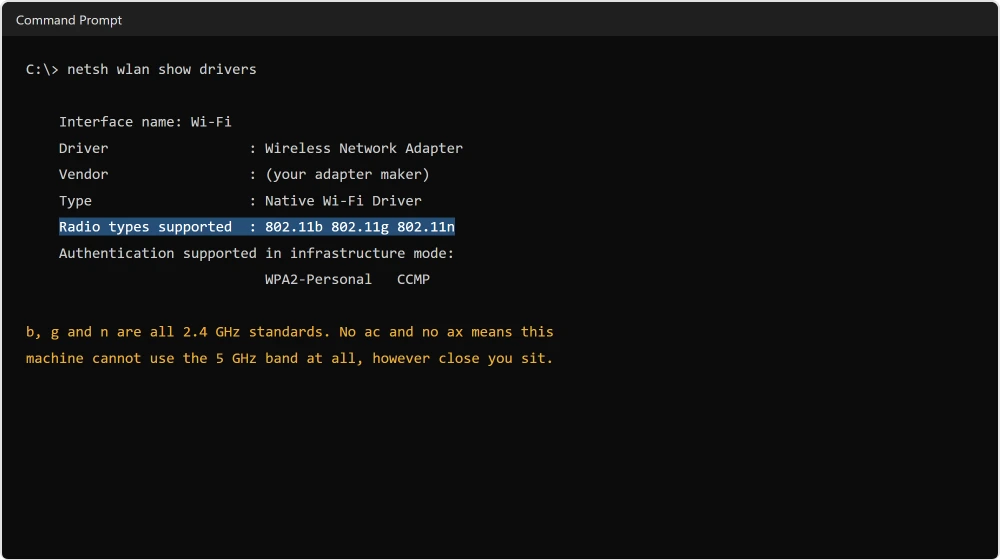
One owner with a terrible signal described their hardware as a "Realtek '802.11 bgn WIFI adapter'". Those three letters are all 2.4 GHz standards, and that machine physically cannot use the 5 GHz band its router was broadcasting.
No amount of moving the router fixes an adapter that cannot hear half of it.
Ours, and marked as ours: if your line says only b, g and n, you are on 2.4 GHz permanently. A USB Wi-Fi adapter for the price of a takeaway will do more for you than anything else on this page.
Step three: understand what the bars are telling you, and what they are not
The bars measure signal strength. They do not measure speed, and people conflate the two constantly.
One owner spent days on a weak signal that had dropped their throughput from 300 Mbps to 20. Partway through, they worked out why.
In their words: "i think i get why its on 20mbps earlier because i js realised it was 2.4ghz earlier."
Strong bars on 2.4 GHz can be much slower than weak bars on 5 GHz. Is speed your actual complaint? Then check the band before you chase the bars.
Click the Wi-Fi icon, then the arrow beside your network name, and look at Properties. The band is listed there.
Step four: check where you are standing, using Microsoft's own words
Now the placement advice, which is real, just not first.
Documented by Microsoft on its home layout page:
"Move your access point towards the middle of your home or room if you can, and higher if possible. Placing it in a corner or under a desk can reduce your Wi-Fi signal strength."
On obstacles: "Move your access point, if you can, to reduce the number of walls or other obstacles that are between your access point and your device. The fewer the walls and other obstacles the better."
On interference, Microsoft names a specific example rather than a category: "Check for things that can cause interference (for example, a metal filing cabinet)."
And one line almost nobody quotes: Microsoft says "Move your device closer to the access point if you can. Closer is better, but not right next to it".
It says elsewhere that "the strongest signal strength will usually be a few feet from your access point, but not right next to it."
Sitting on top of the router is not the strongest position. A few feet away is.
And if you are not sure which box in the hall you should be moving, modem against router sorts that out first.
Step five: the settings worth changing, and the ones that are guesses
Two are worth your time.
Power saving on the adapter. Open Device Manager and find your wireless adapter under Network adapters. Open its Properties. On the Power Management tab, clear the box that lets Windows switch it off.
If yours drops out completely rather than sitting weak, a PC that keeps losing its connection is the closer match.
A network reset, if the weakness appeared suddenly rather than always having been there. In Settings, then Network & internet, then Advanced network settings, choose Network reset.
Beyond those two, be careful what you read. Roaming aggressiveness, antenna diversity and wireless mode are all suggested constantly, usually with no evidence attached, and they are adviser guesses that I am not going to dress up as fixes.
What actually happened to the people who asked
I owe you this next bit, and it is not encouraging.
I read three full threads on Microsoft's boards from owners with exactly your problem. Not one of them ended with a confirmed fix. I would rather tell you that than pretend otherwise.
The student with the 802.11 bgn adapter tried an extender and a powerline adapter. They had already replaced a five year old laptop with a refurbished one. They never reported it solved.
The second had a brand new Windows 11 PC showing one dot from the setup screen onward, next to a Windows 10 machine on full bars. They were told to claim on the warranty for a factory defect.
If your machine was weak from the very first day, that is your closest match.
The third worked through driver rollbacks, a registry edit, DISM, SFC, uninstalling a specific Windows update, DNS flushes and moving the PC closer.
It got worse rather than better. The thread ended with them pricing up a new Wi-Fi card.
The pattern in all three is the same: one machine weak, everything else fine, means the hardware in that machine. Sometimes that is an adapter that cannot use 5 GHz. Sometimes it is an antenna nobody connected properly at the factory.
Set your expectations honestly. If you have done steps one to five and yours is still the only weak device, you are most likely looking at a hardware limit rather than a setting you have not found yet.
Status: written 21 August 2026. Three full owner threads read on Microsoft Q&A and none reached a confirmed fix, which is itself the finding.
Why is my Wi-Fi weak on my laptop but strong on my phone?
Because the limit is in the laptop. Signal strength depends on the adapter and the antenna inside each device, and they vary enormously.
Run netsh wlan show drivers and read the supported radio types. An adapter listing only b, g and n cannot use 5 GHz at all.
Does moving the router closer always help?
Not entirely. Microsoft says closer is better "but not right next to it", and that the strongest signal is usually a few feet from the access point.
Height and reducing walls matter more than raw distance, and a router in a corner or under a desk is losing you signal.
Why do I have full bars but slow internet?
Because bars show signal strength, not speed. A strong 2.4 GHz connection is often much slower than a weaker 5 GHz one.
One owner chasing a weak signal found their 20 Mbps was simply the band they were on. Check which band you are connected to before chasing the bars.
Can a Windows update cause weak Wi-Fi?
Owners report it, but nobody in the threads I read proved it. One removed a specific update and saw no change.
If yours weakened suddenly, a driver reinstall from your laptop maker's site and a network reset are the two reasonable things to try before assuming an update is responsible.
The Short Version
- If your phone is strong in the same spot, the router is not your problem.
netsh wlan show driversshows what your adapter can do. Only b, g and n means no 5 GHz, ever.- Bars measure signal, not speed. Strong 2.4 GHz can be far slower than weak 5 GHz.
- Microsoft says closer is better "but not right next to it", and a few feet away is strongest.
- Turn off the power saving setting on the adapter in Device Manager.
- Three full owner threads on this ended with no confirmed fix, and one with a warranty claim.
Where to Next
A weak radio shows up as a jumpy ping long before it shows up as a slow download. That is worth measuring properly if you play anything competitive.
If there is no Wi-Fi at all rather than a weak signal, the adapter itself may be missing. There are three kinds of missing and only one is hardware.
Run that one command before anything else. It takes five seconds and it tells you whether the rest of this page can even help you.
Strong but dropping out rather than weak? That is a PC that keeps losing its connection, a different fault.
Signal strength sets your upload ceiling directly as well. The link rate is not your speed, and half of it is not even yours.
And if you are working out which box in the hall does what, modem against router explains the split.
Moving a device to the other band and cannot remember the key? Windows will simply tell you what it is.
If that one command gives you an answer, or gives you something I have not described, put it in the comments. I will keep this page honest about what people actually find.

Isaac Smith is the founder and editor of PC Glance, a website that covers computers, laptops, and technology. He is a tech enthusiast and a computer geek who loves to share his insights and help his readers make smart choices when buying tech gadgets or laptops. He is always curious and updated about the latest tech trends.