
Windows can show your motherboard's maker and model without opening the case. Open System Information and read the BaseBoard entries, or ask PowerShell for the same hardware details if the list is difficult to read.
Keep the board model separate from the PC's model and its BIOS version. Each tells you something different, especially on a laptop or a desktop sold as a complete system.
Read the BaseBoard entries in System Information
Press Windows + R, type msinfo32, and press Enter. Select System Summary in the left pane, then look through the right pane for BaseBoard Manufacturer, BaseBoard Product and BaseBoard Version.
Microsoft lists this built-in utility in its Windows configuration tools. You can read your hardware details there without changing the computer's settings.
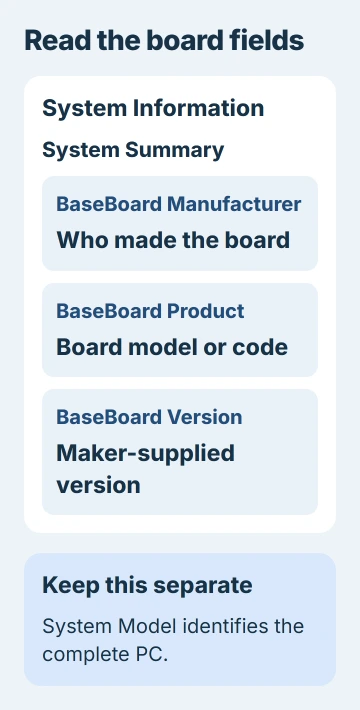
Manufacturer names the company recorded for your board. Product is its identifying code. Version is another detail supplied by the maker; it can be blank or less useful than the other two.
Copy the full product entry, including letters at the end. A suffix can distinguish boards with different memory support or wireless hardware. Don't shorten the name to the chipset number when recording it for support.
For a laptop or prebuilt desktop, also note System Manufacturer and System Model. They identify your complete computer, so they can be more useful for support than the board's internal code.
If the BaseBoard entries show a clear model, you've found the model Windows has for your board. If they're empty, generic or confusing, use PowerShell to read the fields together before deciding what to do next.
Display the board fields together in PowerShell
Open Start, type Windows PowerShell, and open it normally. Paste this command, then press Enter:
Get-CimInstance -ClassName Win32_BaseBoard |
    Select-Object Manufacturer, Product, Version
This command reads the board details Windows has and displays the maker, product and version. It doesn't install software, change the BIOS or update a driver. You don't need to open PowerShell as an administrator.
The Win32_BaseBoard reference explains the board details stored in this record. Baseboard, system board and motherboard mean the same part here.
Read Product and Manufacturer together. A short internal product code may only make sense to the system maker when they also know which computer it's from.
If PowerShell shows the same generic text as System Information, displaying those fields again won't reveal a hidden retail name. Both methods depend on the hardware details the manufacturer supplied.
If you get an error, copy its exact wording. Check that you're using PowerShell and that the class name is Win32_BaseBoard. The command won't run the same way in Command Prompt.
Use the computer model for a laptop or prebuilt desktop
On a laptop, the board entry may be an internal part code rather than a retail motherboard name. Record the complete computer model too, using System Summary or this separate query:
Get-CimInstance -ClassName Win32_ComputerSystem |
    Select-Object Manufacturer, Model
Label the two results so you can tell them apart. Win32_BaseBoard describes your board; Win32_ComputerSystem describes the complete PC. A laptop's marketing name doesn't need to match the board's internal code.
When asking the computer maker for a replacement part, supply the system model and explain why you need the board details. Several configurations can share a family name, so include the complete model shown on its label or purchase record.
For drivers on a complete PC, start with that PC maker's supported downloads. A similar retail board name isn't enough to select firmware for a board installed in a prebuilt system.
The Windows driver guide helps you choose an update once you know the computer model. Knowing the board model doesn't mean you need to replace every working driver.
Confirm a revision when the job requires it
The model reported by Windows may be enough to name the board, but a download or repair can also require its hardware revision. Check the maker's instructions for where that marking appears.
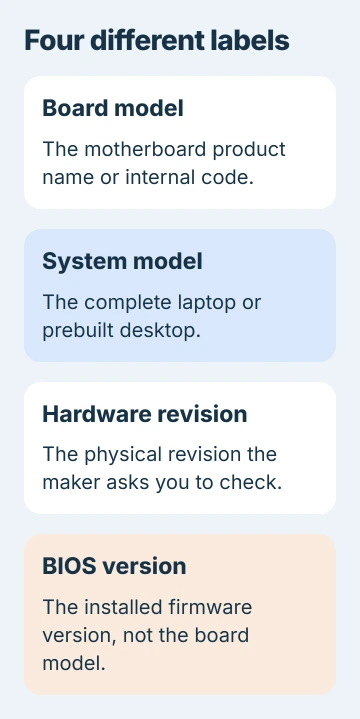
For example, the Gigabyte revision guide explains why one model name can cover different wireless components. Keep a printed revision separate from the BIOS Version/Date entry in System Information.
BIOS is the software your computer uses before Windows starts. Its version tells you which firmware is installed, not necessarily the board's printed hardware revision. Keep the two separate on a support form.
I'd try the box, invoice or system builder before opening a PC just to read a marking. A laptop's maker or repair service can identify its system board from the complete device details.
Don't dismantle a laptop for this lookup. For a desktop inspection, power it off, disconnect its power cable and follow the case and board maker's handling instructions.
When Windows only gives a generic answer
An entry such as a default manufacturer description isn't a usable model. Write down exactly what Windows returned and compare it with the computer's label, original packaging and build paperwork.
For a custom desktop, ask the builder which board they installed. For a branded PC, ask its manufacturer to identify the part using the device's support details.
If the PC can't start, use your purchase information or the maker's repair service. These Windows methods need a running PC, but you can read the box label without starting it.
Keep serial numbers out of public screenshots, and don't guess the model for a BIOS download.
The Short Version
Find the BaseBoard maker, product and version with System Information or PowerShell. Keep the complete PC model with those details, and check a printed revision separately when a download or repair calls for it.
Checked November 5, 2026.

Isaac Smith is the founder and editor of PC Glance, a website that covers computers, laptops, and technology. He is a tech enthusiast and a computer geek who loves to share his insights and help his readers make smart choices when buying tech gadgets or laptops. He is always curious and updated about the latest tech trends.