Surface Pro setup starts with power, an internet connection and the account you'll use on the device. Plug it in, turn it on and follow Windows setup, then finish the driver updates and sign-in checks before moving all your work across.
A new Windows 11 Surface, an older Windows 10 model and an employer-supplied device have different setup details. Follow IT's instructions on a work Surface so it uses the right account and connects to the company's management system.
In this guide
Prepare power, Wi-Fi and the right account
Connect the power supply intended for your Surface model and leave it connected during setup. Keep the Wi-Fi network name and password ready. Stable power and a usable connection matter more at this stage than attaching every accessory.
Attach a keyboard or Type Cover compatible with your exact model. Similar-looking covers aren't automatically interchangeable. Without one, the Surface touchscreen can take you through setup.
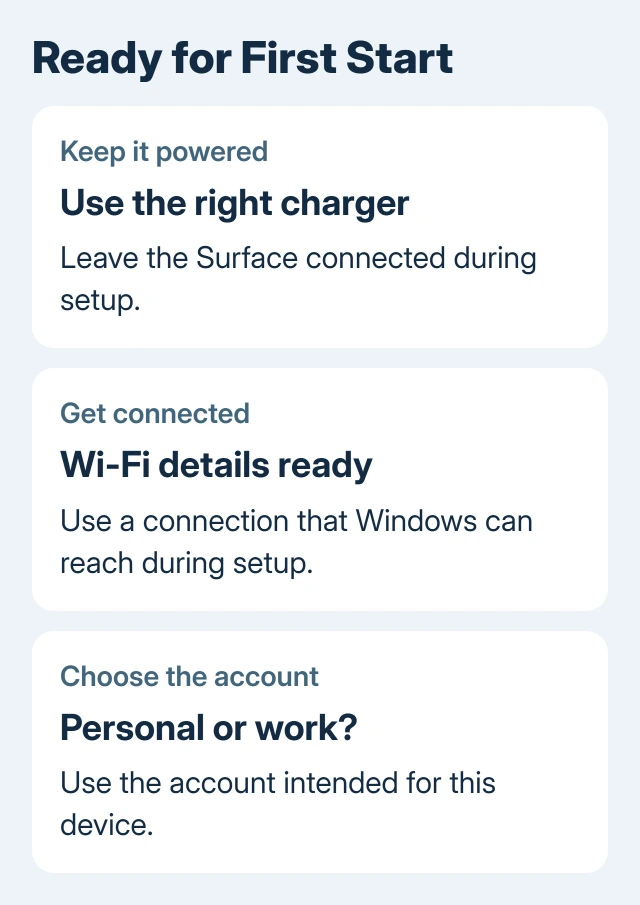
Start the Surface with its power button. Choose the language, region and keyboard layout when asked. Read each screen, particularly if Windows offers an extra layout you don't use.
Join Wi-Fi when prompted. For a network needing a hotel's browser sign-in, choose a trusted connection that works directly during setup. Seeing a network listed doesn't mean Windows can use it to finish the online steps.
For a personal Surface, use the Microsoft account you plan to keep. For an organization-owned model, follow IT's account and enrollment method. A personal sign-in isn't a substitute for company setup.
Choose between a previous backup and a fresh setup
When a previous Windows backup is offered, check the computer name and backup details before selecting it. Use More options if Windows offers that choice and you need to select another saved PC.
Restoring brings supported settings and app pins across, rather than copying every installed program from your old PC. Select a restored pin to reinstall a Store app. Pins for other apps can direct you to their installers.
Files backed up through OneDrive become available after signing in with the same account. Check the important folders rather than assuming that a restored Start menu means all local files from the old laptop have moved.
Choose the offered new-device option for a fresh start. Keep your old PC until important files have been transferred and opened. A fresh start can be a better choice if your old PC has programs or settings you don't want to keep.
The Windows computer backup guide helps check what was saved before you rely on the restore. Files outside the selected backup locations need a separate transfer.
Set up a PIN and the available Windows Hello method
Follow the Windows prompts to create your sign-in PIN. The PIN is for signing in on this device; keep track of your Microsoft account password as well, since the two serve different purposes.
Set up the Windows Hello option your Surface supports. That may be facial recognition or a fingerprint option, depending on the device and accessories. Don't keep searching for a fingerprint control on a model without a fingerprint reader.
After reaching the desktop, open Start > Settings > Accounts > Sign-in options. Expand Facial recognition (Windows Hello) or Fingerprint recognition (Windows Hello) if available, then choose Set up and follow the instructions.
Lock the Surface and try signing in with the method you just configured. Keep the PIN available as the alternative. That lets you check it works before relying on your face or fingerprint at the next restart.
Microsoft's Surface setup instructions recommend checking account restoration, Windows Hello, Find my device and updates. Each needs its own decision during setup.
Finish Windows, Surface and keyboard updates
On Windows 11, open Settings > Windows Update > Check for updates. Install the applicable updates and use Restart now when asked. Keep the charger connected while firmware and Windows finish their work.
Open Start, search for Surface, and open the Surface app. Expand Help & support to see the update status. Its Check for updates button opens Windows Update when the device needs updates.
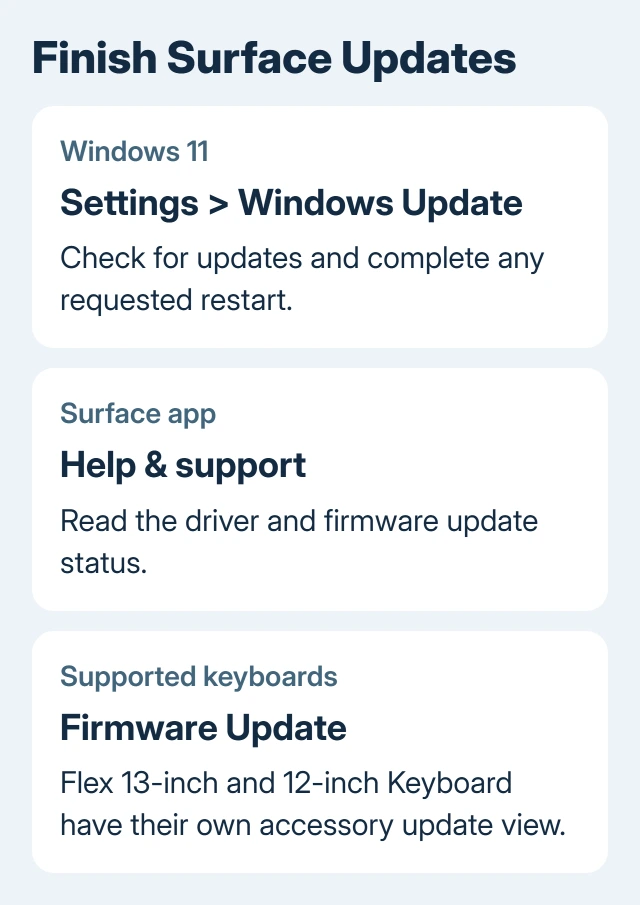
The Surface Pro 13-inch Flex Keyboard and Surface Pro 12-inch Keyboard have an additional keyboard firmware view. With the keyboard connected, select it among the accessories in the Surface app, then expand Firmware Update.
Use the update option if offered. After that keyboard update, disconnect and reconnect the keyboard as instructed. This particular updater doesn't apply to every older Type Cover, so first confirm which keyboard you own.
Windows 10 models use Settings > Update & Security > Windows Update. Regular support has finished, so check the edition and security-update eligibility. Completing first startup doesn't mean continued security coverage.
Check apps and accessories on Snapdragon models
Read System type in Settings > System > About. On Arm-based models, check software that needs a driver, the software Windows uses to work with hardware. Pro X and Snapdragon models differ from Intel hardware in this respect.
Many ordinary Windows apps run through emulation, which lets software built for another processor run on the device. A printer driver, VPN component or other hardware-dependent program still needs compatible driver support.
Check the accessory maker's Arm support if installation fails. Some printers can be added in Windows Settings when their manufacturer's installer doesn't support Arm. Don't keep rerunning that incompatible installer.
Keep traditional Type Covers and Signature Keyboards attached to a compatible Surface when using them. Flex Keyboards have different detached-use support. For failed typing, follow the Surface keyboard checks.
I'd test the apps and one essential accessory before retiring the old PC. That catches a missing driver while you still have another way to finish work, rather than after everything has been moved.
Check recovery and location options before traveling
Check Settings > Privacy & security > Find my device on Windows 11. It needs the appropriate Microsoft account, internet and enough battery to send a location. Decide whether to enable it for your personal Surface.
If BitLocker or device encryption is turned on, check where your recovery key is saved. Personal account keys can be at aka.ms/myrecoverykey. Work or school devices may have their keys managed by the organization.
Make sure you can get into that account from another device. A recovery key is a separate 48-digit number, and a sign-in PIN doesn't replace it when Windows asks for drive recovery. Don't post the key in a public support request.
When setup cannot finish
If an employer's enrollment or sign-in screen blocks setup, ask its IT team about that exact message. For a secondhand Surface, have the seller resolve any remaining organizational registration before using it as a personal device.
From a working desktop, use Surface app > Help & support > Get help for setup or hardware failures. Otherwise contact Surface support using another device. Give support the model, serial number and the screen where setup stops.
The Short Version
Prepare power and Wi-Fi, choose your account and restore option, then finish sign-in and updates. Check essential accessories and software. Verify recovery access before relying on the tablet for daily work.
Checked November 16, 2026.