Epson firmware updates install through Epson Software Updater from Windows or macOS, or the printer's update menu on supported models. Select your printer and its firmware item, then leave power and connections alone until it finishes.
Firmware changes the software inside the printer; its computer driver is separate. Check the item name before installing. A printer showing Recovery Mode needs its model's recovery instructions rather than an ordinary network update.
In this guide
Get the correct updater and select your printer
Find the model code printed on the machine. Similar-looking model numbers can have different downloads. Turn the printer on, connect it to the computer, and check that the computer has internet access.
Open the Epson Software Updater page and choose the Windows or Mac download if the utility isn't installed. The Windows and Mac packages are separate downloads, so use the appropriate one.
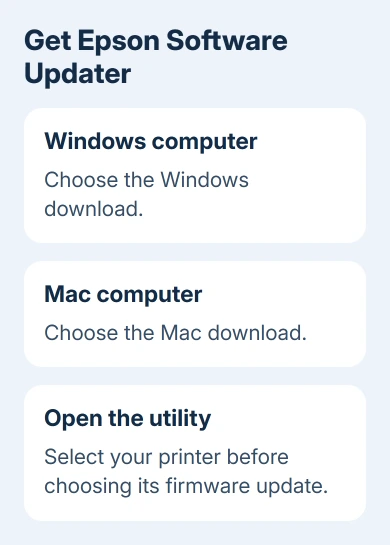
That page supplies the updater, not a universal firmware file to force onto every printer. Once the utility opens, select your printer from its model list when asked. Check it again if more than one Epson is connected.
If the printer isn't connected yet, use the Epson computer connection steps first. The updater needs that USB or network connection before it can change the firmware.
In Windows, the printer's entry under Printers & scanners can help confirm which machine you're using. The update itself still runs in the Epson utility, not that Windows Settings page.
I'd check the selected device, then review the offered items before starting. Check which item updates the firmware and which items are optional apps or updates for other connected equipment.
Run the firmware update in Windows
Open Epson Software Updater. In Windows 10, the documented Start-menu route is Epson Software > Epson Software Updater. In Windows 11, search Start for the utility's full name and open the matching installed app.
Select the printer if a model list appears. Check Firmware Updater, then select Install item(s). Other software may appear in the list, so read the selected item rather than assuming every available update changes the printer firmware.
If Windows asks whether the app can make changes, select Yes for the updater you just opened. Read the agreement, select Agree, and select OK. When Epson Firmware Updater opens, select Start.
Epson's firmware-update procedure says to wait until the update finishes before using the printer. Don't unplug it, turn it off or interrupt the connection while installation is running.
An LCD can turn blue or go dark during this process. That alone isn't a reason to press the printer's power button. When the update finishes successfully, the printer restarts itself and returns to its home screen if it has one.
When the updater reports completion, select Finish. Select OK at the completion message and close Software Updater. If it reports a failure instead, save its error message for the recovery checks.
Follow the separate Mac installation sequence
On a Mac, open Applications > Epson Software > Epson Software Updater. If that folder doesn't contain it, install the Mac utility from the download page, then check which printer it selects when it opens.
Check Epson Firmware Update and select Install. Select Agree to continue. Enter the Mac username and password if the installer asks for them as part of installing the selected update.
In the window that appears, double-click Epson Firmware Updater. Select I Agree, then Next. Select Start, followed by OK, to begin the update. This sequence differs from the Windows utility's first screen.
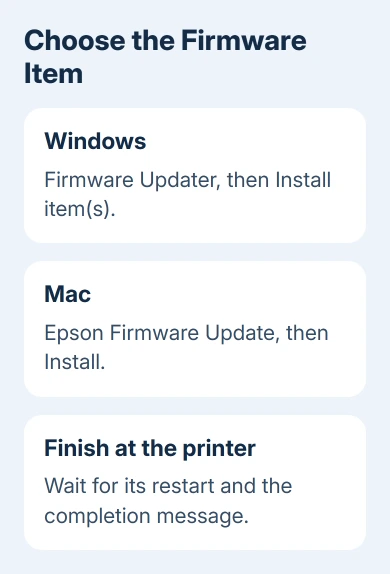
Keep power and the connection steady during the Mac update. Wait for its automatic restart; a temporarily dark LCD doesn't call for a restart by hand. Returning to its normal screen is part of completion.
Select Finish when offered, then close the utility. Check that the updater reports completion and the printer starts normally. A download window disappearing doesn't tell you that installation has finished.
Use the printer's own update menu when supported
Some network-connected models can check for firmware from their control panel. Look for Firmware Update in your model's manual to get the menu route for that printer. Not every printer has the same screen or route.
On the AM-C400 and AM-C550, use Settings > General Settings > System Administration > Firmware Update, then search for available updates and follow the prompts. Other models can place Firmware Update elsewhere in Settings.
The printer needs an internet connection for this panel route. If it can't connect, deal with the connection before beginning installation. Don't try to repair Wi-Fi by restarting a printer that is already applying firmware.
For an unstable connection before installation, the Epson Wi-Fi report guide helps identify the connection problem. Failing to check for an update isn't the same as losing the connection during installation.
If no firmware item is offered, read the utility or panel's result. There may be no newer version available through that method for the selected model. Don't substitute a neighboring model's download just to make an update appear.
Handle Recovery Mode with the model's recovery download
Recovery Mode can appear after a firmware update fails. Open your model's support page to read its recovery procedure and see the available firmware files. The recovery procedure differs from the setup used for ordinary printing.
For the XP-310, the official recovery procedure requires a direct USB cable even if the printer normally uses Wi-Fi. Download the model's firmware, run its Windows file or Mac disk image, and follow the updater prompts.
Connect USB directly when instructed, select Next, then Start. The printer restarts when that recovery update completes; select Finish afterward. Follow another model's own instructions if its recovery package differs.
If recovery still fails, give Epson support the model, operating system, screen message and updater result. Ask for its recovery package or a service assessment instead of attempting another model's firmware.
The Short Version
Use the updater's firmware entry for the selected Epson. Follow the Windows, Mac or supported control-panel sequence. Let installation finish without interruption; Recovery Mode needs the model's recovery procedure.
Checked November 16, 2026.