
An Acer laptop that stops charging at 80% may be following its battery limit, while one stuck near empty needs a power check. Check AcerSense first, then the adapter connection, before trying the model's battery reset.
The reset method depends on your Acer model. Some use the power button, some have a labeled battery-reset hole, and certain Aspire 5 models have a separate fix for their startup software. Use your model's method and leave the case closed.
1. Check whether the 80% limit is doing its job
Open AcerSense from Start and select Personal Settings > Battery & USB Charging. On supported models, Optimized Battery Charging stops the battery at 80%. A steady reading there can be normal.
For a full charge before traveling, select Full Battery Charging on that screen and watch for the percentage to rise. Keep the protective limit on when it suits how you use your laptop.
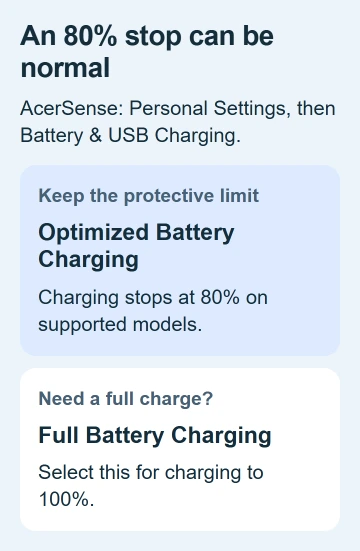
Acer explains these choices in its AcerSense instructions. Other models put a charge limit in Care Center or ControlCenter instead.
If that option is missing, your model may not support a charge limit. The app isn't necessarily broken. If your battery is stuck at a low percentage or keeps falling during light use, check the adapter next.
I'd check this setting before removing any Windows battery driver. Changing the driver that reports battery status won't turn off a limit selected in the manufacturer's app.
2. Seat the correct adapter completely
Connect your laptop directly to the correct power adapter. Check the wall connection, the removable cable at the power brick and the plug entering the laptop. A plug can look connected without being pushed all the way in.
Some Nitro laptops use a two-stage barrel connector, a round charging plug. The Nitro adapter guide describes a second push, a slight click and a charging light that comes on when it's fully in.
That extra push is for the connector shown on those Nitro models. Check which connector your model uses before pushing harder. Don't force a different plug or keep pushing against a damaged socket.
With USB-C, check that the port you're using accepts charging and that your charger and cable supply enough power for the laptop. Even when the plug fits, the laptop can be short of power.
The Windows slow-charging explanation covers that mismatch. Use the correct adapter, then check the battery with demanding apps closed.
If the warning stays, use the slow charger checks to work out whether the power supply is too weak or the battery has stopped accepting charge.
3. Reset the power controller using the supported method
Save open files, then shut the laptop down. Unplug its charger and remove accessories, including docks, drives and displays. Hold Power for 30 seconds or longer, then connect the adapter again and switch the laptop on.
The internal battery reset procedure resets the power controller, the small circuit that manages power. Your files and Windows stay as they are.
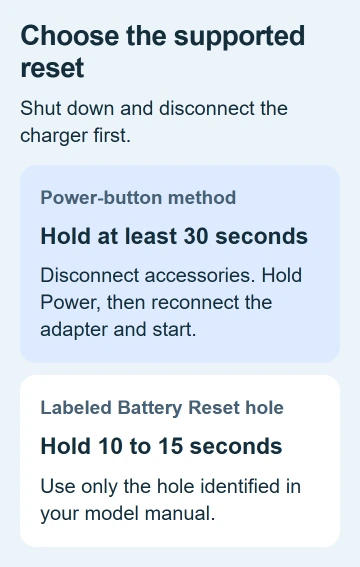
Some models have a Battery Reset pinhole underneath. Check your model's manual to identify it. With the laptop off and unplugged, gently press the button inside that labeled hole with a paperclip for 10 to 15 seconds.
Use only the identified battery-reset hole. An unmarked opening could serve a different purpose, so skip the pinhole method when the manual doesn't show one.
Reconnect power and check the charging light and percentage. If the percentage rises, it's charging again. If the problem comes back, move on to the remaining checks instead of repeating the reset.
4. Compare charging at rest with charging during a game
Close the game or other demanding software and leave your laptop on its correct adapter. Watch whether the battery percentage rises during light use, then compare that with what happened while the game was running.
On supported gaming notebooks, battery and adapter power can work together during a heavy workload. Charging resumes when the power demand drops. That's different from failing to charge while idle.
If your laptop gains charge at rest but loses some in a game, check both the game's power demand and the adapter. Tell support which game was running and whether the original adapter was connected directly.
If it still loses charge while shut down or doing light work, move to the next check. Changing game settings won't fix a charging problem that happens when the game isn't running.
5. Check the special Aspire 5 firmware case
For Aspire A515-56, A515-56G and A515-56T, a model-specific charging fix calls for resetting the adapter and using BIOS 1.26 or later.
To reset the adapter, unplug its power cord from the wall for 30 seconds, then reconnect it. BIOS is the software that starts your laptop. The version in that notice is for those three model families.
Check the full model label before following that notice. Find your current BIOS version in Care Center > My System, then give it to support and ask which current firmware update is right for your laptop.
Don't force a firmware update if power is unstable or the installer rejects the battery level. Ask support what to do next. Losing power during the update can leave you with another problem to fix.
6. Arrange a battery or power-input check
If the laptop charges but lasts much less time unplugged, read its battery health report. It shows how much charge the battery can hold, rather than whether the adapter is connected.
If it still won't charge, give Acer your full model, adapter rating, the percentage where charging stops and the reset result. Say whether it charges while off and what happened with a compatible adapter that works elsewhere.
If the trackpad lifts or the case bulges, stop using or charging the laptop and arrange prompt repair. Have an authorized provider replace the internal battery rather than opening the case yourself.
The Short Version
AcerSense can explain an 80% ceiling. Check the adapter fit and the supported reset. Compare idle charging with gaming load. The Aspire 5 firmware notice applies only to its listed models. Seek service if charging stays faulty.
Checked November 5, 2026.

Isaac Smith is the founder and editor of PC Glance, a website that covers computers, laptops, and technology. He is a tech enthusiast and a computer geek who loves to share his insights and help his readers make smart choices when buying tech gadgets or laptops. He is always curious and updated about the latest tech trends.