
Open Malwarebytes, choose Settings > General, and turn on Hide application icon to remove it from your Mac's top menu bar. You can keep using the app with its shortcut hidden.
macOS Tahoe 26 and newer releases also have a Menu Bar setting for app icons. Start inside Malwarebytes, then check the Mac setting if the icon stays visible or you want to bring it back.
Hide the icon in Malwarebytes settings
Open the main Malwarebytes window, rather than just its small menu. If it's closed, find Malwarebytes in Finder's Applications folder and open it there.
Select Settings in the app's sidebar, then choose General. Turn on Hide application icon and look at the right side of the Mac's menu bar. The Malwarebytes shortcut should disappear.
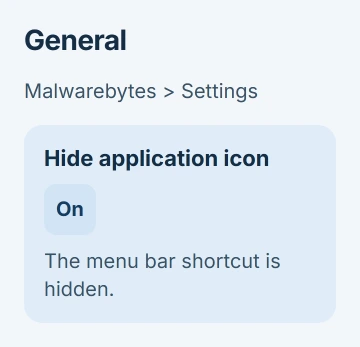
Malwarebytes lists this option in its General settings instructions. The switch can be easy to read backward: turn it on to hide the icon and off to show it.
Leave the settings for potentially unwanted programs, automatic updates and beta updates as they are. None needs changing to hide a menu bar shortcut.
If you're unsure whether the change saved, close and reopen the app's settings. Check Hide application icon, then look at the bar. Closing the main window alone won't confirm that the setting saved.
Use the Mac's menu-item control when available
On macOS Tahoe 26 or a newer release, choose Apple menu > System Settings > Menu Bar. Scroll to Allow in the Menu Bar and look for Malwarebytes in the app list.
If it's listed, turn its control off to hide the menu item. Apple's Menu Bar settings guide separates these app controls from those for Sound, Wi-Fi and other system features.
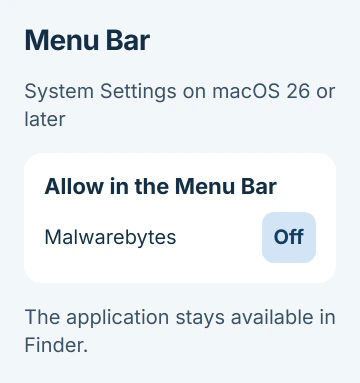
An older macOS release may not have this settings pane or app list. Use Malwarebytes' own setting instead; the newer menu bar control isn't hidden among the Mac's security permissions.
Leave Automatically hide and show the menu bar as it is unless you want the whole bar to disappear. That setting hides the clock and app menus along with the rest of the bar, rather than just Malwarebytes.
If Malwarebytes isn't listed under Allow in the Menu Bar, you can still hide its icon through the app's General settings.
Keep access to the app after hiding it
Hiding the shortcut leaves Malwarebytes in Applications. Open it from Finder whenever you need to run a scan, check a detection or change settings. You don't have to bring the menu icon back first.
Spotlight works too: press Command-Space, type Malwarebytes, and open the app result. Choose the app itself rather than a similarly named installer in Downloads.
I'd try that once after hiding the shortcut so you know how to reach the window when you need your next scan.
To bring the icon back, open Settings > General and turn Hide application icon off. If macOS also lists Malwarebytes under Menu Bar, allow it there too. Both settings need to allow the icon to appear.
If the icon disappeared without you hiding it, use the Mac menu bar checks. They cover crowded bars and icons that won't return.
Read an alert before hiding its indicator
A red dot on the Malwarebytes menu icon means an alert needs your attention. Read the message inside the app before hiding the shortcut. The dot alone doesn't tell you that an infection was found.
The icon status descriptions list several possible reasons: no scan yet, detected threats, a disabled protection layer or internet blocked by the VPN kill switch.
Follow the message shown in the app. Hiding the icon takes the alert out of sight, but it doesn't complete the requested action or clear a detection.
A VPN symbol on the menu icon shows the VPN connection status. Check that status inside the app if you want to change the connection. Hiding or showing the icon doesn't choose a VPN connection.
When the hide option is missing or the icon returns
First check that you're in the Malwarebytes app's Settings > General. The Mac's System Settings and your browser's settings won't have this option. Open Malwarebytes from Applications again if needed.
Check your app version and its update setting. The current General settings page has Automatically update to a new version of Malwarebytes. You'll need a working internet connection for updates.
If the current app still doesn't show the option, send Malwarebytes Support the app version, your macOS version and a picture of General settings. Hide any account details in the picture.
For a company-managed Mac, ask IT before changing its security software. If a control is locked or a setting keeps changing back, the administrator may need to handle it.
Leave the app's settings files and background helpers in place to hide the shortcut. To remove Malwarebytes completely, follow the Mac app uninstall route and use its own uninstaller if provided.
The Short Version
Turn on Hide application icon in Malwarebytes' General settings. On newer macOS versions, check Menu Bar > Allow in the Menu Bar too. Open the app through Applications or Spotlight afterward, and deal with any alert inside its window.
Checked November 5, 2026.

Isaac Smith is the founder and editor of PC Glance, a website that covers computers, laptops, and technology. He is a tech enthusiast and a computer geek who loves to share his insights and help his readers make smart choices when buying tech gadgets or laptops. He is always curious and updated about the latest tech trends.