

You update to macOS Tahoe, restart, and half your menu bar is gone. The clipboard tool, the stats readout, the VPN toggle, all missing, even though the apps are clearly still running in the background. Unnerving, and I promise the apps are fine.
On most Macs a menu bar service quietly stopped drawing them, and one Terminal line brings them back. On a MacBook with a notch, they may not be gone at all, just hidden behind it.
A ten-second check tells you which one you have.
First, is it the notch or the bug?
This one test saves you from the wrong fix. Quit two or three of your other menu bar apps to free up space, or, on a MacBook, plug in an external display that has no notch.
If the missing icon reappears, it was hidden behind the notch. If it stays gone while the app is clearly running, it is the menu bar service that failed to draw it.
If the icons are hidden behind the notch
On a notched MacBook, your icons fill in from the right edge toward the notch, so once you have more than fit in that space, macOS simply tucks the overflow behind the notch.
There is no overflow menu and no warning, so the icons look deleted when they are only covered.
Three ways to get them back:
- Thin out the menu bar. Hold Command, drag icons you do not need off the bar, or turn them off in each app. Fewer icons means the ones you keep clear the notch.
- Tighten the spacing so more fit. In Terminal:
defaults -currentHost write -globalDomain NSStatusItemSpacing -int 12
defaults -currentHost write -globalDomain NSStatusItemSelectionPadding -int 8
killall SystemUIServer
To undo it, run the same two lines with delete instead of write -int, then killall SystemUIServer again.
- Use a menu bar manager that adds a real overflow area, like Ice or Hidden Bar (both free) or Bartender (paid).
If the service stopped drawing them
This is the genuine Tahoe bug. SystemUIServer, the background process that draws third-party menu bar icons, fails to register them after the update, so the app runs with no icon.
It hit a wave of unrelated apps at once, clipboard managers, system monitors, window tools, which is how you know it is macOS and not any one app.
Status: the missing third-party icon bug is a real macOS Tahoe regression, seen from 26.0 through 26.4 with no Apple fix in any release notes. The reset below is a workaround.
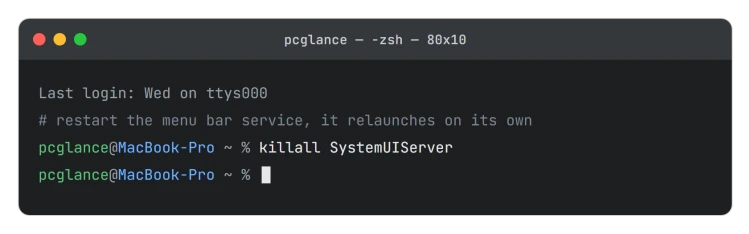
Restart the service so it redraws the bar. Open Terminal and run:
killall SystemUIServerIt relaunches on its own within a second or two, and the icons usually come back.
This is the same kind of one-line service restart that clears Mac audio crackling on Tahoe.
If that alone does not do it, reset the service's saved settings. This backs the file up rather than deleting it, so you can put it back:
mv ~/Library/Preferences/com.apple.systemuiserver.plist ~/Library/Preferences/com.apple.systemuiserver.plist.backup
killall SystemUIServer
For icons that live in Control Center rather than a standalone app, do the same to its process:
mv ~/Library/Preferences/com.apple.controlcenter.plist ~/Library/Preferences/com.apple.controlcenter.plist.backup
killall ControlCenter
Two honest notes. The community explains this as a corrupted preference file, but Apple has not confirmed that, so treat the reset as forcing a clean redraw rather than a documented cure.
And skip any guide that tells you to run killall ControlStrip, since ControlStrip is the Touch Bar process and does nothing for the menu bar.
If only one app's icon is missing
When a single icon is gone while the rest are fine, it is usually that app, not the system. Update it to the latest version, since older builds are not ready for Tahoe yet.
Check its own settings for a Show in Menu Bar switch. And rule out another menu bar tool swallowing it, as 1Password and Bartender have both been caught hiding a rival's icon.
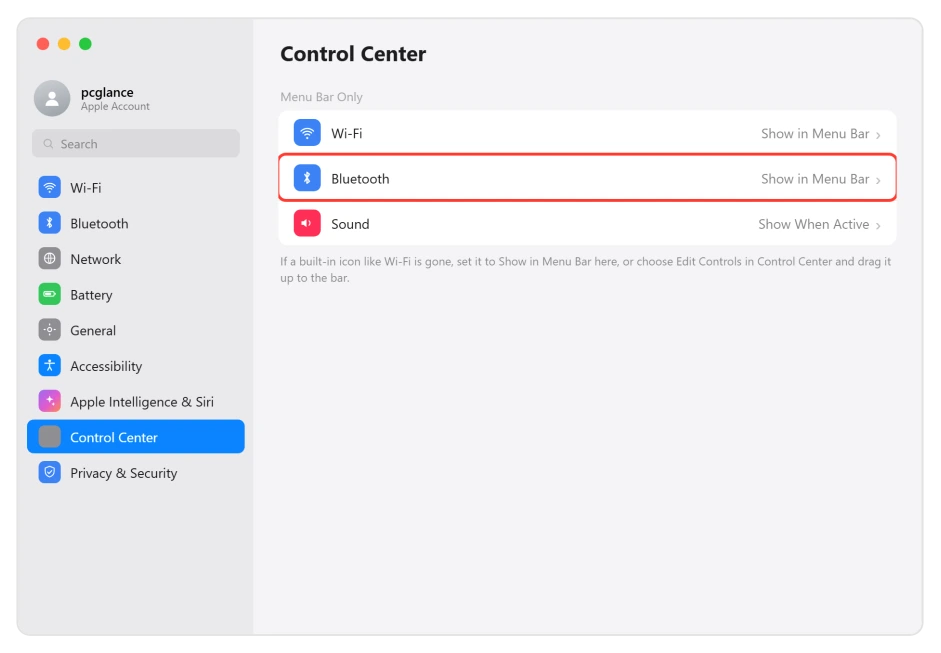
For Apple's own items like Wi-Fi or Bluetooth, add them back under System Settings, Menu Bar, or from Control Center by choosing Edit Controls and dragging an item up to the bar.
If the whole bar blanks out on wake
This is a different glitch.
If the entire menu bar, Apple's clock included, goes blank or flickers for a second or two when you wake the Mac or switch between Spaces, that is a rendering hiccup, not the icon bug.
Running killall Dock forces a redraw, and it usually settles on its own.
If the Mac struggles to wake at all, Mac won't wake from sleep on macOS Tahoe is the closer look.
Icons in the Dock that turn into pinstripes respond to killall Dock as well, as our striped Dock icons page shows.
What will not fix it
- Killing ControlStrip. That is the Touch Bar, not the menu bar, so it does nothing here despite showing up in some guides.
- Reinstalling the app. The icon bug is on Apple's side, so a reinstall rarely helps, and the people who hit it confirmed that.
- Paid "cleaner" apps or Erase All Content and Settings. A free
killall SystemUIServerdoes the real work. Do not wipe the Mac over a missing icon. - Assuming the icon is gone when a notch is only hiding it. Run the ten-second test first.
Why did my menu bar icons disappear after macOS Tahoe?
Two different reasons. On a notched MacBook, a crowded menu bar hides the extra icons behind the notch.
On any Mac, a Tahoe bug stops the SystemUIServer process from drawing third-party icons after the update, so apps run without them.
Quitting other menu bar apps tells them apart, and killall SystemUIServer in Terminal fixes the second one.
A menu bar missing from a whole external display is a different case, a Spaces setting, and the second display page has it.
How do I reset the menu bar on a Mac?
Open Terminal and run killall SystemUIServer. The process quits and relaunches automatically, redrawing the menu bar and usually restoring third-party icons.
If that is not enough, move its preference file to a backup and run the command again, and for Control Center items do the same with killall ControlCenter.
Why are my menu bar icons hidden behind the notch?
Because a notched MacBook has less usable menu bar to the left of the notch, and macOS hides any items that do not fit rather than showing an overflow menu.
Remove icons you do not need, tighten the item spacing with a Terminal command, or run a menu bar manager like Ice or Bartender that gives the overflow somewhere to go.
The Short Version
- Run the ten-second test first: quit a couple of other menu bar apps or plug in a non-notched display. If the icon returns, it was the notch. If not, it is the SystemUIServer bug.
- Notch: remove icons, tighten spacing with
defaults -currentHost write -globalDomain NSStatusItemSpacing -int 12, or use Ice, Hidden Bar, or Bartender. - The Tahoe bug: run
killall SystemUIServerin Terminal. If needed, back up and resetcom.apple.systemuiserver.plist, andkillall ControlCenterfor Control Center items. - One missing icon is usually app-side: update the app, check its Show in Menu Bar setting, and rule out a conflicting menu bar tool.
- Skip
killall ControlStrip(that is the Touch Bar), skip reinstalling the app, and never wipe the Mac over this.
Where to Next
- The whole bar blank on wake: Mac won't wake from sleep on macOS Tahoe
- Another Tahoe login-time oddity: Mac Touch ID not working after macOS Tahoe
- Files that vanished but are not gone: where your desktop files went on macOS Tahoe
- More Mac fixes: macOS Tahoe problems and fixes
- Back to the start: pcglance home

Isaac Smith is the founder and editor of PC Glance, a website that covers computers, laptops, and technology. He is a tech enthusiast and a computer geek who loves to share his insights and help his readers make smart choices when buying tech gadgets or laptops. He is always curious and updated about the latest tech trends.