
After the macOS Tahoe 26.3 update, the fingerprint prompt disappeared from your lock screen.
You lift the lid and end up typing your password, even though Touch ID still unlocks the App Store and Apple Pay without a hitch.
The sensor and your finger are not the problem. The 26.3 update broke login-screen Touch ID on a wave of Macs, and the fix that sticks is a strange one.
The same kind of biometric break hit iPhones too, covered in Face ID not working after iOS 26.
Let me explain what that split means, because it points at one thing and it is not your fingerprint.
Start with the quick resets
These take a minute and clear it for a while, though on the 26.3 bug it often creeps back. If you find yourself repeating them, the admin-account fix is the one that holds.
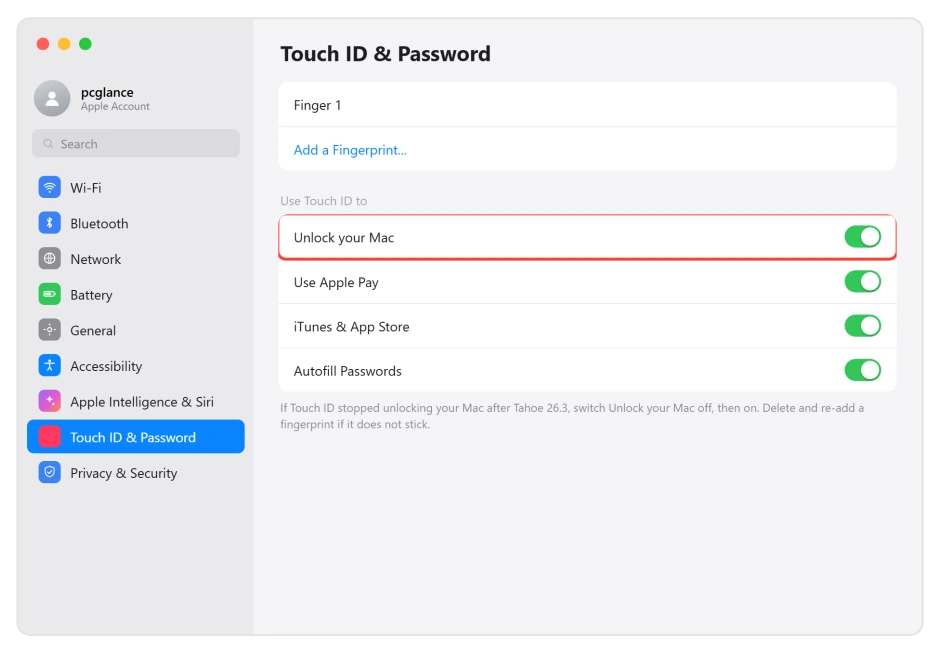
- Toggle the unlock setting. Open System Settings > Touch ID & Password, and under Use Touch ID to, switch Unlock your Mac off, then on. If it will not stick, close System Settings, reopen it, and turn it back on.
- Delete and re-add your fingerprint. On the same screen, hover a fingerprint, click the (x) to delete it, then choose Add Fingerprint and enroll again, moving your finger at slightly different angles this time.
- Log out or restart. The Apple menu Log Out, or a full restart, brings Touch ID back for many people, at least for a session.
Apple's own Touch ID troubleshooting also starts here, with a clean, dry finger and sensor, since a smudged reader looks identical to a software fault.
The durable fix, and why quick resets fade
The 26.3 login failure usually comes down to an unfinished setup step.
When you update straight to 26.3 and use a standard, non-admin account, the "Welcome to Tahoe" screens that finish part of the account setup never run for you, and login-screen Touch ID is left half-configured.
Running those screens once repairs it.
- If you have an admin account: log out, log into the admin account, and click through the "Welcome to Tahoe" what's-new screens that appear. Log back into your normal account, and Touch ID works at the lock screen again.
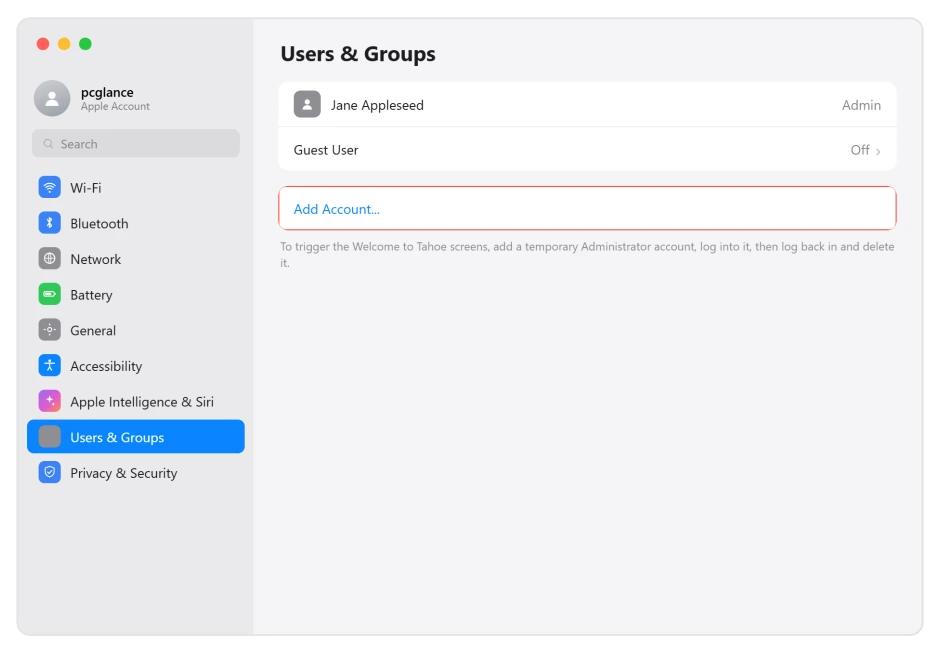
- If the admin login does not show those screens, make a throwaway one. In System Settings > Users & Groups, add a new Administrator account, log into it so the welcome screens run, then log back into your account and delete the temporary one.
For the standard-user case, where Touch ID still works in apps but not at login, this is the fix that lasts rather than a toggle you repeat every morning.
Several people on Apple's forums confirmed it after nothing else held.
Match the fix to your Mac
Most guides go wrong on one point. The 26.3 wave hit Apple Silicon Macs (M1, M2, M4) hardest, so if a guide blames "the Intel T2 chip," it is describing the older, milder version of this problem, not the 26.3 one.
- Apple Silicon (M1 to M4): there is no SMC to reset on these Macs, so ignore any advice to "reset the SMC." A full restart is the equivalent. To test in a clean state, boot into Safe Mode: shut down, hold the power button until "Loading startup options" appears, pick your disk, hold Shift, and click Continue in Safe Mode.
- Intel MacBook Pro (2019 to 2020): this hardware sees more of the after-sleep delay below. Resetting the SMC and NVRAM can clear a stuck post-update state. For Safe Mode, restart and hold Shift until the login window.
If Touch ID takes 20 to 30 seconds after sleep
On some Macs, mostly the 2019 to 2020 Intel MacBook Pro, Touch ID is not gone, just slow. The prompt shows up 20 to 30 seconds after you wake the Mac, then works normally.
Closing the lid for a second and reopening can nudge the prompt to appear sooner. It is a wake-timing bug with no clean setting to fix, so the real cure is the update below.
If your Mac is also slow or dead to wake, Mac won't wake from sleep on macOS Tahoe is the closer look.
When only one app cannot use Touch ID
If system unlock is fine but a single app like 1Password stopped taking your fingerprint, fix it inside that app.
Restart the Mac, reset Touch ID in System Settings if you have not, then open the app's own settings, find its Touch ID or biometric-unlock option, and switch it off and back on.
That re-links the app to the sensor without touching your system login.
What actually ends it
Status: the login-unlock failure is a macOS Tahoe regression, worst on 26.3 and 26.3.1, and it hit Apple Silicon Macs hardest. Users report 26.4 clears it, but Apple has named no Touch ID fix in any release notes.
So keep the Mac on the newest macOS Tahoe in System Settings > General > Software Update. Be careful with older advice that says this was fixed in 26.1 or a Sequoia update.
That was the earlier, milder version of the bug. The 26.3 login break is a separate wave, and the version people report clearing it is 26.4.
What will not fix it
- Resetting the SMC on an Apple Silicon Mac. Those Macs do not have one, so the step does nothing. A restart is the closest equivalent.
- Paid "cleaner" apps. Tools sold to tidy or speed up your Mac do not touch the biometric login path, so they cannot fix this. Skip them.
- Deciding the sensor died. If the very same finger unlocks the App Store, Apple Pay, or an app, the reader and your fingerprint are fine. The fault is in the Tahoe login layer, which is why the admin-screens fix and the update are what move the needle.
- Re-enrolling over and over. Adding the fingerprint again helps for a while, then fades. Once you are on that treadmill, do the admin fix or update instead.
Why does Touch ID work for apps and Apple Pay but not to unlock my Mac?
Because unlocking the Mac at the lock screen uses a stricter part of the login system than app or purchase approvals do, and macOS Tahoe 26.3 broke that part.
Your fingerprint is still read correctly, which is why apps keep accepting it. Run the "Welcome to Tahoe" screens through an admin account to repair the login side, and update to the latest Tahoe.
Does resetting the SMC fix Touch ID on an Apple Silicon Mac?
No, because Apple Silicon Macs (M1, M2, M3, M4) do not have an SMC to reset. Any guide telling M-series owners to reset the SMC is reusing old Intel steps.
On these Macs a normal restart does the same job, and Safe Mode is the deeper reset for a stuck state.
How many fingerprints can a Mac store?
Up to three fingerprints per user account, and up to five across the whole Mac. If you cannot add a new one, the list is full, so delete a fingerprint you no longer need first, then add the new scan.
The Short Version
- Touch ID still working in apps but not at the lock screen after 26.3 is a Tahoe login bug, not your sensor.
- Quick resets first: System Settings > Touch ID & Password, toggle Unlock your Mac off and on, or delete and re-add a fingerprint. These often help only briefly.
- The durable fix: log into an admin account and click through the "Welcome to Tahoe" screens (or make a temporary admin user to trigger them), then log back in.
- The 26.3 wave hit Apple Silicon hardest. Do not reset the SMC on an M-series Mac, since there is none. Intel 2019 to 2020 Macs get the SMC and NVRAM steps.
- Update to the latest macOS Tahoe, which users report clears it on 26.4, though Apple has not named the fix.
Where to Next
And on an iPhone, the equivalent message about Face ID being disabled has seven fixes in order.
- The same break on iPhone: Face ID not working after iOS 26
- Mac slow or black on wake: Mac won't wake from sleep on macOS Tahoe
- Keyboard dead at the Tahoe login screen: Bluetooth keyboard not working on macOS Tahoe
- More Mac fixes: macOS Tahoe problems and fixes
- Back to the start: pcglance home

Isaac Smith is the founder and editor of PC Glance, a website that covers computers, laptops, and technology. He is a tech enthusiast and a computer geek who loves to share his insights and help his readers make smart choices when buying tech gadgets or laptops. He is always curious and updated about the latest tech trends.