
When complications vanish after a watchOS update, the reflex is to open the Watch app on your iPhone and add them back. On watchOS 26 that is the one move I would ask you not to make. On watchOS 26, that is the one move that backfires.
The phone's complication list is the part that broke, and editing there quietly strips the ones you fix on the watch. So the repair lives on the watch itself.
Add them back on the watch, not the phone
On watchOS 26 the complication picker in the iPhone Watch app misfires.
Complications show as off or as blank gaps in the face gallery, and worse, when you edit a face there it removes complications you already added on the watch.
The watch, meanwhile, can still place every one of them.
So skip the phone and edit the face directly on your wrist.
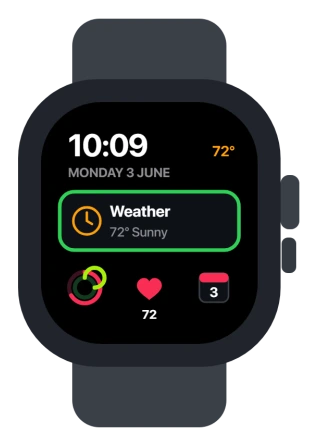
Apple's own steps, in add complications to the watch face, are:
- Touch and hold the watch face, then tap Edit.
- Swipe left all the way to the end. If the face has complications, they are on that last screen.
- Tap a complication slot, then turn the Digital Crown to choose one.
- Press the Digital Crown to save, then tap the face to use it.
Once they are back, leave the iPhone Watch app's face editor alone. Reaching for it again is what wipes them a second time.
If a slot stays blank, check its location permission
A complication that stays empty, especially Weather or anything map based, has usually lost its location access in the update.
On the iPhone, open Settings > Privacy & Security > Location Services, scroll to Apple Watch Faces, and set it to While Using the App. If it already looks right, switch it off and back on to wake it up.
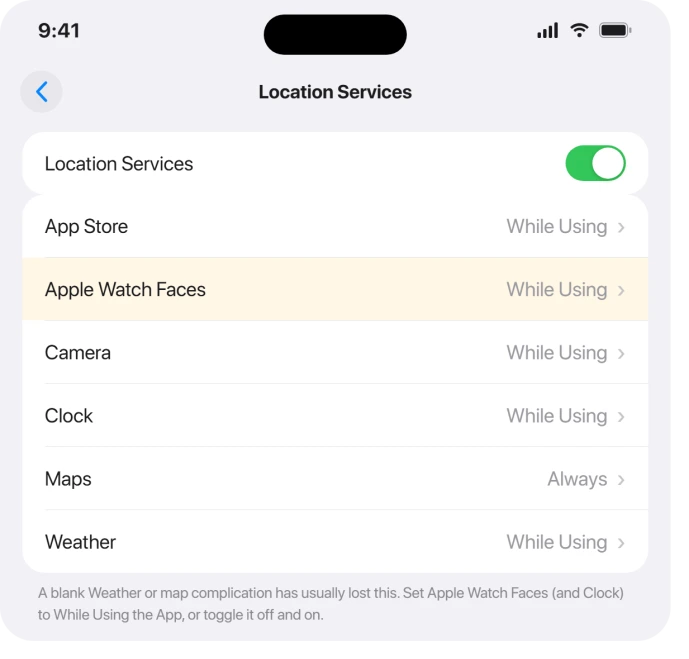
For the weather complication specifically, do the same for the Weather app: Location Services > Weather > While Using the App. That is the switch that feeds temperature and conditions to the face.
While you are there, make sure Background App Refresh is on and the watch is not stuck in Low Power Mode, since both starve complications of updates.
If a complication shows but never updates
Some of this is normal.
To save battery, watchOS refreshes most complications only about four times an hour, so a stock price or step count that is not live the instant you raise your wrist is working as designed.
Tapping the complication opens its app and forces a fresh reading.
It is a real problem only when the data is hours stale or plainly wrong, like weather from a city you left this morning. That points back to the location and Background App Refresh checks above, or to the app itself.
If only a third-party complication is blank
When Apple's own complications work but one from an app like a step counter or a weather app stays empty, the fix is app side, not face side.
- Update the app on the watch, from the App Store on the watch itself, since an older build may not support watchOS 26 yet.
- In the iPhone Watch app, turn Show App on Apple Watch off for about fifteen seconds, then on, to reinstall its watch half.
- Check the app has the permissions it needs, such as Health or location, then re-add its complication on the watch.
Quick resets that sometimes clear it
- Restart the watch: hold the side button, drag Power Off, wait, then turn it back on.
- Force restart: hold the side button and Digital Crown together for about ten seconds until the Apple logo appears.
- Give it a day. After a fresh update, complications sometimes repopulate on their own within a few hours as the watch and phone finish syncing.
If notifications also stopped reaching the watch, that is the same sync layer acting up, covered in Apple Watch not getting notifications.
The last resort, and why it's unreliable
Unpairing and re-pairing the watch is the final option, and it is not a reliable one.
Some people got their complications back this way, one lost them again after re-pairing, and Apple Support has told others to set the watch up as new rather than restore a backup, because the backup can carry the broken state right back.
So treat re-pairing as a genuine last step, only after editing on the watch and the permission checks have failed.
If the watch will not talk to the phone at all, Apple Watch not connecting to iPhone is the better place to start.
What is actually going on
Status: this is a watchOS 26 sync bug between the iPhone Watch app and the watch, seen from 26.0.2 through 26.3, and Apple has named no complications fix in any release notes.
Because it is a sync fault and not a lost feature, the complications themselves are fine. The watch still has them all.
It is only the phone's copy of the list that is confused, which is why every reliable fix here happens on the watch.
What will not fix it
- Editing the face in the iPhone Watch app. On watchOS 26 that is the thing removing your complications, so keep the repair on the watch until Apple patches the app.
- Unpairing as a first move. It is slow, unreliable, and can restore the same broken state from a backup. Save it for last.
- Expecting live, to-the-second data. The roughly four-times-an-hour refresh is deliberate, so a slightly old reading is not a fault to chase.
Why did my complications disappear after watchOS 26?
A watchOS 26 sync bug between your iPhone's Watch app and the watch scrambled the phone's list of complications, showing them as off or blank.
The complications are still on the watch, so re-add them by editing the face directly on your wrist, and avoid the iPhone Watch app's face editor, which strips them again.
Why are some complications missing from the Apple Watch app on my iPhone?
Because that picker is exactly what the watchOS 26 bug breaks. Weather, Activity, Calendar, and others can show as off or as blank gaps in the phone's gallery even though the watch can still add them.
Add the ones you want on the watch itself instead of in the phone app.
How often do Apple Watch complications update?
About four times an hour for most complications, by design, to protect battery. So a stock, weather, or step complication that is not live the moment you raise your wrist is normal.
Tap it to open its app and force an immediate refresh.
The Short Version
- On watchOS 26 the iPhone Watch app's complication picker is broken and even removes what you add on the watch, so fix everything on the watch.
- Touch and hold the face, tap Edit, swipe to the last screen, tap a slot, and pick with the Digital Crown.
- A blank Weather or map complication has lost location: Settings > Privacy & Security > Location Services > Apple Watch Faces > While Using the App, and the same for Clock.
- A blank third-party complication is app side: update it on the watch, toggle Show App on Apple Watch, and re-add it.
- Re-pairing is an unreliable last resort. It is a watchOS 26 sync bug with no Apple fix yet, so edit on the watch.
Where to Next
- Alerts missing too: Apple Watch not getting notifications
- Watch won't link to the phone: Apple Watch not connecting to iPhone
- Heart rate reading blank: Apple Watch heart rate not reading on watchOS 26
- More Apple Watch fixes: Apple Watch problems and fixes
- Back to the start: pcglance home

Isaac Smith is the founder and editor of PC Glance, a website that covers computers, laptops, and technology. He is a tech enthusiast and a computer geek who loves to share his insights and help his readers make smart choices when buying tech gadgets or laptops. He is always curious and updated about the latest tech trends.