
You finish a run, glance down for your average heart rate, and the field is blank.
Or you open the Heart Rate app and it sits on "Measuring…" forever, the little green lights on the back never even switching on.
After watchOS 26, that scenario got common. Two separate things cause it: how the watch sits on your wrist, and a software regression in the watchOS 26 line that broke tracking no matter how you wore it.
The fixes start free and quick, escalate to erasing and re-pairing at the end, and flag the point where it is a failed sensor, not software.
Let me go through the reasons with you, because most of them are about fit rather than the watch.
How the sensor works, in one breath
Apple Watch uses green LED lights paired with light-sensitive photodiodes to detect blood flow through your wrist, flashing those LEDs hundreds of times per second. The optical sensor reads a range of 30 to 210 BPM.
Series 4 and later, plus every Apple Watch Ultra, also have electrodes (the Digital Crown and the back crystal) for the electrical measurement the ECG and Heart Rate apps can use.
That detail matters later, because the ECG sensor still working while the optical one is dead is the single clearest sign you are looking at a bug, not broken hardware.
Start with the wrist: fit, position, clean and dry
A loose band is the most common physical reason the sensor reads nothing.
The optical sensor needs constant skin contact, and a band with slack lets the back crystal lift off the skin and lose the signal. Snug it up by one notch, especially before a workout.
Do not overcorrect into too-tight, though. A band cinched down hard restricts blood flow and produces its own bad readings.
Too tight can hurt your skin as well. If the skin under a new Series 12 turns red or itchy, the skin irritation page has what Apple says to do.
Apple's fit guidance says to wear it not too tight, not too loose, and with room for your skin to breathe.
Position matters as much as tightness. Wear the watch about a finger's width above the wrist bone, toward the elbow, not sitting on the bone. Resting on the bone leaves a gap that breaks contact every time you move.
Then check what is touching the sensor. Make sure that your wrist and your Apple Watch are clean and dry. Water and sweat can cause a poor recording. Wipe the back crystal with a soft, lint-free cloth, and remove any aftermarket back cover or case lip that overhangs the sensor.
A few more biological causes worth knowing, because they are not your fault and not fixable in Settings:
- Cold and low skin perfusion. As Apple puts it, "if you're exercising in the cold, the skin perfusion in your wrist might be too low for the heart rate sensor to get a reading." Warm up first.
- Tattoos. "The ink, pattern, and saturation of some tattoos can block light from the sensor." Dark, solid ink is the worst. Move the watch to a non-tattooed spot or use a chest strap.
- Irregular motion. Rhythmic activities like running and cycling read better than jerky ones like tennis or boxing. Start the workout while still.
If readings stay inconsistent during exercise no matter what, Apple's own suggestion is to pair an external Bluetooth chest strap.
Two battery modes that quietly switch the sensor off
These trip up a lot of people because nothing looks broken. Two different power settings affect heart rate, and they behave differently.
Low Power Mode turns off background heart rate and blood oxygen measurements, plus the irregular, high, and low heart rate notifications.
It is easy to leave on after fighting battery drain on watchOS 26.
The catch: during an active workout, heart rate is still measured. So if your background resting heart rate is missing but workouts read fine, check this first.
Turn it off from Control Center > tap the battery percentage > Low Power Mode, or Settings > Battery > Low Power Mode on the watch.
Workout Power Saving Mode is the bigger culprit for blank workout readings.
It fully disables the heart rate sensor for the duration of walking and running workouts to save battery, so no BPM shows up at all during those sessions.
Turn it off in the iPhone Watch app > My Watch > Workout > Power Saving Mode.
The privacy toggles that go blank after an update
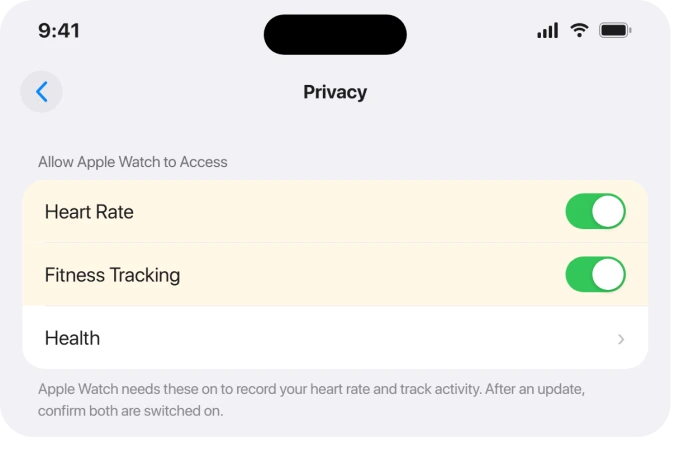
If heart rate vanished right after you installed watchOS 26, a privacy switch may have flipped or simply needs re-confirming. There are three to check, and all of them are safe to re-enable.
First, Heart Rate. If this is off, the watch will not collect or display heart rate at all. On the watch: Settings > Privacy & Security > Health > Heart Rate (turn on).
On iPhone: Watch app > My Watch > Privacy > Heart Rate (turn on).
Next, Fitness Tracking (older software called this Motion & Fitness). This gates the Activity and workout features that lean on motion plus heart rate.
On iPhone: Health app > your profile (top right) > Devices > your Apple Watch > Privacy Settings > Fitness Tracking (turn on).
Also confirm it on the phone itself: Settings > Privacy & Security > Motion & Fitness > Fitness Tracking (on).
Turn Wrist Detection back on
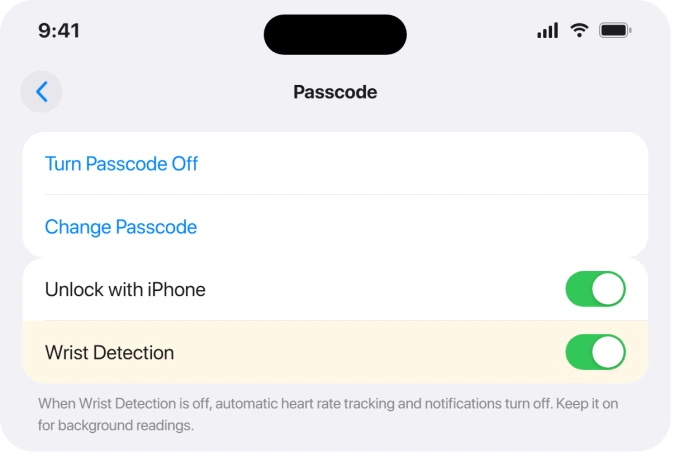
This one is sneaky because it lives under Passcode, not Privacy. Wrist Detection is what lets the watch take heart rate automatically in the background.
Apple is blunt about the consequence of disabling it: "Heart rate tracking and notifications are turned off."
Switch it on at Settings > Passcode > Wrist Detection on the watch, or Watch app > My Watch > Passcode > Wrist Detection on the iPhone.
It is on by default, so if it got turned off, that alone explains missing resting and background readings even when the Heart Rate app seems to work.
The same switch is behind an Apple Watch that stops tracking sleep.
Restart the watch, then force restart
If the toggles are all correct and it is still dead, restart. Apple's restart steps erase nothing.
Press and hold the side button until the sliders appear, tap the power button, then drag the Power Off slider to the right. To turn it back on, hold the side button until the Apple logo appears.
One watchOS 26 quirk: the power off flow now needs that extra tap on a power button before the slider shows, where it used to appear immediately.
Also note you cannot restart while the watch is on its charger, so take it off first.
If a normal restart does not help, force restart.
Hold down the side button and the Digital Crown at the same time for at least 10 seconds, until the Apple logo appears. This also erases nothing and is safe when heart rate is stuck.
Apple recommends restarting the paired iPhone too when something is misbehaving.
For the watchOS 26 bug specifically, restarting is often the only thing that brings the sensor back, and several people report it as a recurring ritual.
One Ultra owner summed it up: "The only temporary workaround is to turn it off and on."
When it is the watchOS 26 bug
The watchOS 26 bug has a signature that is hard to mistake for anything physical. It is dramatic and consistent across the affected releases:
- Heart rate reads zero or a blank "Measuring…" that never resolves, not greyed-out dashes.
- The green sensor lights never turn on during workouts or in the background.
- Workouts log zero active calories (and sometimes zero distance), or will not start at all.
- The Fitness app shows no data, stand hours and steps do not track.
- Crucially, the ECG app still works.
That last point is the giveaway.
As one person described it in an Apple Community thread, "The heart rate sensor is physically working, but only when I run the ECG app." If ECG produces a reading from the same hardware, the optical sensor is not broken, the software just stopped talking to it.
People reported this starting with the initial watchOS 26 release and continuing through 26.0.1, 26.0.2, and 26.1, across Series 5, 6, 7, 9, 10, 11, and the Ultra, Ultra 2, and Ultra 3.
One blunt summary from a thread: "watchOS 26 is a buggy mess. Probably the worst watch software to date."
A common pattern is that it works for a stretch, then quits again roughly every 5 to 7 days.
The last resort: unpair and re-pair
When nothing above sticks, the most reliable user fix is to unpair the watch and pair it again. It has a real cost, so read this carefully.
Unpairing erases the watch and restores it to factory settings. It also removes Activation Lock and removes the watch from your iCloud account.
The good news is that the iPhone backs the watch up continuously and runs a fresh backup automatically as part of unpairing, so you do not lose your data.
To do it: Watch app on iPhone > My Watch > All Watches (top left) > the info (i) button next to your watch > Unpair Apple Watch, then confirm.
When you pair again, you get a choice. Restoring from that backup is faster, but for this bug many people found the fix only held when they set up as a new watch instead of restoring.
Setting up fresh clears the corrupted health settings the backup would otherwise carry over. As one user put it, "The only way that I've been able to fix it is to unpair and re-pair the watch to the phone."
Trade-off: setting up as new means redoing your watch settings by hand. Back up your iPhone health data first either way.
Be aware some people still saw it recur even after this, with the failure returning every 5 to 7 days.
Keep updating, and what Apple has actually fixed
There is no Apple statement that names a heart rate sensor bug, and no watchOS 26 release note ever lists a heart-rate fix. The point releases were described as generic bug fixes and security.
Still, install each update, because a few touched nearby areas. If the download itself stalls, start with the fixes for a watch that won't update to watchOS 26.
- watchOS 26.2 (Dec 2025) cleared up the iPhone syncing problem for some people. One wrote, "syncing issues have cleared up with the new 26.2 update." Others on 26.2 still saw the Workout app leave time, elevation, and active calories at zero, so it was not a clean fix for everyone.
- watchOS 26.4 (Mar 2026) fixed a Workout app complaint, but it was the UI bug where the workout-type icon would not start a session with a single tap. Not the sensor.
- watchOS 26.5 (May 2026) fixed dual-SIM iMessage and an issue where Workout audio alerts could fail to play when the phone was not nearby. The audio-alert fix touches spoken heart-rate-zone alerts, but it is a connectivity bug, not a sensor-reading one.
Heart rate tracking improvements are reportedly a focus of watchOS 27, which is an indirect sign the underlying issue was never fully patched within the watchOS 26 cycle.
So keep checking for updates, but do not wait on one to rescue you.
When it really is the sensor hardware
The watchOS 26 bug is far more common right now than a failed sensor, but hardware failures are real. Sensors can degrade from physical damage or wiring faults. To tell the two apart, rule out everything else first.
If, after re-checking fit and position, cleaning the sensor, confirming the privacy and power toggles, force restarting, and re-pairing as a new watch, the optical sensor still reads nothing and the ECG app also fails, that points toward hardware rather than software.
Tellingly, in one thread three different Ultra watches were sent in for service and all came back with "no hardware defects found." That is exactly why you want to exhaust the software fixes before assuming the worst.
The sensor is not practically user-serviceable, so Apple typically replaces the whole watch, often under warranty or AppleCare. Run Apple's diagnostics through Support or a Genius Bar before paying for anything.
The Short Version
- Tighten the band one notch, wear the watch a finger's width above the wrist bone, and wipe the back crystal clean and dry.
- Turn off Low Power Mode (kills background HR) and Workout Power Saving Mode in the iPhone Watch app (kills in-workout HR).
- Re-enable Heart Rate and Fitness Tracking under Privacy, and Wrist Detection under Passcode.
- Restart, then force restart with the side button + Digital Crown for 10 seconds.
- If it is the watchOS 26 bug (ECG works, optical sensor dead, zero BPM), unpair and re-pair, setting up as new, not from backup. This erases the watch but backs it up first.
- Install every watchOS 26 update. None officially fix the sensor, but 26.2 helped some, and heart rate work is slated for watchOS 27.
- If ECG also fails after all of that, book Apple service.
Where to Next
For more fixes across pairing, battery, notifications, and updates, head to the Apple Watch problems and fixes hub.
And if your watch addresses you by the wrong name entirely, that has a straightforward source.
For everything else Apple, start at the pcglance homepage.

Isaac Smith is the founder and editor of PC Glance, a website that covers computers, laptops, and technology. He is a tech enthusiast and a computer geek who loves to share his insights and help his readers make smart choices when buying tech gadgets or laptops. He is always curious and updated about the latest tech trends.