
You hit print, the document slides into the queue, and then it just sits there. No paper, no error you can act on, sometimes a quiet "looking for printer" that never resolves.
The printer worked fine last week. The only thing that changed is the macOS Tahoe (macOS 26) update.
The fixes below start with a single toggle most people never have to look past, and the printer-wiping reset stays at the very end where it belongs.
Let me show you where the job is really stuck, because the queue tells you less than you would hope.
Why Tahoe Broke Printing for So Many People
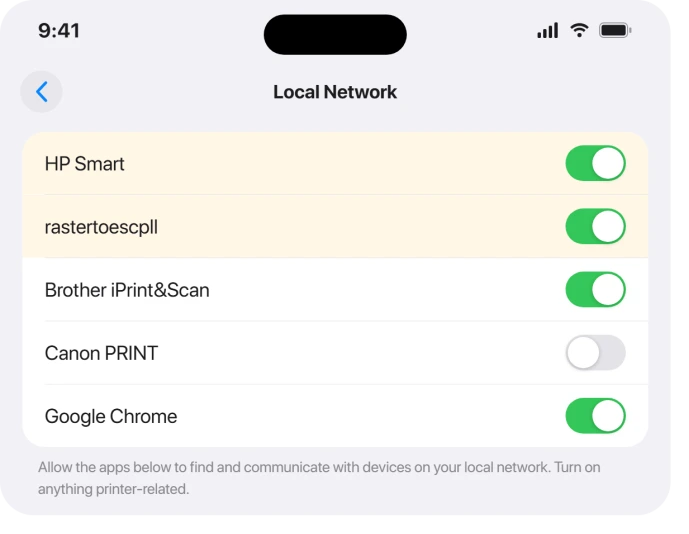
macOS has a permission called Local Network that decides which apps are "allowed to find and communicate with devices on your local network," in the words of Apple's own guide to the setting.
It controls Bonjour, the discovery system AirPrint and most printer apps use to find your printer.
This permission is not actually new to Tahoe. It first arrived on the Mac in macOS 15.0 Sequoia in 2024, built as a deep packet filter rather than the usual permissions database.
macOS 15.1 cleaned up the early bugs, and many people only felt safe relying on it by 15.3. Tahoe carries the same protection forward.
The reason printing broke in waves after the Tahoe update is the upgrade itself.
Permissions granted under Sequoia are not reliably carried over, so your printer's helper app can land in Tahoe switched off, and discovery silently fails until you turn it back on.
One important nuance is that Apple's own AirPrint, AirPlay and device discovery are auto-exempt. They do not even appear in the Local Network list.
So if you print straight through the system Print dialog, in theory you are not blocked.
In practice, manufacturer helper apps that do their own printer-hunting are exactly what gets caught, and that covers a huge share of real setups.
The same gate can knock out Time Machine backups to a NAS.
Turn On Local Network for Your Printer Software
The post-Tahoe support threads point to this fix more than any other, so start here. Open System Settings > Privacy & Security > Local Network. You will see a list of apps, each with a toggle on the right.
Flip the switch on for anything printer-related: HP Smart, Canon PRINT, Brother iPrint&Scan, Epson software.
Epson owners specifically should look for a toggle literally named rastertoescpll and enable it.
One Epson user with an ET2500 stuck on "looking for printer" reported that "sliding the switch to on immediately cured the problem."
After you flip a toggle, quit and relaunch that app so it can rediscover the printer. The same advice shows up repeatedly in Apple's discussion threads: turn on Local Network for every printer-related app.
If the app you print from is not in the list at all, it has never asked for permission yet.
Open that app once, let it try to find the printer, answer the permission prompt when it pops up, then come back to this screen and confirm the toggle is on.
One known quirk: after a restart, a toggle can read on while access is still blocked. If something looks enabled but still fails, switch it off, then on again, and relaunch the app.
Resume a Paused Printer and Clear a Stuck Job
Some Tahoe upgrades, especially with laser printers, leave the printer parked in Paused. A paused queue silently swallows every new job, so nothing prints and nothing errors.
Go to System Settings > Printers & Scanners, click your printer, then click Printer Queue. If you see a Resume button, click it.
If one document is jammed at the top, select it and click Delete Job, then resend.
This is non-destructive. It only clears that one printer's queue and does not remove the printer or your settings.
If you prefer Terminal, lpstat -p shows whether a printer is disabled, cupsenable <printername> resumes it, and cancel -a <printername> clears its jobs.
On macOS 27 the CUPS web pages at localhost:631 stay disabled, and the CUPS page covers the commands that replace them.
Re-Add the Printer as AirPrint, by IP Address
If discovery is broken or the printer simply does not appear when you try to add it, skip discovery entirely and add it by its IP address. This is also the official fix for the Brother bug below.
First find the printer's IP from its front panel or by printing its network configuration page.
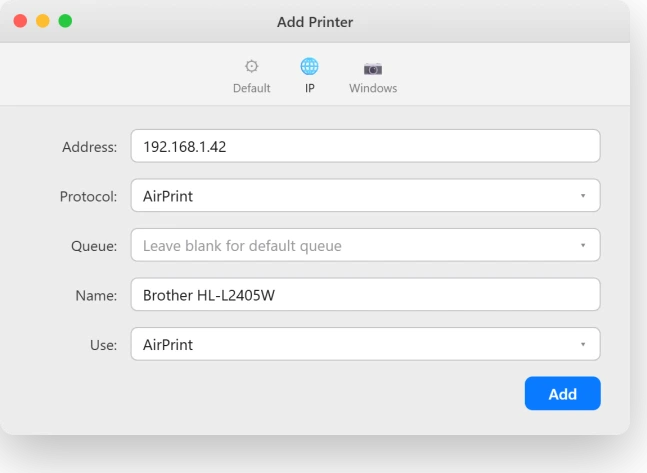
Then go to System Settings > Printers & Scanners > Add Printer, Scanner, or Fax and click the IP tab (the globe icon).
Enter the Address (the printer's IP) and set Protocol to AirPrint when the printer supports it. If it does not, Internet Printing Protocol (IPP) is a solid fallback.
Leave Queue blank for the default. In the Use menu, pick AirPrint, then click Add.
Why AirPrint and not the manufacturer driver?
Apple's pitch is that "with AirPrint, you can print without needing to install an app, additional drivers, or other software." It is driverless, so it survives OS upgrades far better than legacy vendor drivers, many of which no longer install on Tahoe.
The Brother "Invalid Certificate" Bug on Tahoe 26.2
If you have a Brother printer that died specifically on the 26.2 update and the on-screen message reads Invalid Certificate - Check the printer for errors., this is a known bug that Brother itself has confirmed.
The fix is the IP plus AirPrint re-add described just above.
Brother's official support page spells out the same steps: Add Printer > IP tab > enter the printer's IP or hostname > Protocol: AirPrint > Add.
Notably this is the fix, not a firmware update and not a printing-system reset.
One owner of a Brother HL-L2405W on a MacBook Air said it "worked well together until the Tahoe 26.2 update," after which it "consistently receive an invalid certificate message." Re-adding by IP with AirPrint is what brought it back.
When One App Prints but Another Will Not
If Notes or Preview prints fine but Microsoft Word refuses, the printer is clearly working. The problem is that one app.
Local Network permission is granted per app, not system-wide, so first confirm the failing app is toggled on under Local Network.
For desktop Microsoft Office, if Notes prints and Word does not, Microsoft's own guidance is that this points to an Office-for-Mac problem that may need a full uninstall and reinstall of Office.
For web-based Office in a browser, there is a known blank-preview bug. Dodge it by using the browser's Print to PDF, then printing the saved PDF from Preview.
Check for a VPN or Security Software in the Way
A VPN is a frequent and easily missed culprit. It can route your traffic so the Mac cannot reach the printer's local IP and cannot send local multicast, which kills AirPrint while the VPN is connected.
Disconnect or remove the VPN, forget and rejoin your Wi-Fi, then test printing.
Many VPN clients also offer a "local network" or split-tunnel exception that lets local printing work without fully disconnecting.
Endpoint security can do the same thing. ESET and SentinelOne have been reported to block printer or local-network access on Tahoe, and managed-Mac tools like PaperCut can hold jobs outright.
If printing broke right after the update and you run one of these, test with it temporarily disabled or whitelist the printer.
Reset the Printing System (Last Resort Only)
Save this for after everything above has failed.
Resetting the printing system deletes every printer in your list and all completed-job history. It also wipes your saved presets and custom paper sizes, and empties the queue.
There is no undo. Apple's own reset instructions say to try other troubleshooting first.
If you are sure, go to System Settings > Printers & Scanners and Control-click (right-click) the Printers list on the right, then choose Reset Printing System.
If the list is already empty, Control-click the empty area instead. Enter your admin password to confirm.
Afterward the list is blank, so re-add each printer with Add Printer, Scanner, or Fax, preferring AirPrint.
If a printer still refuses to re-add, a gentler middle step is clearing stale CUPS logs. In Finder use Go > Go to Folder, enter /var/log/cups, and delete the log files.
Then reopen Printers & Scanners and try adding again. Several people had their printer reappear right after this.
When It Really Is the Printer or Network, Not Your Mac
Not every failure is Tahoe's fault. A few quick checks tell you whether to stop blaming macOS and look at the hardware or the network instead.
If a phone or a second computer on the same Wi-Fi also cannot find or print to it, the problem is the printer or the network, not your Mac.
If your Mac prints fine to a different printer or to Print-to-PDF, then macOS printing is healthy and the target printer is at fault.
Test reachability directly with ping <printer IP>. No reply means a network, subnet, or offline-printer issue rather than a permission one.
And if a temporary USB cable prints when Wi-Fi will not, the printer and Mac are both fine and the fault lives on the network path.
One genuine network trap: Bonjour discovery only works within a single subnet. If your printer sits on a guest Wi-Fi network or a separate VLAN from your Mac, it will never be discovered even when routing works.
Put both on the same network, or just add the printer by IP using IPP, which skips discovery entirely.
The Short Version
- The usual Tahoe cause is the Local Network privacy permission being off for your printer's helper app. Turn it on at System Settings > Privacy & Security > Local Network, then relaunch the app.
- Epson users: enable the toggle named rastertoescpll, then quit and reopen the printer software.
- If the printer will not appear, add it by IP with Protocol: AirPrint (or IPP). This is also Brother's official fix for the 26.2 "Invalid Certificate" error.
- Check for a paused queue, a VPN, or security software before going further.
- Reset Printing System wipes all printers, presets, and jobs. Use it only as a last resort.
- If a phone, a second computer, or a USB cable tells a different story, the fault is the printer or network, not Tahoe.
Where to Next
More Apple fixes: This guide is part of pcglance.
Where the same machine prints and will not scan, scanning broke separately on Tahoe.
Printing broke again for some Macs with macOS 27, for a different reason. Older drivers now need Rosetta installed.
And if Preview saved a bank PDF with a password you never set, the Preview owner password page uses the print window to make a clean copy.
See the full macOS Tahoe problems and fixes hub, or head to the pcglance homepage and pick your device.

Isaac Smith is the founder and editor of PC Glance, a website that covers computers, laptops, and technology. He is a tech enthusiast and a computer geek who loves to share his insights and help his readers make smart choices when buying tech gadgets or laptops. He is always curious and updated about the latest tech trends.