

Your iPad's new Preview app lags with the Pencil, crashes when you tap Share, and keeps picking up your palm. It did arrive rough, so none of that is you.
iPadOS 26 handed the iPad the Mac's Preview app for the first time, and marking up a PDF can be a fight.
Let me take the three faults one at a time, because two of them you can do something about today.
Reinstall Preview for the crashes
The crash when you tap the share or upload button, and some of the tool crashes, are a genuine bug in the new app. The fix people confirm is a clean reinstall, and yes, Preview is now a real app you can delete.
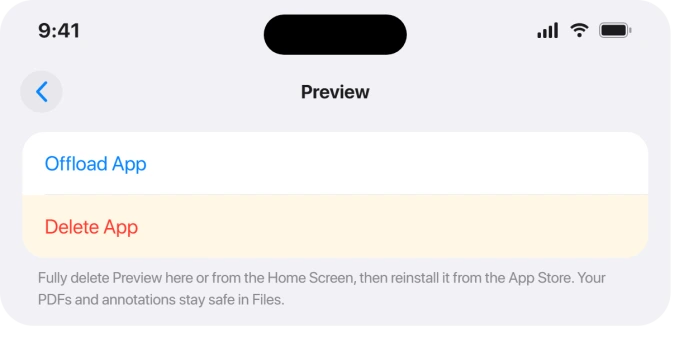
Touch and hold the Preview icon on the Home Screen, tap Remove App, then Delete App. Removing it from the Home Screen alone is not enough, it has to be fully deleted.
Then open the App Store, search Preview by Apple, and reinstall it. Your files and annotations are safe, because they live in Files, not inside Preview.
Two things worth knowing. While Preview is deleted, the Files app goes back to the older inline preview for PDFs and images, so if you never wanted Preview you can just leave it off.
And do not wait for an App Store update to fix it: Preview is built into iPadOS 26 and updates only when iPadOS does, so fixes ride along with the next iPadOS release, not a separate app update.
If it lags when you annotate with Apple Pencil
The stutter while you write is mostly the new app being heavy, worst on the non-Pro and M3 iPads, and made worse by the windowing and animations iPadOS 26 layers on.
The same levers that speed up the rest of iPadOS 26 help here:
- Settings > Multitasking & Gestures > Full Screen Apps, which turns off windowing.
- Reduce Motion in Settings > Accessibility > Motion, and Reduce Transparency in Settings > Accessibility > Display & Text Size.
- Close the other apps you have open, and keep some free storage.
These ease the lag rather than cure it, and the fuller rundown of the same tuning is in the iPad Files app slowdown on iPadOS 26.
If you need smooth inking right now, annotate in Notes, which marks up PDFs with the Pencil, or a dedicated app like GoodNotes.
When your palm leaves stray marks
Palm rejection failing, where resting your hand draws stray lines or triggers a zoom, is a real iPadOS 26 regression, and there is no palm-rejection switch to turn on. Two things clear it for most people:
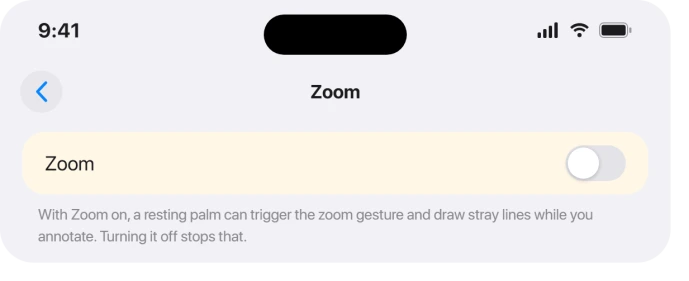
- Turn off Zoom in Settings > Accessibility > Zoom. A stray palm can trip the zoom gesture, and switching Zoom off stops the random lines and jumps.
- Reseat the Apple Pencil tip. Unscrew it and screw it back on. It fixes skipped and stray strokes more often than it has any right to.
If it still fights you, a third-party app with its own palm rejection, like GoodNotes, sidesteps the problem.
More Pencil fixes are in Apple Pencil not working on iPad.
If a specific tool crashes it
Some tools crash Preview outright, most often the marquee highlight tool and marking up very large PDFs, sometimes hard enough to bounce the whole iPad.
Until it is patched, work around it: avoid that particular tool, split a huge PDF into smaller files before you mark it up, or do the annotation in another app.
A reinstall from the first section clears some of these crashes too.
What actually fixes it long-term
Status: Preview is brand-new in iPadOS 26 and still rough. No release note through 26.2 names a Preview fix, and it only updates with iPadOS, not on its own.
So keep iPadOS current under Settings > General > Software Update, because that is the only way Preview itself improves.
There is no separate app to update, and no palm-rejection or performance setting hiding in Preview that turns the problems off.
What will not fix it
- Waiting for an App Store update to Preview. There is not one. It updates with iPadOS.
- Paid "system repair" apps. A free delete and reinstall does what they charge for, and it is the actual fix here.
- Hunting for a palm-rejection toggle. There is no such setting. Turn off Zoom or use another app instead.
Can you delete and reinstall the Preview app on iPad?
Yes. On iPadOS 26 Preview is a normal app: touch and hold its icon, tap Remove App, then Delete App, and reinstall it from the App Store by searching Preview.
Your documents are untouched because they live in Files. If you delete it and leave it off, the Files app simply goes back to its older inline preview for PDFs.
Why does Preview crash when I share or upload a PDF?
It is a known iPadOS 26 bug, seen from 26.0.1, where tapping the share or upload icon crashes Preview before the destinations even appear.
Deleting Preview and reinstalling it from the App Store is the fix owners confirm. If it returns, do the markup in another app until an iPadOS update lands.
How do I fix palm rejection not working after iPadOS 26?
There is no palm-rejection setting to switch on, so start by turning off Zoom in Settings > Accessibility > Zoom, which stops a resting palm from triggering the zoom gesture and drawing stray lines.
Reseating the Apple Pencil tip helps too, and a third-party app like GoodNotes has its own palm rejection if the problem persists.
The Short Version
- The share or upload crash and some tool crashes are a real bug. Fix them by fully deleting Preview (touch and hold > Remove App > Delete App) and reinstalling from the App Store. Your files are safe.
- Lag while annotating is the new app straining hardware. Use Full Screen Apps (Multitasking & Gestures), Reduce Motion, and Reduce Transparency, or ink in Notes or GoodNotes.
- Palm leaving stray marks has no toggle. Turn off Zoom in Accessibility and reseat the Pencil tip.
- A specific tool or a huge PDF can crash it, so avoid that tool or split the file until Apple patches it.
- Preview only updates with iPadOS, so keep iPadOS current, and skip paid repair apps and any hunt for a palm-rejection switch.
Where to Next
And if an app keeps asking you to allow paste, that has a setting behind it.
Where Journal keeps offering suggestions you never asked for, that is a setting rather than a bug.
Mail is the other iPad app people find quietly broken after an update. Mail not updating on iPadOS 26 starts with the fetch setting rather than the account.
- The Files app it opens from, also slow on iPadOS 26: iPad Files app not working
- Pencil not pairing or skipping: Apple Pencil not working on iPad
- The windowing behind the lag: swipe up to close apps on iPadOS 26
- More iPad fixes: iPad problems and fixes
- Back to the start: pcglance home

Isaac Smith is the founder and editor of PC Glance, a website that covers computers, laptops, and technology. He is a tech enthusiast and a computer geek who loves to share his insights and help his readers make smart choices when buying tech gadgets or laptops. He is always curious and updated about the latest tech trends.