
Your Apple Pencil will not connect, pairs but writes nothing, lags, or keeps dropping off mid-sentence.
Almost everyone's first thought is that the Pencil itself died. It rarely has. Three quiet causes explain most of these cases: a Pencil that does not match the iPad, a flat battery charged the wrong way, or a loose tip.
On top of that, iPadOS 26.0 shipped a real disconnect bug that Apple fixed in 26.0.1.
The fixes below start with the compatibility check, because a 2nd generation Pencil will not pair with any 2024 or 2025 iPad, no matter what you do.
Let me take the faults one at a time, because a Pencil that will not pair and one that pairs and lags need different answers.
Match Your Pencil to Your iPad First
Most "won't connect" cases are an unsupported pairing, and nothing you do will make a mismatched Pencil write.
Check your model against Apple's Pencil compatibility list before anything else.
Here's what to do:
- Find your iPad in Settings, General, About, and note the exact model.
- New 2024 and 2025 iPads (M4 and M5 iPad Pro, M2 and M3 iPad Air, A17 Pro iPad mini) use the Apple Pencil Pro or the Apple Pencil (USB-C). The A16 iPad is the exception: it takes the USB-C or 1st generation Pencil only. No 2nd generation Pencil works on any of them.
- Older iPad Pro and iPad Air (roughly 2018 to 2022) use the Apple Pencil (2nd generation), the one that snaps to the magnetic side.
- Base iPads and older models with a round home button or a Lightning port use the Apple Pencil (1st generation).
- The iPad 10th gen is the oddball: it has USB-C but skips the 2nd gen Pencil entirely. Use the Apple Pencil (USB-C), or a 1st gen Pencil with the USB-C to Apple Pencil Adapter.
Important: The Apple Pencil (USB-C) is not a cheaper Pencil Pro. It has no pressure sensitivity, no double tap, and no squeeze. If those never worked, you may simply have that model, not a fault.
Charge It the Right Way, Then Wait for "Pair"
A flat battery imitates every symptom of a broken Pencil, and each model charges in its own spot. Charging correctly and waiting a moment is the single most reliable fix.
Here's what to do:
- Apple Pencil Pro or 2nd generation: place it flat on the magnetic strip on the long side of the iPad, the edge with the volume buttons. Center it until it snaps and a battery card pops up.
- Apple Pencil (USB-C): slide the cap open and connect it to the iPad's USB-C port with a cable. It only charges by cable. Resting it on the side magnetically does not charge it.
- Apple Pencil (1st generation): pull off the cap and plug the Lightning end into the iPad. On a USB-C iPad, plug the iPad's USB-C cable into the iPad, attach the USB-C to Apple Pencil Adapter to the free end, then plug the Pencil's Lightning end into the adapter. The little Lightning-to-Lightning adapter from the original Pencil box does not work on a USB-C iPad; you need the USB-C to Apple Pencil Adapter specifically.
- Wait for the Pair button, then tap it. If it does not show, leave the Pencil charging for about a minute and look again. After a long time unused, give it an hour.
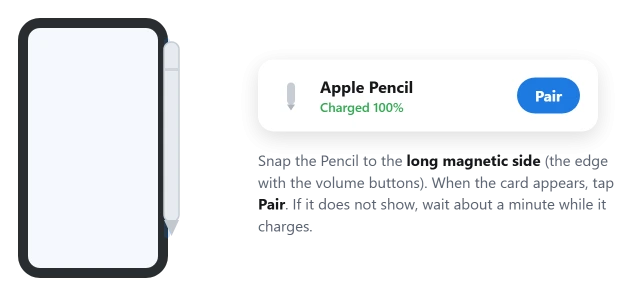
Apple's own pairing page is the reassuring part here: "If the Pair button doesn't appear, wait for one minute while your Apple Pencil charges. Then try connecting your Apple Pencil again."
Turn Bluetooth On, Then Forget and Re-Pair
Pairing runs over Bluetooth, and a stale pairing record is the usual reason a charged, healthy Pencil refuses to draw or keeps disconnecting. Rebuilding the link fixes it.
Here's what to do:
- Open Settings, Bluetooth, and make sure Bluetooth is on.
- Under My Devices, find your Apple Pencil, tap the info (i) button, then tap Forget This Device.
- Reconnect the Pencil the correct way for your model, the same method you used to charge it.
- Tap Pair when it appears, then test it in the Notes app.
Pro tip: A 1st generation Pencil normally loses its pairing every time you restart the iPad, turn Bluetooth off, or use it with another iPad. Needing to re-pair after a reboot is expected, not a fault.
Remove the Case, Then Restart With the Pencil Attached
A case can hold a magnetic Pencil just off-center enough that it never charges or pairs, and a restart clears the glitches behind lag and random drops.
Here's what to do:
- Take the iPad out of any case or cover, especially anything wrapping the long magnetic edge, then reseat the Pencil until it snaps and shows the charging animation.
- Restart the iPad from Settings, General, Shut Down, wait 10 seconds, then power back on. If the iPad itself is frozen and will not restart, work through the frozen iPad fixes first.
- Try again to pair.
One reader found the oddly specific trick that works when a normal restart does not: "resetting / rebooting the iPad with the pencil attached to the iPad. It works for me." Leave it magnetically attached while it reboots.
Update iPadOS to Kill the iPadOS 26 Disconnect Bug
If your Pencil started dropping right after the iPadOS 26 update, this is the headline fix.
The same update hit the Magic Keyboard trackpad for some owners too.
iPadOS 26.0 had a genuine bug where the Pencil disconnects the moment you lift it off the screen, and Apple's 26.0.1 update fixed it for a lot of people.
Here's what to do:
- Open Settings, General, Software Update and install iPadOS 26.0.1 or newer.
- If the Pencil drops within seconds of lifting it, that is the known bug, not your hardware, so do not rush out to buy a replacement.
- While you wait to update, detach and reattach the Pencil to force it to reconnect.
One user summed up the whole saga: "Turned out to be a bug in iOS 26 … just updated to iOS 26.0.1 and that fixed the issue."
If It Connects But Won't Write, Check the Tip
Once the Pencil is charged and paired, skipping, broken lines, and lag are a physical contact problem far more often than a software one. The tip is the culprit roughly nine times out of ten.
Here's what to do:
- Confirm it shows connected with a battery level in Settings, Bluetooth.
- Unscrew the tip counterclockwise and look for flattening, splits, or cracks.
- Screw it back on hand-tight until snug. A correctly seated tip leaves a tiny hairline gap about the thickness of one sheet of paper. Do not overtighten, and never use tools.
- If the tip is worn or cracked, fit a fresh one to that same paper-thin snugness. Apple sells tips in a 4-pack.
- Wipe the screen with a microfiber cloth, and pull off any tempered-glass or thick screen protector to test, since anything over about 0.095 mm can cause skipping.
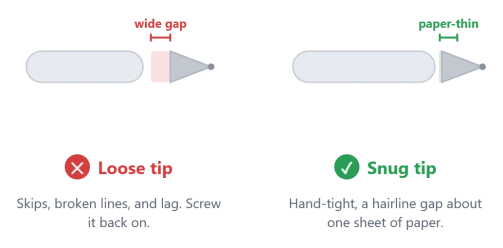
Pro tip: Both a loose tip and an overtightened one break writing the same way. Aim for snug, not forced.
Fix Double Tap, Squeeze, or Hover
These gestures are not broken when they "stop working," they are usually switched off, unsupported on your model, or blocked by a hidden setting most people never find.
Here's what to do:
- Confirm support first: double tap needs a 2nd gen or Pencil Pro, squeeze needs a Pencil Pro, and hover needs an M2-class or newer iPad.
- Set the action under Settings, Apple Pencil, choosing an action instead of Off.
- If those options are greyed out, flip the master switch at Settings, Accessibility, Apple Pencil.
- Turn off Allow Double Tap Only with Hover if it is on, because it silently kills double tap on the screen.
One thread with dozens of "me too" replies ended with the same simple answer: "Try turning off the Allow Double Tap Only with Hover … This works for me thank you."
Isolate the Hardware, Then Get Service
If the free fixes and the compatibility check all come up empty, this last test tells you whether to repair the iPad or replace the Pencil.
Here's what to do:
- Try your Pencil on another compatible iPad, or a known-good Pencil on yours. If a good Pencil also fails on your iPad, the iPad is the problem. If your Pencil fails on a second iPad, the Pencil or its tip is.
- Treat it as a hardware fault if, after charging and a restart, the Pair button never appears, the Pencil shows no battery, or it never lists under Settings, Bluetooth.
- Make sure the Pencil is genuine and bought from Apple or an authorized seller. Counterfeits often die after a major iPadOS update while real ones keep working.
- Find the serial number in Settings, Apple Pencil, then contact Apple Support or book a Genius Bar visit.
The Short Version
An Apple Pencil that "won't work" is usually the wrong Pencil for your iPad, a flat battery charged the wrong way, or a loose tip.
Match the right Pencil to your model, charge it the correct way and wait for the Pair button, then forget and re-pair over Bluetooth if it still misbehaves.
Remove the case and restart with the Pencil attached, update to iPadOS 26.0.1 or newer for the disconnect bug, and reseat or replace the tip if it connects but skips.
Sort out double tap, squeeze, and hover in Settings, and only when a second iPad confirms it is truly dead should you book service.
Get those first three right and most Pencils come straight back to life, no replacement needed.
Where to Next
More Apple fixes: This guide is part of pcglance, your plain-English home for Apple fixes.
For more help with your iPhone or Mac after an update, head to the pcglance homepage and pick your device.

Isaac Smith is the founder and editor of PC Glance, a website that covers computers, laptops, and technology. He is a tech enthusiast and a computer geek who loves to share his insights and help his readers make smart choices when buying tech gadgets or laptops. He is always curious and updated about the latest tech trends.