Not enough USB controller resources often means the controller can't manage all the attached devices, even with empty sockets. Disconnect an unneeded USB device, then reconnect the device that failed.
If it works, rearrange your devices before buying a larger hub. This differs from a power-surge warning or a device-descriptor error. Extra power and ports don't necessarily give the controller more capacity to manage devices.
In this guide
1. Disconnect an unneeded device and retry the failed one
Leave your keyboard and mouse connected. Disconnect an unneeded webcam, headset, capture device, or external hub, then reconnect the device that triggered the message. Stop any transfer before disconnecting a storage device.
The aim is to reduce the number of USB functions the controller has to manage. If the failed device now connects, try changing which devices share the connection before replacing it.
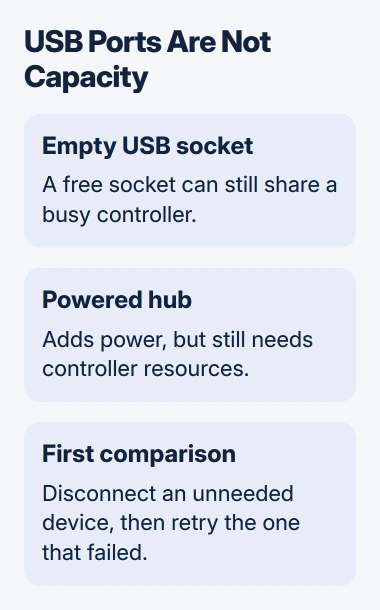
Plugable's controller-resource explanation describes limits involving endpoints. These are the channels a USB device uses to exchange information, and one physical product can need several of them.
That is why counting plugs alone can be misleading. A docking station can contain a hub, display adapter, network adapter, and audio device behind one cable. Its resource use isn't necessarily the same as a basic mouse's.
Reconnect the removed devices one at a time, checking whether each one actually works. Record the combination that causes the warning. The last device connected triggers the failure, but it isn't automatically defective.
If the warning appears with just one external device connected, compare a direct cable connection and another computer. A heavily populated hub isn't the only possible setup, and a laptop can also have internally connected USB devices.
2. Remove the hub from the affected device's connection
Plug the affected device into a compatible computer port without intermediate equipment. Leave the other unneeded devices disconnected for this comparison. Use the device's normal data cable and any power supply its instructions require.
If that direct connection works while the populated dock fails, keep it direct while rebuilding the rest of the setup. That points to the way the devices are connected, but the dock itself may still work.
If a different error replaces the resource warning, write down that wording. The port-reset failure guide handles a different USB connection fault, rather than a controller-capacity warning.
A powered hub can supply power to accessories that need it, but it still attaches through a host controller. Don't buy one solely on the assumption that external power removes an endpoint limit.
Likewise, a hub with more sockets doesn't necessarily solve this warning. It gives you more places to plug devices in while adding its own USB hardware to the connection. Test with equipment you already have before choosing a replacement.
3. Try another port, then check which devices work together
Move the affected device to another suitable computer port and repeat the same connection test. If possible, put the dock and the problem device on separate ports while leaving their other connections unchanged.
Ports can share a controller, so moving to another socket won't always give the device more resources. Note a working port arrangement and test the complete set before your next call or recording session.
For an accessory that doesn't need USB 3 speeds, a USB 2.0 hub is another supported option to compare. Plugable explains that a USB 2.0 hub can consume fewer endpoints than the USB 3.0 hub portion of a comparable arrangement.
It can help, though modern PCs can route USB 2.0 through the same controller. Connected devices still use resources, and the slower connection changes the available performance.
Keep high-speed storage and capture equipment on the connections its manufacturer requires. Use the lower-speed comparison for suitable accessories, such as basic input devices, rather than making every device run through a slower hub.
If starting a webcam or an audio function brings back the warning, record that detail too. Tell support which function was active, rather than just saying that the device was plugged in.
4. Read the device status before removing drivers
Right-click Start > Device Manager, then expand Universal Serial Bus controllers. Open the affected entry's Properties and read Device status. On the Details tab, the Property list can show Problem code and other information.
The USB diagnostic instructions describe these Device Manager checks. They also describe USBView, a separate Windows diagnostic tool that displays controllers, hubs, and connected devices.
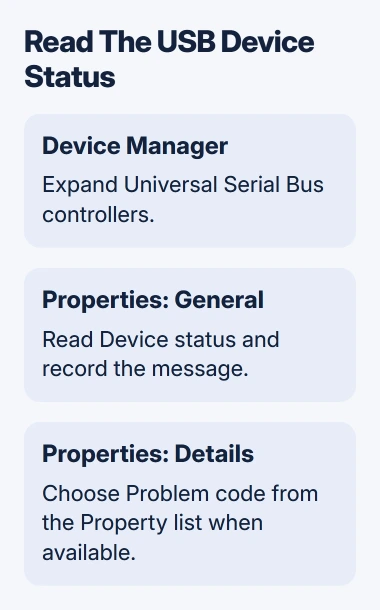
Note the status and any error code before changing drivers. Don't remove every controller entry. Uninstalling a controller can disconnect the keyboard and mouse without changing a hardware resource limit.
If Windows doesn't refresh after you reconnect a device, select the computer in Device Manager and choose Action > Scan for hardware changes. Check whether the entry appears and whether its status changed.
The basic Device Manager controls work the same way on Windows 11 as they do on Windows 10. The controller-resource warning means the same thing despite the different Settings layouts.
If both input devices stop together while using a hub, the shared keyboard-and-mouse checks cover that shared connection. Keep a usable input device available while changing the USB arrangement.
5. Compare another computer before choosing new hardware
Test the affected device and cable on another compatible computer, first alone and then with the needed accessories. A device that works there points toward the original computer's USB arrangement or available controller resources.
If neither computer can use the device, ask its maker for troubleshooting steps too. Describe whether the same resource warning appears on both, or whether the second computer shows a different detection or power error.
For a desktop, ask its maker about a separate supported USB controller. For a laptop, ask which port and dock arrangement supports the required devices. A socket count alone won't answer that question.
I wouldn't disable the USB controller in firmware as a first repair. Some older systems offered a USB 2.0 fallback, but that option and its effects depend on the computer. Let the PC maker confirm any such change for your exact model.
Give PC or dock support the models, Windows version, connected devices, exact warning, and working combination. Ask about controller limits and a supported layout or hardware change.
The Short Version
Reduce the load, compare a direct connection, then try suitable ports or USB 2.0 equipment. Extra power and sockets don't necessarily give the controller more capacity. Share the working combination with support before buying a larger hub.
Checked November 12, 2026.