
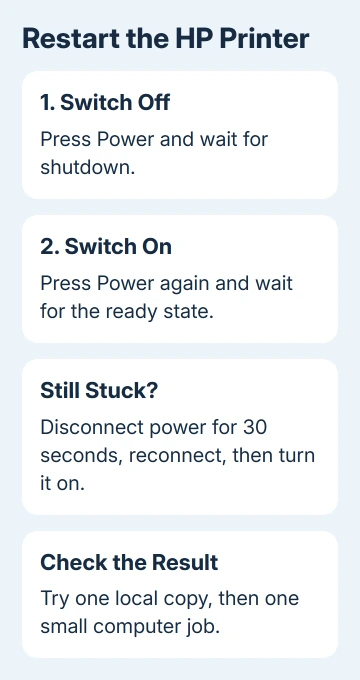
Restart an HP printer with its power button: switch it off, let shutdown finish, then switch it on again. For a stuck printer, disconnect power for 30 seconds, reconnect it, and press Power. This follows Windows printer-recovery steps.
A restart is different from restoring factory settings or clearing Wi-Fi setup. Use it for a frozen printer or a temporary printing failure before changing settings that were working.
In this guide
Start with the printer's own power button
Stop sending new jobs and look at the printer itself. Note any displayed message, error code, or blinking lights before restarting. A photograph of the controls can help if the same fault comes straight back.
If a firmware update is in progress, let it finish. Don't interrupt an update to perform an ordinary restart.
Press the printer's Power button and wait for its shutdown to finish. When the printer is off, press Power again. Give it time to finish starting before sending another document.
This applies whether the printer has a touchscreen or physical buttons. The button's position varies by model; there isn't one touchscreen menu path shared by every DeskJet, ENVY, OfficeJet, Smart Tank, and LaserJet.
The result you want is a responsive control panel and the printer's normal ready state. If the screen still shows a specific error, write it down. Repeated restarts won't remove a paper obstruction or replace an empty cartridge.
Power-cycle it when shutdown doesn't clear the fault
If the button doesn't respond or a restart fails, interrupt its power supply completely. Microsoft says to unplug the printer for 30 seconds before reconnecting and switching it on.
- Turn the printer off if its controls respond.
- Disconnect the printer's power cable from the power source.
- Leave it disconnected for 30 seconds.
- Reconnect the cable securely.
- Switch it on, then let its startup sequence finish.
This removes power rather than simply putting the printer to sleep. Leave its Wi-Fi and factory-reset controls alone: they change different things and aren't needed for this procedure.
For a portable model with a battery, follow its model instructions for a complete power reset. Unplugging the charger can leave it running on battery power, and battery removal isn't the same on every printer.
If the printer has no lights or response after reconnection, use the HP printer power-supply checks. That's a power problem rather than a reason to try a factory-reset button combination.
Test the printer before reopening the whole queue
I'd start with a single short page. A long document can hide the difference between a recovered printer and one still processing its backlog.
On an all-in-one with a scanner, make one copy using the printer's controls. A successful copy shows that the printer can produce a page without the computer sending the job.
If the copy fails too, read the printer's message and check the relevant physical problem. Paper, cartridge, and door warnings need their own action before a Windows queue can help.
On a print-only model, use the model's built-in report or test-page command if its manual provides one. Avoid guessing a long press on unfamiliar buttons; those combinations can control wireless setup or other functions.
Then send one small document from the computer. A good local copy followed by a failed computer job moves your next check to the connection, selected printer, or queue.
If paper emerges but is blank, streaked, or missing a color, the printer has restarted but still has a print-quality problem. Keep the sample so you can compare it after checking the ink or printhead.
Check Windows when the printer is ready but nothing prints
In Windows 11, open Settings > Bluetooth & devices > Printers & scanners and choose the HP printer. Open its print queue to see whether the new job reaches the expected device.
In Windows 10, open Settings > Devices > Printers & scanners, select the printer, then choose Open queue. The Settings route is different even though the job you're checking is the same.
Check that the selected entry matches the printer you're restarting. An old installation or another printer with a similar name can send the document somewhere else.
If the printer is marked offline, use the Windows offline-printer checks. That guide covers the queue and connection work after the printer itself has returned to its ready state.
If only one document fails, try another small document from a different app. One app failing while another prints points toward the original document or app, rather than the restart procedure.
Keep a lost wireless connection separate from a restart
An ordinary power restart doesn't clear your saved wireless setup. If the wireless network has a new name or different password, switching the printer off and on won't update those connection details.
Read the printer's wireless status, then check the computer's chosen network. For a changed router or lost setup, follow the HP Wi-Fi reconnection procedure for your control-panel type.
Don't choose Restore Factory Defaults just because a wireless job failed. The HP reset choices explain when clearing one function or restoring settings is appropriate.
Take a recurring fault to the right support check
If the printer repeatedly freezes or shuts down, open HP Support for the complete model number and search its exact error or power symptom. Note whether the printer could make a copy, whether Windows saw it, and how long it kept working.
Ask HP Support for the model's firmware check and repair options if the same fault returns with a stable power connection. For a work printer, send the administrator those results before anyone resets shared scan, fax, or network settings.
The Short Version
Press Power to restart normally. For a stuck printer, disconnect power for 30 seconds, reconnect it, then try one local page and one computer job. Follow the remaining symptom rather than repeating resets.
Checked November 11, 2026.





