

An HP DeskJet won't print while a paper, cartridge, or connection problem is stopping the job. Read its panel first, clear any displayed error, then try a copy from the printer itself before changing the computer's driver.
A printer that won't feed paper needs different help from one making blank pages or showing Offline in Windows. A copy and information page made on the printer help tell those cases apart without sending the same document repeatedly.
In this guide
1. Clear the printer's own warning
Confirm that the DeskJet is on, has plain paper loaded, and has its cartridge access door closed. Read the full message or error code before pressing buttons; a flashing light alone can mean different things across DeskJet models.
Check the model label, such as DeskJet 2700, 4100, or 2800. The same button instructions don't apply to every model. A touchscreen model can describe a problem in words, while a small display may show a letter and number.
On a DeskJet 2700, the Resume button continues a job after an interruption such as adding paper or clearing a jam. Correct the cause first, then press Resume when the panel calls for it.
For a displayed E-code, the HP printer error-code checks explain the model-specific responses. Don't repeatedly reset the printer while a door, cartridge, or paper warning remains.
If paper is visibly jammed, follow that model's paper-path instructions. Switch off and disconnect power before reaching into the mechanism, and don't force a moving carriage out of the way.
After clearing the warning, wait for the printer to become ready. If the warning returns immediately, note the code and which light flashes; those details matter more than the age of the document in the computer's queue.
2. Make one copy without the computer
For a DeskJet 2700, load paper and put a printed original face down at the front-right corner of the scanner glass. Close the lid and press Start Copy Black once.
HP's 2700-series manual says to use the printer's own copy buttons. A local copy doesn't depend on Word, the computer's queue, or its USB connection.
On another DeskJet, use the model's Copy control and its marked original-placement position. Some models have different glass markings or paper handling, so keep the 2700's corner instruction with that series.
If a readable copy prints, continue with the connection and queue checks. The printer has successfully handled the paper and printed the original's contents, even though computer printing may still fail.
If nothing feeds, return to the paper warning and loading instructions. If a sheet comes out blank or very faint, move to the cartridge and print-quality branch instead of reinstalling the computer's printer entry.
If the copy fails with a scanner error, check further: scanning can fail separately from printing. Try a printer-generated report before concluding that the print mechanism has stopped working.
3. Print a report to separate ink from connection trouble
On a DeskJet 2700, press Information to print the Printer Information Page. For its Printer Status Report, hold Cancel for three seconds. Choose the report you need rather than trying random button combinations.
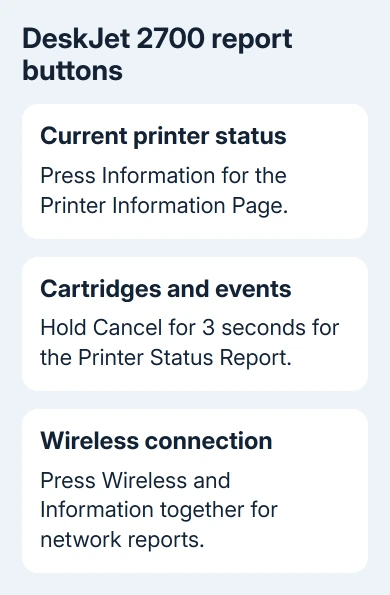
The Information Page summarizes the printer and current status. The Status Report includes cartridge information and recent events. Keep that page to compare with pages printed from your computer.
If the report prints clearly, check the device sending the job next. A blank or defective report points toward the printer's ink or print-quality controls, since the computer didn't create that page.
Check the estimated ink levels, but don't treat an estimate as an exact measurement. A cartridge warning, missing ink on the report, and a cartridge that was just fitted incorrectly are more useful details together.
If a cartridge was just replaced, follow the model's installation steps to check its fit and remove any protective tape. Use its maintenance procedure for a poor report rather than running cleaning cycles without checking the output.
Repeated cleaning uses ink. Compare the report after the supported cleaning step and seek cartridge support if the same color or black area stays absent.
4. Check the connection used for this job
For USB printing, reconnect the cable securely at the printer and computer. If it runs through a hub or dock, try connecting it directly to the computer when a suitable port is available.
For Wi-Fi printing, read each device's connected network name. The saved printer entry can survive a router-name change or guest-network switch even after the actual connection has failed.
On the DeskJet 2700, press Wireless and Information together for its Wireless Network Test Report and Network Configuration Page. Read the connection details on those pages.
When the network is wrong or missing, use the HP Wi-Fi connection steps. Reconnect that printer before repairing a queue that has no route to it.
I'd try one small document after fixing the connection. With ten test copies waiting, you can lose track of the successful attempt and can produce unwanted pages when the printer reconnects.
5. Select the correct printer and clear its queue
Open the app's print dialog and check the selected printer name. A saved PDF destination, an old DeskJet entry, or another printer won't reach the DeskJet sitting beside you.
In Windows 11, open Settings > Bluetooth & devices > Printers & scanners, select the DeskJet, then Open print queue. In Windows 10, use Settings > Devices > Printers & scanners, select it, then Open queue.
Remove a stuck or unwanted job before trying again. If the queue offers a paused state, resume it. An offline state still needs a working USB or network connection; changing the label alone won't reconnect the device.
On a Mac, open System Settings > Printers & Scanners, select your DeskJet to view its print queue. On earlier macOS releases, begin in System Preferences. Continue paused printing there or delete the failed job.
Try printing from another app. If that succeeds, check the original app's selected printer and document instead of replacing a working cartridge.
If printing fails across Windows apps, run the printer troubleshooter in Get Help, following the Windows printing repair steps. Note whether the printer produced a copy successfully.
6. Ask for support that matches the failed check
If local reports print but Windows still fails, follow the supported steps to reinstall the driver or printer for the exact DeskJet model. Don't use a different model's installer, even when the product name looks similar.
If the panel warning returns or local reports remain blank, contact HP Support with the model, error code, cartridge numbers, and report result. Ask HP to check paper feeding, cartridges, or print quality, depending on which test failed.
For a printer under warranty, give HP those results before paying for replacement parts. A successful local report and failed network job should lead to connection support, while a repeated physical fault needs a printer assessment.
The Short Version
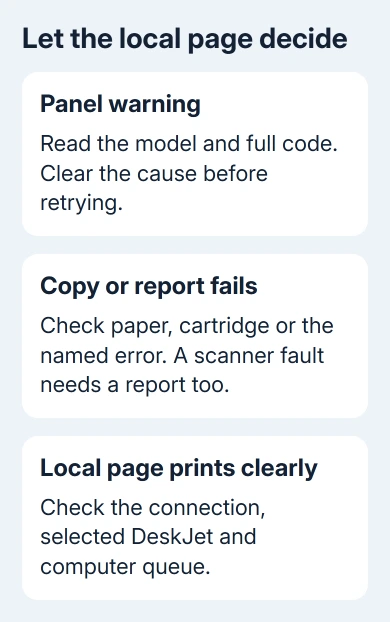
Clear the DeskJet's panel warning, then try a local copy or report. A good local page sends you to the connection, selected printer, and queue. Blank or failed local pages need the model's paper or cartridge checks before driver changes.
Checked November 16, 2026.
 If you have any business, I can build it online






