
An Alert! Keyboard not found warning means the PC hasn't detected a keyboard during startup. Restart with a wired USB keyboard plugged into the PC itself. A Bluetooth keyboard can work in Windows yet go undetected before Windows starts.
A warning at the manufacturer's logo needs different checks from keys that fail after sign-in. Start with the connection, then check whether you have a fault or your chosen keyboard simply isn't available at startup.
1. Check which screen reports the missing keyboard
Check whether the warning appears before the Windows sign-in screen. The PC's startup software, called BIOS or UEFI, checks the hardware before Windows starts. That early check is also called POST.
Write down the full message and your PC model. Keyboard not found, keyboard initialization failure and a Windows notification about a disconnected device can require different next steps.
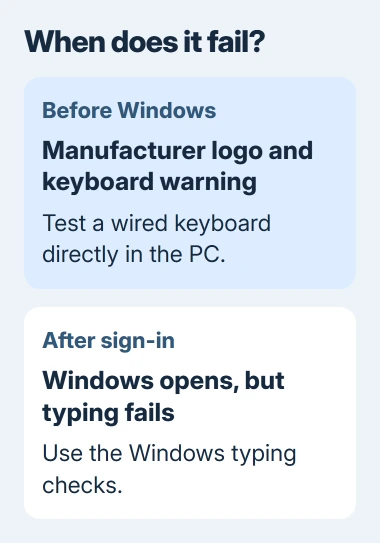
If the screen offers a key to continue, try it with a connected wired keyboard. Once Windows starts, see whether your usual keyboard types normally. This tells you whether the problem continues into Windows or only happens before it loads.
For a keyboard that fails only after sign-in, use the Windows typing checks. Changing a startup warning setting won't fix an app that ignores keystrokes.
An error inside the blue recovery menus is another case. The Windows Recovery keyboard guide covers input in that separate recovery system.
2. Connect the keyboard without a hub or dock
Save your work and shut Windows down normally. Plug the keyboard into a USB socket on the PC. Leave any monitor USB hub, docking station or keyboard switch out of this check.
On a desktop, try another socket on the case if the warning returns. Plug the keyboard in before you press the power button, then check whether the same message appears.
The USB hardware checklist recommends another port and a direct connection when a hub is involved. This lets you check the connection before changing any software.
If the keyboard works directly, reconnect your original hub or dock and restart again. If the warning returns only with that accessory, its connection or compatibility at startup needs checking.
If your keyboard has its own USB receiver, plug that receiver directly into the computer. A keyboard paired through Bluetooth may not be using the receiver, even if both came with the PC.
I'd borrow a basic wired keyboard for this check before buying a replacement. You'll also be able to use it in the startup settings while you check your original keyboard's connection.
3. Compare Bluetooth, receiver and wired operation
Check how you normally connect your keyboard. Bluetooth, a dedicated USB receiver and a USB cable are separate methods. Follow your keyboard's manual to select its wired or receiver mode.
For a battery-powered keyboard, check that it's on and charged. A cable that only charges it won't carry keystrokes over USB. For this comparison, use a keyboard that supports typing through its cable.
One owner on Dell's forum reported normal Bluetooth typing after their Inspiron 7700 started. Reconnecting the original keyboard receiver removed the startup warning, even though they preferred typing through Bluetooth.
That explains how Bluetooth typing can work while the startup warning still appears. Your PC may need to detect a keyboard before Windows starts its wireless connection.
If connecting the receiver removes the warning, you can keep using that connection. If you want to keep using Bluetooth alone, check the keyboard-specific warning setting next.
If a working wired keyboard also fails here, leave the warning on. Try that keyboard on another computer, then a second wired keyboard on this PC. If several keyboards fail here, the PC needs checking.
4. Suppress the keyboard warning only for an intentional setup
Use this option when the PC otherwise works and you've chosen a keyboard that it can't detect at startup. Turning off detection removes the message; it doesn't fix the keyboard connection.
Open your PC's startup settings with the key listed in its manual. On many Dell desktops this is F2 at the logo. Keep your working USB keyboard connected so you can move through the menus.
Look for Keyboard Errors or Enable Keyboard Error Detection. Dell's Inspiron 3020 Small Desktop manual places the control in the Keyboard menu; other models can put it under POST Behavior.
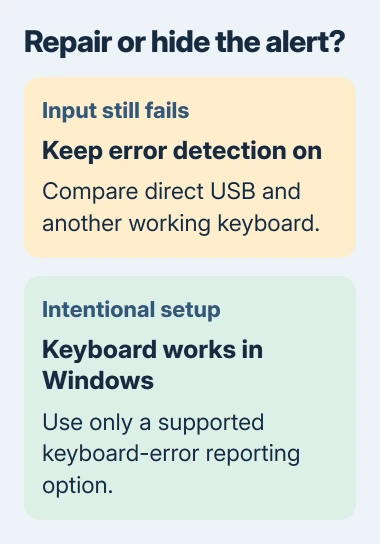
That owner later cleared Keyboard Error Detection under POST Behavior and confirmed a clean startup without the receiver. Their earlier change to general warnings had brought up a headless-mode warning instead.
Note the current setting, then change only the keyboard-specific option. Use the save control shown in the startup settings and restart. You can restore the old setting if you change keyboards later.
If your PC has no such option, keep the supported USB connection or ask the manufacturer about your model. A setting available on another desktop may be missing from yours.
5. Get help when direct USB still fails before startup
If several working wired keyboards bring up the warning, note which USB ports you tried and whether keys work in the startup settings. Give the manufacturer your exact PC model and firmware version when asking for help.
Tell support if only one desktop USB port works, or if a laptop's built-in and external USB keyboards both fail. Support can use those details to pick a hardware test suited to the problem.
On a work computer, ask IT about locked startup settings. Tell them if typing also fails after Windows loads. Hiding the startup message won't fix that problem.
The Short Version
Try a wired keyboard directly over USB, then check whether typing works once Windows starts. For a Bluetooth-only setup, keep a supported USB connection or use your model's keyboard-error reporting control.
Checked November 5, 2026.

Isaac Smith is the founder and editor of PC Glance, a website that covers computers, laptops, and technology. He is a tech enthusiast and a computer geek who loves to share his insights and help his readers make smart choices when buying tech gadgets or laptops. He is always curious and updated about the latest tech trends.