

You click into the middle of a word and type a letter, and the letter to its right disappears. Press the space bar and another one goes. Your text is being typed over instead of pushed along.
I would press the Insert key once, first of all. On Microsoft Q&A, an answer saying just that has 800+ people marking it helpful, and the space bar version alone drew 158,546 views on Super User.
Insert mode and overtype mode
Most text boxes and editors have two ways to type. Insert mode pushes the text to the right along, while overtype mode replaces it, one character for each one you type.
The Insert key switches between them. That is the whole trick.
Microsoft says so on its troubleshooting page for Word, which describes your symptom: "As you type in a document, text at the insertion point is deleted".
The cause it gives is overtype being on after "the Insert key was pressed on the keyboard".
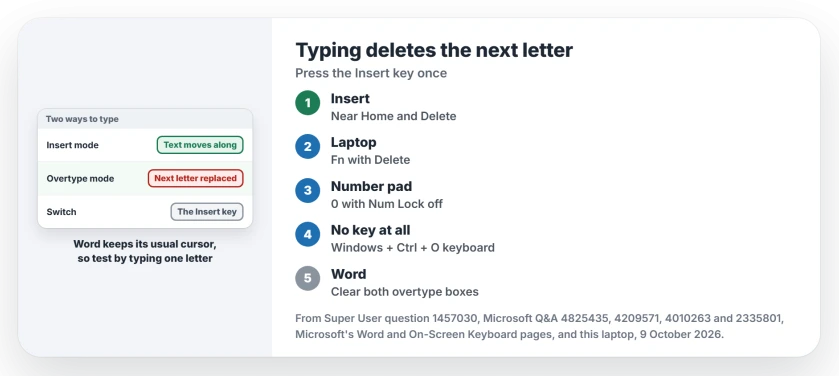
Status: one press of Insert turns it off in many apps, as owners report, and Microsoft documents the Word settings. Console values on our test laptop looked at 9 October 2026.
Ours: Command Prompt windows on this laptop start in insert mode, because the console's InsertMode value is 1. The Insert key flips that too, for the window you are typing in.
QuickEdit Mode sits next to Insert Mode in the window's Properties, and with it on, one click can pause a running script.
How to tell which mode you are in
In many editors the cursor changes. A Super User answer put it this way: "in Insert mode it's a vertical bar placed between two letters, whereas in Overtype mode it's an underscore".
Word keeps its normal cursor. So test by typing instead. Click into the middle of a word and type one letter. If the letter after it vanished, you are in overtype.
1. Press Insert once
On a full keyboard, Insert sits in the block with Home, Page Up and Delete. An Independent Advisor's answer on Q&A, marked helpful by over 70 people, places it "to the right of the Backspace key".
I would press it once, then test again. The accepted Super User answer is two sentences long: "Simply press the Insert key and it will deactivate the replace mode".
2. No Insert key on your laptop?
Many laptops share it with Delete. Try Fn with that key. A Surface Pro 7 owner knew "the trick about holding down the FN key", though it did not work in every app for them.
Does your keyboard have a number pad? Its 0 key doubles as Insert when Num Lock is off.
Still nothing? Open the On-Screen Keyboard with the Windows logo key + Ctrl + O, or the other ways on Microsoft's On-Screen Keyboard page. It has the editing keys laptops drop, Insert among them, so click that once.
3. Stop Word from switching modes at all
Keep hitting Insert by accident in Word? Take the key away from it: open File, Options, Advanced, and look under Editing options.
Microsoft's fix is to "clear both the Use the Insert key to control overtype mode and the Use overtype mode check boxes". After that, your Insert key does nothing in Word.
One user had lost a day to this, writing "I was translating the whole day, and I had to redo a lot of work", and thanked the answer that pointed at these boxes.
I keep the mode on view myself. Right-click Word's status bar and tick Overtype, and the bar then shows Insert or Overtype, which you can click to switch.
Notepad does it, or nothing switches it back
On a Windows 11 Surface in April 2023, a moderator tested Notepad and found that "Notepad does not support overtype mode". The owner agreed.
So if text vanishes as you type in Notepad, look elsewhere. Start with the keyboard itself. A key stuck down, or one sending the wrong code, can eat characters too.
Our keyboard not typing page is sorted by what your keys do.
Whole paragraphs vanish, not single letters
That is a different slip. In September 2026 an MVP on Q&A asked an owner about Typing replaces selected text, and suggested the owner was "inadvertently pressing CTRL+A to select everything".
With everything selected, the next key you press replaces the lot. Press Ctrl+Z straight away to get it back.
How many keys does yours have, and is Insert one of them? Our page on keyboard sizes shows what laptops leave out.
The Short Version
- Letters vanish as you type: press Insert once.
- No Insert key: Fn with Delete, the number pad 0 with Num Lock off, or the On-Screen Keyboard.
- Word keeps switching: clear both overtype boxes under File, Options, Advanced.
- Whole paragraphs gone: you selected everything first; press Ctrl+Z.
Where to Next
Where was your Insert key hiding? Tell us which laptop you have in a comment, and the app where it happened.

Isaac Smith is the founder and editor of PC Glance, a website that covers computers, laptops, and technology. He is a tech enthusiast and a computer geek who loves to share his insights and help his readers make smart choices when buying tech gadgets or laptops. He is always curious and updated about the latest tech trends.