
Your script runs in a Command Prompt window. You click inside it to look, and the output stops dead. Press Enter and it races on. I would read the window's title bar first, because one word there tells you what happened.
Three questions about this pause on Super User and Stack Overflow have 44,697, 48,439 and 18,890 views. It still happens on Windows 11 25H2. A Windows Terminal issue from August 2026 shows it.
Look at the title bar
If the title now starts with Select, your click began a text selection. That happens when QuickEdit Mode is on. It is on by default. Mark in front of the title means a selection started from the window menu.
The accepted Super User answer guessed it straight away: "you are clicking inside the window with your mouse, thus selecting text by mistake and causing the program to pause".
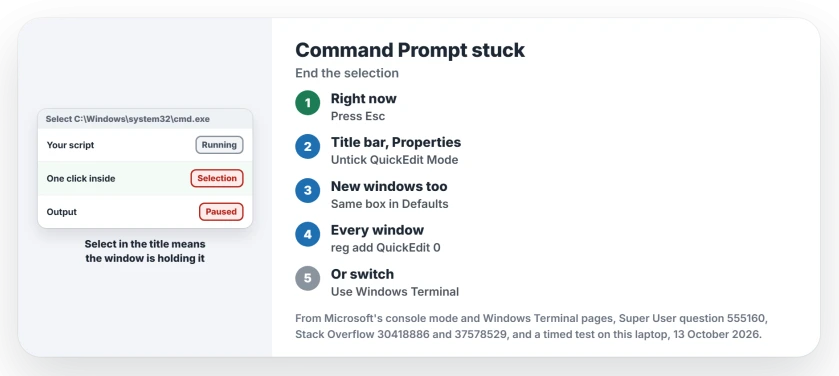
Status: our timed test on Windows 11 25H2, 13 October 2026. A selection in the classic console window stops your program until it ends; QuickEdit lets one click start one.
Ours: those title words come from Windows itself. This laptop's console message file holds Select, Mark and Scroll, the three words the window puts in front of its title.
Why a selection stops your program
The console window stops taking new output while you select. That way the text cannot scroll away from under your mouse.
A Stack Overflow answer with 94 votes explains that "the console host program simply stops reading your stdout/stderr output and your program hangs until the user completes the operation".
A Windows Terminal team member put it the same way on GitHub in 2024: "selecting in the vintage console prevents conhost from servicing any further console API calls".
In August 2026 another wrote "Text selection pauses output and that's how conhost has behaved like this for a long time".
Ours: we timed it. A test window printed a line every tenth of a second and logged each one to a file. It managed 27 lines in three seconds. After Mark it managed 0 lines in three seconds, and the title read Mark.
After Esc it logged 26 lines in the next three seconds. Nothing was lost; your program simply waits. One answer adds that "if you never write to the console, your process is safe from QuickEdit mode freeze".
1. Let it carry on
Press Esc. In our test the log restarted at once. Enter works too, and copies whatever you had selected.
Reported by an owner in that 2026 issue: the window "shows as stopped but after right-click it fast forwards to current progress". A right-click ends the selection the same way.
2. Turn off QuickEdit Mode
The top answer on Stack Overflow gives the steps: "Right click on the title bar, choose Properties, uncheck QuickEdit Mode, and click OK". For every new window, it says, "do the same with Defaults instead of Properties".
The box sits on the Options tab, under Edit Options. Confirmed by an owner: the Super User asker turned it off and wrote "Disabling this gets around the pausing".
You lose click-to-select, not copying. You can still select with the keyboard. Open the window menu with Alt+Space and choose Edit, then Mark.
Microsoft's console mode page describes the flag as one that "enables the user to use the mouse to select and edit text".
3. One command for every console window
To switch it off for every window you open from now on, run this once:
reg add HKCU\Console /v QuickEdit /t REG_DWORD /d 0 /fClose and reopen your windows; the owner who posted it notes "However it will not affect currently opened window".
Ours: this laptop keeps a second QuickEdit value. It sits under Windows PowerShell's own key in HKCU\Console, set to 1. That key wins over the general one, so untick the box in your PowerShell window's Properties as well.
Programs can set QuickEdit themselves. Microsoft says a program turns the mode off by setting the extended flags "without this flag". If one tool keeps pausing your window after all this, it is that tool's own setting.
4. Or run it in Windows Terminal
In Windows Terminal, your selection stops nothing. The same team member wrote that people are "happy that selecting the Terminal accidentally doesn't entirely pause long builds anymore".
To make it your default, open Windows Terminal and go to Settings. Select Startup, then set Default terminal application to Windows Terminal. I would do this on any PC that runs long scripts.
Ours: this laptop has Windows Terminal 1.24 and leaves the default at Let Windows decide. Our test started conhost.exe directly, which still opens the classic window and still pauses.
No Select in the title? Check Pause and Ctrl+S
Pause and Ctrl+S stop output too. No selection is needed. A Terminal team member explained "If you don't have a Pause/Break key you can press Ctrl+S instead".
Both pause the output "until you press another key". In the classic window, Ctrl+Q resumes it.
Sending your output to a file avoids every one of these. One commenter noted "Redirecting the output and/or error streams will prevent quick edit mode from pausing your program".
A window that flashes up and closes by itself has its own cause, explained in our page on Command Prompt popping up. If Command Prompt will not open at all, see cmd.exe missing.
Typing cd with another drive's path and staying put on C: is a different classic window habit, and one extra switch cures it.
The Short Version
- Select or Mark at the start of the title means a selection is holding your program.
- Press Esc, Enter or right-click to let it carry on.
- Title bar, Properties, Options: untick QuickEdit Mode; use Defaults for new windows.
- Or reg add HKCU\Console /v QuickEdit /t REG_DWORD /d 0 /f, plus PowerShell's own setting.
- Windows Terminal does not pause on a selection; Pause and Ctrl+S still do.
Where to Next
Did the title say Select when yours stopped? Drop a comment with the window your scripts run in; I check each one against Windows Terminal's changes.

Isaac Smith is the founder and editor of PC Glance, a website that covers computers, laptops, and technology. He is a tech enthusiast and a computer geek who loves to share his insights and help his readers make smart choices when buying tech gadgets or laptops. He is always curious and updated about the latest tech trends.