To install Chrome from Command Prompt, download Google's enterprise MSI and run it with msiexec. This Windows Installer package can install the browser without the regular Chrome setup window.
Use the package that matches your PC's processor, run Command Prompt with administrator permission, and enter the file's actual location. A command pointing at a file you haven't downloaded can't start the installation.
In this guide
Choose the Windows installer for your PC
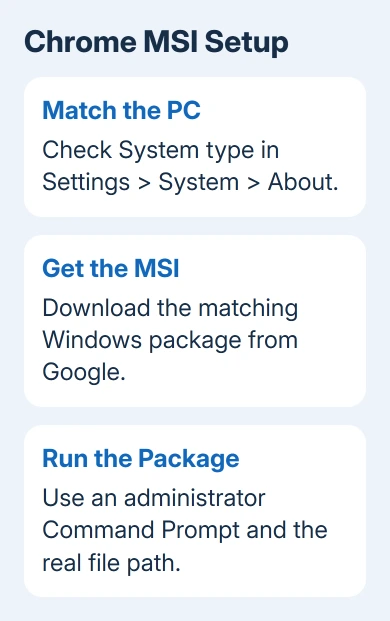
Open Settings > System > About and read System type. Check whether the PC uses an x64 processor or an ARM-based processor before choosing the Windows package.
On Windows 10, the same System > About page shows the system type. If the page says the operating system is 32-bit, don't select a 64-bit MSI just because another computer in the house uses it.
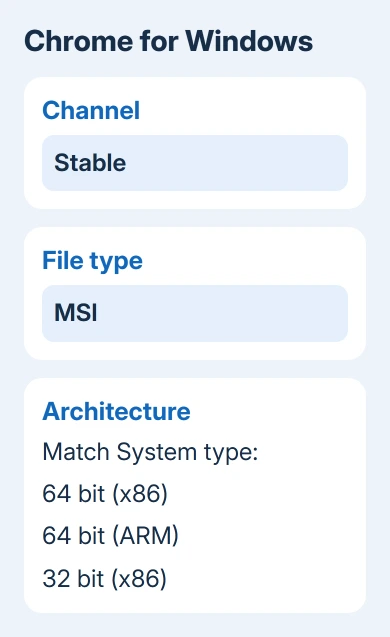
Use the stable Chrome browser package unless you specifically need another release channel. Beta and other testing channels aren't a repair for an ordinary missing Chrome installation.
Google's Windows deployment instructions support installing Chrome from an MSI. This package is also useful for a personal Windows PC when you want the Windows Installer route rather than the regular setup program.
The MSI can replace a copy of Chrome installed for one user with a copy installed for the whole PC. For a managed computer, ask IT to install its approved browser package and settings.
For manual setup on a disconnected PC, transfer the consumer installer from a computer that can reach Google's download page.
Download the MSI from Google
Open the Chrome Enterprise download page and click Download Chrome to open the download choices. Select Windows, then choose Stable, MSI, and the architecture matching System type.
An enterprise ZIP bundle also contains administrator files. Extract the ZIP and locate its .msi before running the command; Windows Installer needs the extracted package.
Use File Explorer to see where the package was saved. Downloads is common, but your browser may use a different folder. Don't assume a file exists in Downloads just because an example command uses that location.
For the commands in this guide, place the downloaded MSI in C:\Installers and name that file Chrome.msi. Create that folder yourself if it isn't there. The commands use it as an example location.
If you prefer to keep the original filename, use that filename in every command instead. The name in the command must match the real file, including its .msi extension.
Verify the MSI Location Before Running Setup
Search Start for Command Prompt, choose Run as administrator, and approve the Windows permission prompt. If Windows requests an administrator account you don't have, the owner or IT administrator needs to perform this installation.
In that window, check the example location:
dir "C:\Installers\Chrome.msi"The output should list the MSI file. File Not Found means the location or name is wrong; fix that before trying an installation command. For a different folder, replace the entire quoted path with the file's real path.
Quotation marks keep a path containing spaces together as a single file location. Keep them around the package path even when the example folder has no spaces, so the same command structure works with a longer folder name.
I'd check the file location before trying silent mode. Without a visible installer window, a simple filename error is easy to mistake for a download or Windows problem.
Run a visible installation first
To start the MSI with its normal installation interface, enter:
msiexec /i "C:\Installers\Chrome.msi"The /i option tells Windows Installer to install the named package. Follow its prompts and let it finish. This is the easier first attempt when you want to see a message about permissions, a damaged package, or an existing version.
Save your work in Chrome and close the browser before replacing an existing installation. The installer may need access to files Chrome is using, so finish anything you're working on before it makes changes.
If the installer reports that a newer version is already present, don't keep retrying an older MSI. Chrome's deployment instructions say an older version can't be installed over a newer one. Download the current stable package instead.
If Chrome already works and your goal is only to change how links open, the default-browser settings are a separate task. Installing Chrome doesn't answer whether Windows has selected it as the default.
Use silent mode with a log when you need it
After confirming the package path, this form installs without the normal installer interface and writes a detailed log:
msiexec /i "C:\Installers\Chrome.msi" /qn /norestart /L*v "C:\Installers\Chrome-install.log"The /qn option hides the installer's windows, /norestart prevents an automatic restart, and /L*v records a detailed installation log. These are standard Windows Installer options.
Save the log in a folder you have permission to write to. In this example the folder already exists because you placed the MSI there. If you change the log location, create that folder before running the command.
Silent installation isn't the same as instant installation. Give Windows Installer time to finish, then check the result. If it fails, open the log in Notepad and keep the final error details for support.
Windows may still need a restart afterward, even with the norestart switch. It controls whether this command restarts the computer automatically, leaving you to handle any required restart after saving work.
Confirm Chrome starts and handle a failed install
Search Start for Google Chrome and open it after installation completes. For an existing browser, open More > Help > About Google Chrome to check the installed version once it launches.
For a missing package, repeat the dir check. For an invalid package, download the correct Google MSI again. Access denied or a policy restriction needs your administrator's review.
A Command Prompt that stops responding before installation begins needs a separate check. The Command Prompt selection issue explains the case where selecting text pauses the window.
For a persistent MSI failure, send IT the filename, Windows version, processor type, and log. The Chrome Enterprise help community linked from the deployment page can also work from those details.
The Short Version
Download the matching Google MSI, check its path, and run msiexec /i as administrator. For silent setup, write a log and confirm Chrome opens afterward. An older MSI can't replace a newer version of Chrome.
Checked November 12, 2026.