Chrome's offline installer lets you get setup on a connected computer and move it to an offline Windows PC. Use Google's alternate download link, choose the destination PC's operating system, then transfer the complete file to install it.
This helps when the usual download or online setup fails. It doesn't give the installed browser an internet connection, so webpages and later updates still need working network access.
In this guide
Check the Windows PC that will receive Chrome
On the PC that needs Chrome, open Settings > System > About. Read System type and the installed Windows version. Choose the download for this PC, even if you're using a different kind of computer to download it.
Chrome lists Windows 10 or newer for Intel-based computers and Windows 11 or newer for ARM-based computers. Check those requirements before taking the installer to an older PC.
An offline installation doesn't make an unsupported Windows release compatible with current Chrome. If the destination runs an older operating system, review its upgrade options rather than searching for an unofficial repackaged browser.
On an organization-managed PC, check whether its administrator provides the browser. The full installer is still subject to that PC's installation rules. It won't give your Windows account administrator permission.
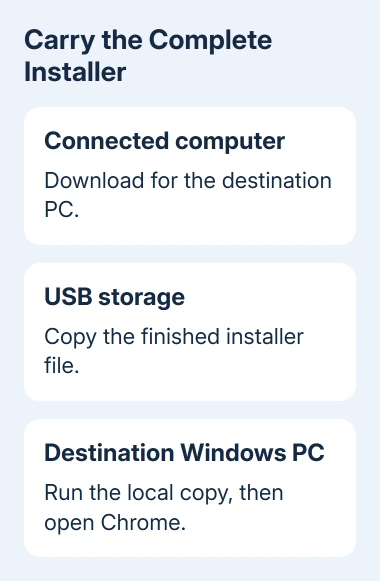
Download the installer using another computer
Google recommends its offline installation route for Windows download problems. On the connected computer, find Install Chrome offline and follow the alternate installer link.
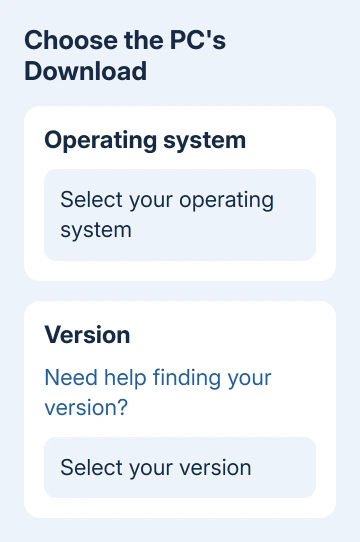
In the Chrome page's footer, select Chrome Family > Other Platforms. Choose the destination PC's operating system and download its installer, even if the page first offers a download for the connected computer.
Use the Other Platforms page to choose the download. Match its Windows choice to the PC checked earlier; don't choose a Mac download just because you're borrowing a Mac to get the file.
Let the browser finish the download. Open its downloads list to check that the file completed successfully and find its saved location. Wait until it finishes successfully before copying it to the other PC.
Keep the original filename so you can recognize the downloaded installer later. Don't change a file's extension to make Windows treat it as a different installation package.
If the download fails on this connected computer too, use the Chrome download-error checks. Changing the computer only helps if it can actually retrieve the complete file.
Copy the completed file to the offline PC
Insert a USB storage drive into the connected computer. In its file manager, copy the downloaded installer onto that drive. Disconnect the drive after the file transfer has completed.
On the destination Windows PC, connect the drive and open File Explorer > This PC. Open the removable drive and copy the installer into a local folder you can find, such as Downloads.
Use Copy rather than creating a shortcut. A shortcut points back to a file in another location; it doesn't contain the installer needed by the offline computer.
If you're unsure the transfer finished, compare the copied file's name and size with the original download. Both copies should have matching sizes. Chrome installers don't have one fixed size you can use for every download.
I'd run the copy saved on the PC so an unplugged USB drive can't interrupt setup. Keep the original downloaded copy until installation has finished so you can repeat the transfer if the first copy fails.
Start setup from the saved installation file
Open the folder holding the local installer and double-click it. Follow the setup prompts. If Windows asks for an administrator account, have the computer's owner or administrator approve the installation.
When setup completes on a supported Windows computer, Chrome should open a browser window. Close it and reopen Google Chrome from Start to check that you can open it normally.
Check that Chrome opens before testing a website. The New Tab page or browser menus can open while the PC is offline; a website that won't load at that point doesn't mean setup failed.
If setup immediately needs another download, return to the instructions' offline section and follow the alternate download link. Copying the online setup program again won't help, because it still needs to download files.
An enterprise MSI can also install Chrome. It's a package for Windows Installer, with different setup steps. The Command Prompt installation guide covers Windows Installer commands and a log if your administrator needs them.
If you're installing Chrome by double-clicking its installer, finish checking that file and the setup result first. Keep the original error message if you try another installer so you can tell which part of setup failed.
Handle a Windows block or setup failure
Read the full message from Windows or Chrome setup before trying again. A permission restriction, an incompatible system and an incomplete installation file need different responses.
If the file won't open, check the transfer and copy it again. For a damaged or invalid file message, get a fresh official download and transfer the new copy instead.
Don't turn off the computer's security protection just to get past an unexplained warning. Give the administrator the filename, source page and exact message so they can assess the file and installation policy.
For a persistent installer error, use the troubleshooting link in the installation instructions. Include the Windows version, System type, whether the file was transferred from another computer, and the step where setup stops.
Reconnect before browsing and updating
Once the PC has internet access, load a familiar website to test the connection. If Chrome launches but no browser can load websites, check the PC's network connection now that Chrome is installed.
Open Chrome menu > Help > About Google Chrome while connected to check for updates. An offline copy can be older than the version available when the computer finally reconnects.
Keep the saved installer while you still need it. For another PC later, repeat the system check and get a current download rather than assuming one old package suits every machine.
The Short Version
Use the alternate download link on a connected computer and select the Windows version for the PC that needs Chrome. Transfer the completed file, run it locally and confirm Chrome opens. Browsing and updates need a connection afterward.
Checked November 13, 2026.