ChatGPT can slow down in Chrome because of a long conversation, an interfering extension or a service delay. Try a short prompt in a new chat first.
If typing works but replies stall, check for a service problem. If typing or scrolling lags too, compare an Incognito window with your normal Chrome window to see whether a fresh session helps.
In this guide
1. Try a fresh conversation and retry a stuck response
Open New chat and send a brief prompt without an attachment. Compare it with the conversation that feels slow. If the fresh chat responds normally, you can keep working there without resetting browser data.
Long conversations with many turns are one case covered by the official troubleshooting steps. When moving to a new chat, include the context it needs instead of assuming it has the previous conversation's instructions.
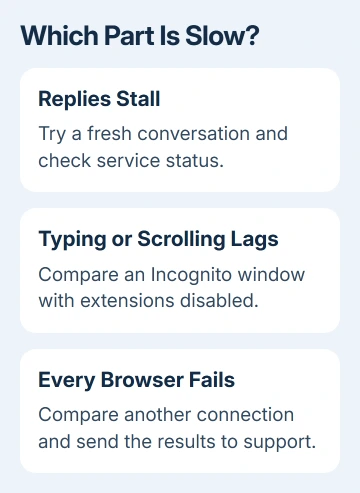
For a response that appears stuck indefinitely, wait 30 to 60 seconds. Then use the stop control and retry the response. If it still hangs, resend the prompt in that fresh conversation.
Check a simple prompt before repeating a large file upload or a complicated request. This tells you whether ChatGPT can complete an ordinary response, rather than testing several different delays at once.
If Chrome is responsive but both conversations stall, continue to the status check. If Chrome struggles to accept typing or scroll even before a response starts, move to the Incognito comparison after checking for an outage.
2. Check whether the service has an active incident
Open OpenAI Status and look for an active incident affecting ChatGPT. Read which feature is affected. A problem involving one tool doesn't automatically explain every slow chat.
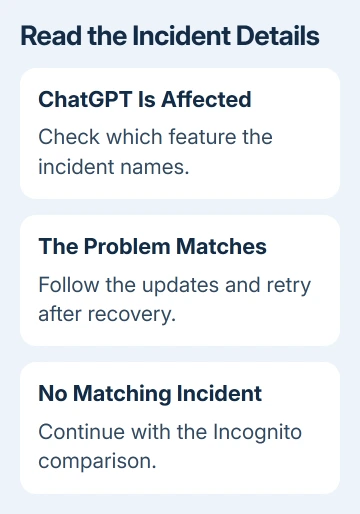
If the reported incident matches your problem, follow its updates and retry after recovery. Clearing browser settings won't repair a service failure. Keep useful work saved while waiting instead of repeatedly resending the same request.
Even if the status page shows normal service, your session could still be having trouble. Continue with the browser comparison if it's still slow.
The result on your device still matters, especially when one Chrome profile behaves differently from another browser.
The Chrome crash recovery guide covers restoring tabs when the browser actually closes. A slow response inside an otherwise working tab needs the checks here first.
3. Compare Chrome with an Incognito window
Open Chrome's three-dot menu and choose New Incognito window. Windows and Linux use Ctrl+Shift+N; Mac uses Command+Shift+N. Open ChatGPT, sign in and test a new conversation.
Incognito normally excludes extensions, except those granted permission to run there. Check whether you've allowed any extensions in Incognito, since tools that change pages or filter requests could still affect this test.
If the new window works smoothly, switch back to ordinary browsing and open Extensions > Manage extensions. Turn off extensions that block scripts, modify ChatGPT or add privacy filters.
Test again, then enable each separately until the delay returns.
Don't remove them all permanently just because the Incognito test succeeds. It changes both extensions and session data, so the site-data check is still useful if disabling extensions doesn't help.
I'd compare the two sessions before considering a Chrome reinstall. It takes less work and tells you whether a fresh session can run ChatGPT on the same computer and connection.
4. Refresh the tab and remove only ChatGPT's site data
First try a hard refresh. Use Ctrl+Shift+R for Windows/Linux; on macOS, press Command+Shift+R. That reloads the page's resources. If it stays slow, sign out of ChatGPT, then log in again.
If ChatGPT still fails in your normal window, remove its saved site data. In Chrome, open Settings > Privacy and security > Third-party cookies, then select See all site data and permissions.
Search for chatgpt.com and remove its saved data entry.
Saved entries for chat.openai.com can also remain from the older address. Remove the relevant ChatGPT entry rather than clearing data for every website. Close the affected tabs, reopen ChatGPT and sign in again.
Deleting site cookies signs you out, so have your sign-in method available first. Copy any unsent prompt somewhere safe before refreshing or removing the data.
Google's site-cookie controls describe the current settings route. This check targets saved browser data; it isn't an instruction to delete conversations from the ChatGPT account.
If your normal window now works as well as Incognito, the saved session was part of the problem. If both remain slow, change browsers or networks for the next comparison.
5. Compare another browser, device or network
Try the same short prompt in another browser. If it works there while Chrome stays slow, keep working in that browser and note that the problem affects Chrome.
Then open Chrome menu > Help > About Google Chrome. Install any offered update and use its relaunch control. Save ongoing work before the relaunch.
If other pages are also slow, close unneeded tabs and programs to free the computer's resources.
If multiple browsers stall, compare another device or a different connection. Disconnect your own VPN temporarily, or stop using your proxy, and retry. A VPN routes traffic through another network, which can change how ChatGPT connects.
On an organization's connection, ask the administrator about ChatGPT access and filtering instead of changing managed security controls. Tell them when it failed and whether another permitted network works.
The Windows memory-usage guide helps when the whole computer struggles with open apps. High computer load and a remote response delay can feel similar, but they call for different repairs.
6. Send support the comparisons that still fail
If fresh chats stay slow across browsers, devices and networks, contact support through the Help Center chat bubble. Include the time and time zone, model used, conversation address and whether the delay affects typing or only responses.
Support may request a HAR file, a browser record of network requests, and Console errors. Follow their collection instructions and review the file for private information before sharing it.
The comparisons you've made give them a useful starting point.
The Short Version
For ChatGPT delays, compare a new conversation and check service status. For Chrome-only lag, test Incognito, extensions and ChatGPT's saved site data. Contact support if it stays slow across browsers and networks.
Checked November 13, 2026.