
Your PC crashed or restarted, Chrome opened empty, and the Restore button did nothing. Your tabs are often still on the disk, in two small files. The next Chrome start can overwrite them.
I would stop and copy those files before anything else, because Chrome keeps only one old session. 260,055 people have opened the Super User thread about quitting Chrome by accident, and one about a crash adds 153,680.
Chrome keeps two sessions, no more
Chrome writes your open tabs to files named Session and Tabs, with a date and time on the end, and they sit in a Sessions folder inside your Chrome profile.
Chrome's own source code sets the limit. At startup it will "Best effort delete all sessions except the current & last."
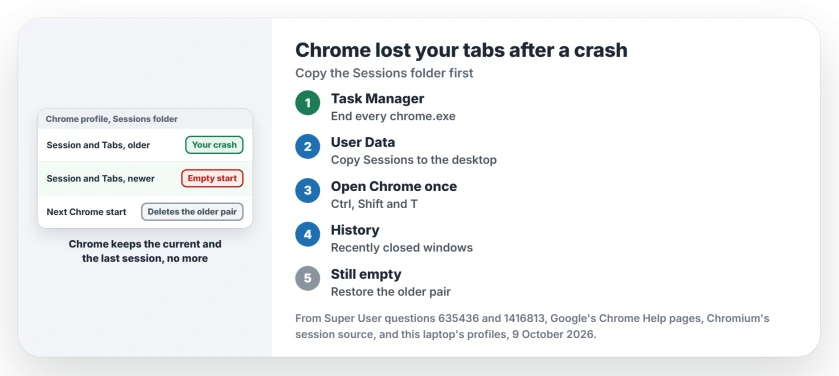
Status: Google documents the reopen shortcut and Chromium's code sets the two session limit. Copying the files is the owners' fix; our laptop's folders were looked at 9 October 2026.
So each new start pushes your crashed session closer to deletion. The answer Super User accepted puts it this way: Chrome "is designed to keep only one set of backups in addition to the current, working copy".
Ours: every Chrome profile on this laptop held one older and one newer pair of Session and Tabs files. Two profiles also had a Sessions_Encrypted folder beside it, with files in it, on Chrome 154.
1. Close Chrome and copy the folder
Close every Chrome window, then check Task Manager for any chrome.exe still running and end it. Then open File Explorer and paste this into the address bar:
%LOCALAPPDATA%\Google\Chrome\User DataOpen Default, or Profile 1 and so on for a second profile. Copy the Sessions folder to your desktop, and Sessions_Encrypted if you have it.
The accepted answer gave the same advice: "Copy these four files somewhere so that you can work without losing anything." The files have new names now. The advice holds.
2. Try Ctrl, Shift and T
Now open Chrome once. Google says it as a tip on its crash help page: "You can reopen any tabs that were open before" with Ctrl, Shift and T. On a Mac, use Command, Shift and T.
Give Chrome a few seconds after it opens, then press it once and a whole window may come back.
Nothing? Open the Chrome menu, then History, and look under Recently closed. A window with all its tabs shows as one entry. One owner opened the History page first and pressed the shortcut there. They wrote "I found this to work reliably."
3. Put the older pair back
Still empty means the newer files hold your empty start, not your crash. Chrome only offers Restore after a crash, so make it think it crashed.
The owner behind that method said "you need to Kill the browser, not just close it". With Chrome open, end chrome.exe in Task Manager instead of closing the window.
Now compare your Session files. One reader on that thread found the crashed one larger, often hundreds of KB. A fresh, empty start takes only a few KB on the disk.
I would delete the newer, smaller pair and keep the older one. Copy it back from your desktop if it has gone. Start Chrome and select Restore.
It worked before and not after a restart
That is the timing problem. A Super User reader explained that the shortcut fails "if you have rebooted", because the old session had already been replaced.
Opening Chrome twice after a crash is enough to lose it. Copy the folder before the second start, every single time.
Stop it happening again
Set Chrome to reopen your tabs. Open Settings, then On startup, and choose Continue where you left off.
That setting uses the same files, so it fails the same way after a bad crash. For a few hundred tabs, a session saving extension keeps its own copies as you browse. One Super User owner restored 122 tabs that way.
I also bookmark the tabs I cannot lose. Lost passwords at the same time? The saved passwords gone page covers that part. On a Mac with Safari, see the missing tabs fixes.
The Short Version
- Do not open Chrome twice. Copy the Sessions folder first.
- Ctrl, Shift and T, or History, Recently closed.
- Still empty: end chrome.exe so the next start offers Restore.
- Then remove the newer, smaller Session and Tabs pair and start Chrome.
- Turn on Continue where you left off, and bookmark what matters.
Where to Next
Did the older pair bring your tabs back? Say so in a comment, it helps the next person decide.

Isaac Smith is the founder and editor of PC Glance, a website that covers computers, laptops, and technology. He is a tech enthusiast and a computer geek who loves to share his insights and help his readers make smart choices when buying tech gadgets or laptops. He is always curious and updated about the latest tech trends.