
You type an http address, Chrome loads https instead, and the page fails with a privacy error. Firefox opens it fine. Your router page, a NAS or your own test site can all hit this.
I split it into three causes, because each needs a different fix and one of them arrived this month. Super User's 2013 question on it sits at 1,200,609 views, and Chrome 154 now adds a new reason.
Three rules can rewrite your address
The first is HSTS, a note a site leaves in your browser, and the second is an old redirect Chrome kept in its cache. The third is Chrome's own setting that tries https first.
The top Super User answer, with 1,007 votes, puts the first one simply for you: "HSTS is a security feature that forces the browser to use HTTPS even when accessing an HTTP URL."
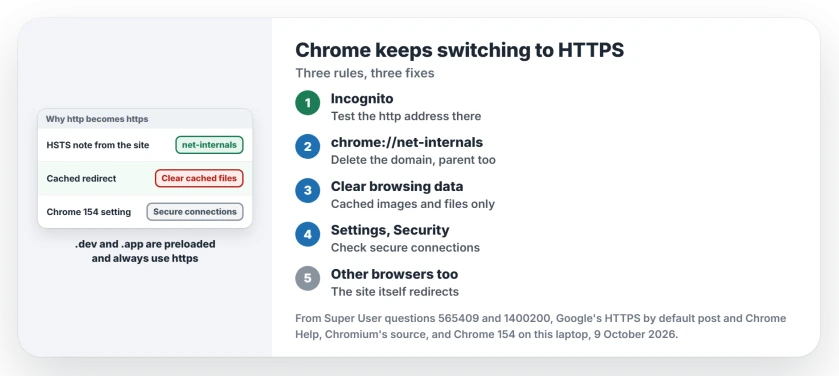
Status: Google documents the Chrome 154 default and the secure connections setting. The HSTS and cache fixes come from owners. Chrome 154 on this laptop checked 9 October 2026.
Ours: this laptop runs Chrome 154.0.8037.99, and three of its profiles hold 65, 438 and 279 HSTS entries. Each one is a site that told Chrome to use https only.
Start with a quick test: open a new Incognito window and try your http address there. A Super User reader wrote that "Starting a new incognito window will give an immediate workaround of the problem."
1. Delete the site's HSTS entry
Type chrome://net-internals/#hsts in your address bar. Under Delete domain security policies, enter the site's name with no http and no slash, then select Delete. Then try the http address again.
A subdomain can inherit the rule from its parent, so use Query HSTS domain on the same page to check the parent name. If it shows up, I would delete that one too.
That answer has drawn replies for ten years. One of them: "Can confirm it still works."
Some names cannot go. Chrome's own page tells you so: "You cannot delete preloaded entries." Every .dev and .app address is preloaded. A local test site on .dev will always go to https, so rename it to .test.
2. Clear cached images and files
Chrome can also remember a redirect from the site itself. Deleting HSTS does nothing for that.
Press Ctrl, Shift and Delete. Set the time range to All time and tick only Cached images and files. Your cookies and history can stay.
For some owners this was the whole fix. One owner wrote that clearing browser data "alone was enough to stop redirects". Another replied "This worked for me, while HSTS and other solutions did not."
Then retype the address with http. Chrome will have filled in https again while you were testing.
Does the https address keep topping the list as you type? One keyboard shortcut drops that suggestion from the address bar.
3. Check Always use secure connections
This is the new one. Google says that "with the release of Chrome 154 in October 2026" this setting comes on by default for public sites.
Google's help page explains it: "Chrome upgrades URLs to use HTTPS and displays a warning before you visit a site" that lacks it.
Open Settings, Privacy and security, Security. Under Secure connections, look at Always use secure connections and the option picked under it.
The default option skips private sites, "such as your company's intranet". That covers a router at 192.168.1.1. If yours warns on your router too, the public and private option is chosen, so switch back to the public one.
Google adds that once you visit an insecure site regularly, Chrome stops warning you about it each time. You can still turn the setting off. I would leave it on and click through for a site you trust.
The page still loads as https
Then the site itself sends you there, since a web server set to redirect every visitor wins over anything in Chrome.
I always test that before blaming Chrome. Check with another browser. If Firefox or Edge also lands on https, the site or the device itself does the redirect. Its own admin settings are the place to look.
A local test server can also fail in Chrome for a reason unrelated to https: the port number itself. Chrome keeps a short list it never connects to.
A certificate error on that https page is a separate problem. Our connection is not private page explains that warning on a Mac or iPhone.
Your hosts file points the name elsewhere
This one bites people who swap a name between two servers in the hosts file while they build or move a site. The asker on the newer Super User question did exactly that.
The old server sent HSTS, and Chrome kept it after the swap. Do steps 1 and 2 after every swap, or give each server its own name. Not sure the swap took at all? Check the hosts file troubleshooting first.
The Short Version
- Test in a new Incognito window first.
- Delete the site at chrome://net-internals/#hsts, parent domain too.
- Clear cached images and files with All time chosen.
- Chrome 154 turns on Always use secure connections for public sites.
- .dev and .app are preloaded, so they always use https.
Where to Next
Router, NAS or your own test site: which of the three caused yours? Your comment could save the next person an evening.

Isaac Smith is the founder and editor of PC Glance, a website that covers computers, laptops, and technology. He is a tech enthusiast and a computer geek who loves to share his insights and help his readers make smart choices when buying tech gadgets or laptops. He is always curious and updated about the latest tech trends.