
You open a website in Safari and get a full-page warning instead: This Connection Is Not Private. Maybe it is your bank. Maybe it is Google itself, and every other site too.
Before you tap past it or reset anything, one question sorts it out. Is it one site, or all of them? I cover what to do in each case, and the fixes that worked for iPad owners who saw it everywhere.
One site, or every site?
Apple lists the reasons Safari warns you. The first is simple: "The website is encrypted, but its certificate is expired or illegitimate."
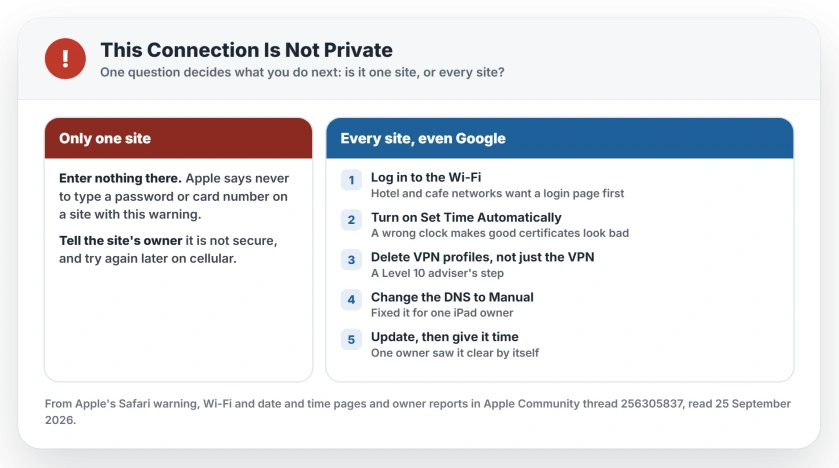
If only one site does it, the problem is usually that site. Apple's advice is firm: "Never enter your password or credit card number on sites with this warning."
If every site does it, even Google, the sites are fine. Your iPhone or iPad cannot check them properly, and that is something you can fix.
Status: checked 25 September 2026. Apple's page covers the one-site case. For the every-site case, the owner reports come from iPads on iPadOS 17.7.11, where changing the DNS fixed it for one owner and a date and time change for another.
If it is only one site
Do not type a password or card number into it. Apple's page says to contact the site's owner and "let them know that their site isn't secure."
If it is a site you use every day, try it again later on cellular, and tell the owner if the warning stays.
Safari on macOS 27 can also hide new windows behind yours, and the Safari windows page has the fix.
If it is every site, work down this list
An iPad owner described the every-site version exactly. Safari "marks their certificates as untrusted", even for Google. Worse, "I cannot download or update any apps from the App Store, websites usually do not load in Safari".
The same thread has 88 people saying Me too. These are the checks, in the order I would do them.
1. Log in to the Wi-Fi first
Hotel, café and airport Wi-Fi often wants you to log in before anything works. Until you do, secure sites can fail with this exact warning. That link between the two is our explanation.
In Apple's steps, you tap the network's name in Settings, Wi-Fi, and wait for its login page. Once you log in, Apple says, "you should be able to access the internet."
2. Let the date and time set themselves
Every security certificate is valid between two dates, so a wrong clock makes good sites look bad. That reasoning is ours, and it is why this check comes early.
Apple's fix is one switch: Set Time Automatically, under Settings, General, Date & Time. Switch it on.
One iPad owner found an odd variation that worked: "Even though the time and date were correct I manually set for a few min behind and it fixed the handshake with dns server." Try the automatic setting first.
3. Delete VPN profiles, not just the VPN
VPN and security apps sit between you and every site. A Level 10 adviser was specific: "Delete any VPN profiles in Settings/General/VPN & Device Management/VPN, then restart your device."
The same adviser added: "Don't just turn VPN off; delete the profile." You can reinstall the app later if you need it.
4. Change the DNS
This is the fix that ended it for one owner: "The last thing I did just before it started to work was I changed the DNS from Auto to Manual." Their result: "After doing that I was up and running and had no internet issues."
The steps are the same ones our iPad Wi-Fi guide uses for pages that will not load. Change it for your home network, and test again.
5. Update, then give it time
Install any update under Settings, General, Software Update. After everything else failed, one owner saw it clear with no fix at all: "then it just fixed itself".
If you use Private Relay and sites fail in other ways too, the Private Relay page has its own checks.
What does "This Connection Is Not Private" mean?
Safari could not confirm the website's security certificate. Apple lists an expired or illegitimate certificate first among the reasons. It can also mean something between you and the site, like a Wi-Fi login page, is in the way.
Is it safe to continue to the website?
Not with passwords or card details. Apple says never to enter them on a site showing this warning. If every site shows it, fix your device first rather than tapping past the warning.
Why does every website say my connection is not private?
When every site does it, your device is the likely cause, not the sites. Owners report fixing it by changing the DNS or the date and time, and a Level 10 adviser recommends deleting VPN profiles.
Seeing it in Chrome on a Windows PC instead? There the warning adds a NET::ERR_CERT code, and that code tells you where to start.
Can a wrong date cause certificate errors?
Yes. A certificate is only valid between set dates, so a clock that is far off makes valid sites fail. Turn on Set Time Automatically under Settings, General, Date & Time.
The Short Version
- One site showing the warning is that site's problem. Enter nothing there.
- Every site showing it points at your iPhone or iPad.
- Log in to public Wi-Fi before browsing.
- Turn on Set Time Automatically.
- Delete VPN profiles, not just the VPN.
- Changing the DNS fixed it for one iPad owner.
Where to Next
Do the Wi-Fi login and the clock first. They take a minute, and they are behind this warning often.
Which step cleared it for you? Mention your device and its software version in the comments. I read them, and fixes that work go into this page.

Isaac Smith is the founder and editor of PC Glance, a website that covers computers, laptops, and technology. He is a tech enthusiast and a computer geek who loves to share his insights and help his readers make smart choices when buying tech gadgets or laptops. He is always curious and updated about the latest tech trends.