
On cellular, your pages and apps quietly stop loading, and the second you turn Private Relay off they snap back. That looks conclusive, and I am afraid it usually is not.
That points the finger at Private Relay, but the real cause is usually one of four things, and only some of them are yours to fix.
Which one you have decides whether you flip a single setting or simply wait it out. So sort it first, then fix the right thing.
Which of the four is it?
Run these four checks in order, and one of them is your answer:
- It fails on only one network (a certain carrier, or your work, school, or a guest Wi-Fi) and works fine elsewhere. That network is blocking Private Relay. Expected, and there is a targeted fix.
- It fails on every network at once, and you are not on a blocking network. That is almost always an Apple server outage.
- You run a VPN, a custom DNS, an ad or content blocker, or antivirus. One of them is conflicting with Private Relay.
- Your iCloud+ lapsed. Private Relay is part of iCloud+, so it stops when the subscription does.
Two more to rule out quickly. Private Relay turns itself off in the few countries where Apple does not offer it, so it will not run if you are traveling through one.
And a Screen Time content restriction, a child account, or the master switch simply being off will stop it just as cold.
If it fails on only one network
This is the common one, and the usual advice overshoots. Some carriers block Private Relay, and so do many workplace, school, and guest Wi-Fi networks.
On those, the error is the network doing its job, not your iPhone failing.
The move is not to switch Private Relay off everywhere and lose the privacy on every other network. Turn it off for just the network that will not cooperate:
- On cellular: Settings > Cellular > Cellular Data Options > Limit IP Address Tracking, and turn it off.
- On a Wi-Fi network: Settings > Wi-Fi, tap the (i) next to the network, and turn off Limit IP Address Tracking.
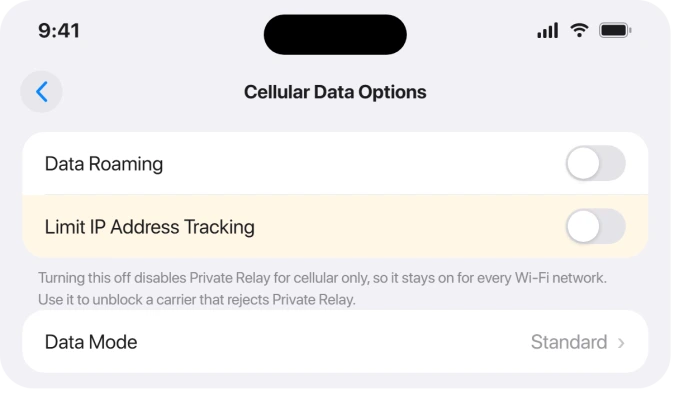
One caveat, from Apple's own guidance on per-network Private Relay: turning it off for a Wi-Fi network turns Private Relay off for that network across every device signed in to the same Apple Account.
On cellular it stays local to that iPhone.
There is a fresh version of this worth calling out.
After iOS 26, some iPhone 16 and 17 owners found pages and apps failing to load on cellular data while Wi-Fi stayed fine, heavily on the UK carriers O2 and EE.
It looks like a clash between Private Relay's routing and how those carriers handle cellular, more than a clean iOS bug, since it also hit phones still on iOS 18.
Apple has not acknowledged it, and no update has been confirmed to fix it, so the per-network cellular toggle above is the working answer.
If cellular data is failing more broadly, iPhone no service or 5G dropping on iOS 26 covers that side, and Wi-Fi not working after iOS 26 helps you prove it is only cellular.
If it fails on every network at once
When Private Relay drops on Wi-Fi and cellular together, and you are not on a network that blocks it, the problem is usually on Apple's end, not yours.
Check Apple's System Status page and look for the iCloud Private Relay row.
A yellow or red marker means an outage, and there is nothing to fix on your phone. A big outage can take a day or more to clear.
While you wait, tap Turn Off Until Tomorrow when the banner appears, so Private Relay switches itself back on automatically the next day.
If you run a VPN, custom DNS, or a content blocker
Private Relay routes your traffic through Apple's own encrypted DNS, so anything that intercepts or filters that traffic breaks it.
That includes a VPN, a custom or encrypted DNS profile, a DNS-based parental filter, an ad or content blocker, antivirus web protection, and work-managed MDM profiles.
Open Settings > General > VPN, DNS & Device Management to see what is installed, switch off the VPN or blocker, and reload the page.
One person's whole problem turned out to be their antivirus web protection, and disabling it fixed Private Relay on the spot.
A Pi-hole or other DNS filter at home upsets Mail as well, with a banner about private loading over each message; the Mail banner page covers that case.
If your iCloud+ lapsed
Private Relay is an iCloud+ feature, not a free one, so if the subscription ended it simply stops working. Open Settings, tap your name, then iCloud, and confirm iCloud+ is active.
Renewing it brings Private Relay back.
When the relay location is stuck
There is a separate, stubborn variant where the relay keeps handing you the same location or IP address every time, even after you toggle Private Relay, reboot, reset network settings, or switch between Use Country and Timezone and Use General Location.
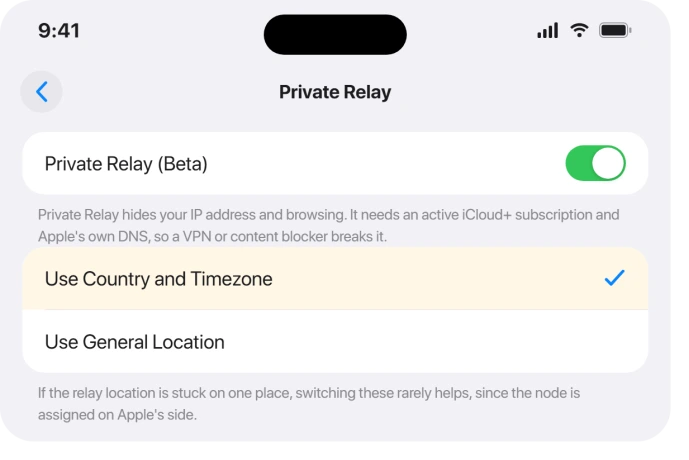
This one is honest bad news. The relay node is assigned on Apple's side, so it survives a full reset and even a brand-new phone, and no user step reliably changes it.
Report it through Apple's Feedback, and it usually shifts on its own after a while.
If Google keeps asking whether you are a robot
This one is new since the 27 updates. An iPad owner on iPadOS 27 wrote: "My ipad keeps asking if I am a robot. This started after the latest update."
It happened on Google itself: "I trying to use google and every time I put in a search it ask me to prove I am a robot."
A Level 10 adviser named Private Relay as a likely trigger, and Apple half says so too. Its Private Relay page warns that "some websites may require extra steps to sign in or access content".
Apple's fix for one site is to let it see your IP address. On an iPhone or iPad, open the site in Safari, tap the Page Menu button, "then tap Show IP Address".
The adviser's other suggestion: "Signing-in to any Google service should resolve your current frustration". The owner did not say which worked, so try the IP address switch first, because it only affects that site.
On a computer the same check reads as unusual traffic from your network, and the unusual traffic page covers what clears it.
A full-page This Connection Is Not Private warning on every site is a different problem. One site or all of them decides what you do.
The resets worth trying
If none of the four buckets fit, work these in order:
- Toggle Private Relay off and back on under Settings > your name > iCloud > Private Relay.
- Reset Network Settings under Settings > General > Transfer or Reset iPhone > Reset > Reset Network Settings. It keeps your data but clears saved Wi-Fi passwords.
- Update to the latest iOS. No point release has been confirmed to fix the carrier and cellular cases, but staying current rules out the ones a patch did quietly close.
What will not fix it
- Switching Private Relay off entirely to fix one network. Use the per-network toggle so you keep the privacy everywhere else.
- Paid "system repair" apps. Tools sold to fix Private Relay in one click cannot touch a carrier block or an Apple outage, which is where this usually lives.
- Toggling and resetting for an outage or a stuck location. Those live on Apple's servers, so the fix is to wait or report, not to keep flipping switches.
- Blaming your iPhone for a work or school Wi-Fi block. That network is refusing Private Relay on purpose.
Why won't my apps and websites load on cellular after iOS 26?
Because Private Relay's routing is clashing with how some carriers handle cellular data, seen most after iOS 26 on UK carriers like O2 and EE.
Turning Private Relay off proves it, but the cleaner fix is to turn off Limit IP Address Tracking for cellular only, in Settings > Cellular > Cellular Data Options, which keeps Private Relay on for Wi-Fi.
How do I turn off Private Relay for just one network?
For cellular, go to Settings > Cellular > Cellular Data Options and turn off Limit IP Address Tracking.
For a Wi-Fi network, open Settings > Wi-Fi, tap the (i) next to the network, and turn off Limit IP Address Tracking.
Private Relay stays on for every other network, so you only lose it where it was breaking.
Is it safe to turn off Private Relay?
Yes. Private Relay hides your IP address and browsing from networks and websites, so turning it off removes that privacy layer but does not harm your iPhone or your data.
Turning it off for a single problem network, rather than globally, is the balance most people want.
The Short Version
- The error is really four problems: a blocking network, an Apple outage, a VPN or content blocker, or a lapsed iCloud+. Sort which before you fix.
- For a blocking carrier or work Wi-Fi, do not disable Private Relay everywhere. Turn off Limit IP Address Tracking for that one network under Cellular Data Options or the Wi-Fi network's (i).
- If it fails on every network, check Apple's System Status for an outage and wait, using Turn Off Until Tomorrow in the meantime.
- If you run a VPN, custom DNS, blocker, or antivirus, that is the conflict. Check Settings > General > VPN, DNS & Device Management.
- A stuck relay location is on Apple's side with no reliable fix, and paid one-click repair apps cannot help.
Where to Next
- Cellular data failing more widely: iPhone no service or 5G dropping on iOS 26
- Prove it is cellular, not Wi-Fi: Wi-Fi not working after iOS 26
- More iOS 26 fixes: iOS 26 problems and fixes
- Back to the start: pcglance home

Isaac Smith is the founder and editor of PC Glance, a website that covers computers, laptops, and technology. He is a tech enthusiast and a computer geek who loves to share his insights and help his readers make smart choices when buying tech gadgets or laptops. He is always curious and updated about the latest tech trends.