Public Wi-Fi can show as connected on a Mac while Safari can't load anything because the venue hasn't finished signing you in. Rejoin its network and finish the login first. If other apps work, check Safari's extensions and Private Relay.
A stuck venue login, a failed internet connection, and Safari refusing to load pages call for separate checks. Start with the network's sign-in, then follow the branch that matches what your Mac actually does.
In this guide
1. Finish the public network's sign-in
Open Control Center, click the Wi-Fi control, and select the venue's network. Ask staff for its exact name if several similar networks appear. A strong signal means your Mac can reach the venue's Wi-Fi equipment, not that you're online yet.
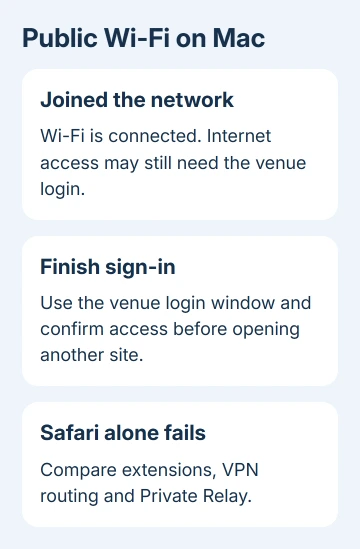
Wait for the network's login window. Complete its terms, voucher, room number, or access code. A Wi-Fi password and a browser login can be separate requirements, so entering the password doesn't necessarily finish the connection.
If no window appears, turn Wi-Fi off and on, reselect the network, and open Safari. Ask staff for its actual login address instead of guessing a router address. They may need to give you the right sign-in page for their network.
Don't bypass a certificate warning to enter a password or payment information. Confirm the network and portal address with staff. The Safari certificate warning guide covers that particular message.
After the portal confirms access, open an unrelated website. If the login completes but pages still fail, compare Safari with the rest of the connection.
2. Separate a venue outage from a Safari problem
Open a different browser on your Mac, if one is installed. Compare a second device using this Wi-Fi too. For a phone, disable cellular data during the comparison; otherwise the phone could use cellular data while its Wi-Fi isn't working.
If several devices can't browse after signing in, ask the venue whether its internet service is working and whether your access session is active. Resetting Safari won't restore an internet connection that the venue has lost.
If another browser works on your Mac, keep the Mac connected and continue with the Safari checks. A browser setting or a service that handles Safari traffic differently could explain that result.
If all browsers fail only on this Mac, compare a trusted phone hotspot. A working hotspot points toward this public network or settings that interact with it. If neither connection works, check the Mac's network settings next.
I'd make that comparison before deleting browsing history. It tells you which part needs attention without signing you out of your usual websites.
3. Check a VPN and Private Relay
A VPN sends traffic through another connection before it reaches the website. Open your VPN app and disconnect it briefly, then retry the venue's sign-in. For a company Mac, ask IT before disconnecting required security software.
If the login now works, reconnect the VPN after the venue grants access. A VPN that immediately blocks the connection again needs help from its provider or your workplace, with the public network's name and the error message.
Private Relay is a separate iCloud+ feature that can affect Safari. For a failing page, choose View > Reload and Show IP Address in Safari. Safari offers this command with Private Relay active on the current network.
For a message about this network not supporting Private Relay, open System Settings > Network > Wi-Fi, click Details beside the connected network, and disable Limit IP Address Tracking.
On macOS Monterey, use System Preferences > Network > Wi-Fi.
Apple says its Private Relay controls let you change this for one network. Turning it off reduces privacy on that connection, and the network choice applies across your devices using Private Relay.
Retry Safari. If nothing changes, restore the setting and continue. Keep a successful exception limited to the network that needs it rather than disabling Private Relay everywhere.
4. Repair a Safari-only sign-in failure
Open Safari > Settings > Extensions and deselect installed extensions temporarily. Older Safari versions call this menu Preferences. Reload the venue page, especially if it was blank or its sign-in button didn't respond.
If the page works, restore one extension, reload, and repeat with the next. Leave the extension that breaks it disabled for this connection, or update it before using it again. Keep the other extensions enabled once you've found the cause.
If extensions make no difference, use File > New Private Window to retry that address. A working private window can point to stored website data in the regular window.
To remove that site's data, open Safari > Settings > Privacy > Manage Website Data, search for its domain, select it, and click Remove. Expect that site's sign-in session to end. Reopen it in a regular window and complete the login again.
For a failure that also happens at home, use the Safari server timeout checks. A public-network login is no longer the main difference in that case.
5. Refresh the Mac's network connection
Restart the Mac if all its browsers fail but other devices can use the venue's Wi-Fi. A restart renews the network address the Mac receives. It can clear an expired address assignment without changing saved passwords or browser data.
To renew it directly on current macOS, open System Settings > Network > Wi-Fi > Details > TCP/IP and click Renew DHCP Lease, then OK. DHCP is the network service that gives your Mac its local address.
On older macOS, open System Preferences > Network, select Wi-Fi, and use Advanced > TCP/IP > Renew DHCP Lease. Reopen Safari after the connection updates. If pages load now, your Mac can use the connection again.
If the Mac still fails on several trusted networks, install available macOS updates through System Settings > General > Software Update using a working connection. Safari updates arrive with macOS software updates.
If only one venue's network fails, ask its operator to check your login session. If several networks fail, ask Apple Support for Mac Wi-Fi troubleshooting. Include the browser, hotspot and DHCP renewal results.
The Short Version
Finish the venue login before changing Safari. Compare another browser and device, then check VPN routing, Private Relay, extensions, and stored portal data. Renew the Mac's network address when every browser fails only on that Mac.
Checked November 15, 2026.
 If you have any business, I can build it online