Safari's server stopped responding message means the page didn't finish responding in time. Try the same address on another connection first.
If other sites work and that page opens in a private window, remove its saved website data before clearing all of Safari.
A website outage, a blocked connection and damaged site data can end with the same message. Check whether one site fails everywhere, several sites fail only on one network, or Safari alone has trouble. That tells you which fix to try.
In this guide
1. Compare the failed page with another site and network
Reload the failed address once. On a Mac, press Command + R. On iPhone or iPad, use Safari's reload control in the address field. If it still times out, open a different, familiar website in another tab.
If only one address fails, try that site's homepage. A working homepage with one failed link can point to that page or service rather than your internet connection. Keep the failed address for the website's support team.
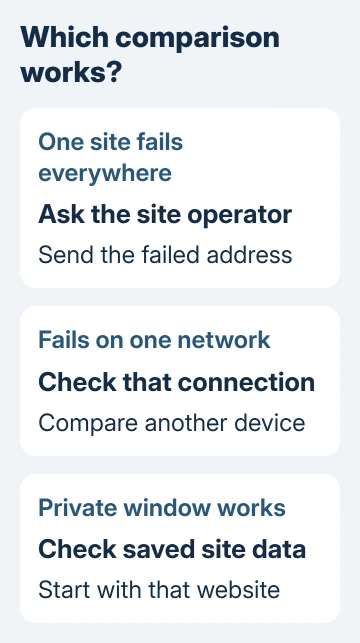
On an iPhone with cellular service, turn off Wi-Fi through Settings > Wi-Fi and reload the same page. On an iPad or Mac, try another available Wi-Fi network or a phone hotspot. Restore the usual connection after the comparison.
Apple's Safari loading instructions for iPhone and iPad recommend changing networks before clearing website data. That keeps you from deleting browser information for a site that's simply unreachable through one connection.
If several devices fail on home Wi-Fi but load the page elsewhere, restart the router and ask the internet provider about a continuing failure.
For work, school or hotel Wi-Fi, give the network administrator the address and comparison result.
Contact the website's operator when that site alone times out on multiple devices, even after switching networks. Browser cleanup on your device can't repair the site's server. If Safari alone fails, continue with the private-window check.
2. Try a private window before deleting website data
On a Mac, choose File > New Private Window in Safari, or press Shift + Command + N. Enter the full failed address there. Compare the result with the same page in your ordinary window.
On iPhone or iPad, open Safari's tab controls and switch to the Private tab group, then open a new tab.
The tab button's position varies with the selected Safari layout, so use the group labeled Private rather than opening another ordinary tab.
Private browsing keeps its browsing session separate from your regular tabs. If the page opens there, the site is reachable from Safari on that connection. Next, check the site's saved data and the settings affecting your regular tabs.
On a Mac, open Safari > Settings > Privacy > Manage Website Data. Search for the affected website, select it, choose Remove, then Done. Try that address again in a regular browsing window.
Have your sign-in details available first. Removing a site's cookies can sign you out, so save any unfinished work there before deleting its data. Removing one site's data is a smaller change than clearing every site's history and session.
On iPhone and iPad, the option that clears more browsing data is Settings > Apps > Safari > Clear History and Website Data. For version 17 or an older iOS/iPadOS release, open Settings and select Safari directly.
Wait until you've compared networks and tried the other focused checks here before clearing that data.
Follow the confirmation screen's choices, then reopen the failed page. If the page loads normally afterward, saved browsing data was probably involved.
3. Check extensions and the site's content blocker
On a Mac, choose Safari > Settings > Extensions and deselect enabled extensions for a comparison. Reload the failed page. If it opens, re-enable extensions individually, reloading between changes to identify which one affects it.
Update the extension responsible or leave it disabled for that site where its controls allow. The Mac Safari troubleshooting page includes extensions and site-specific content blockers among the settings that can affect loading.
On iPhone or iPad, open Settings > Apps > Safari > Extensions. On older systems, begin with Settings > Safari. Check any installed blocker app's site permissions and temporarily disable its blocking for the affected website.
If your organization manages the extension, ask your administrator to review that extension. Send the exact page and result instead of trying to remove a required filter or management profile.
I'd make this change for the failing site first when the blocker offers that choice. That keeps protection on your other sites while you check whether the blocker is causing this timeout.
4. Compare VPN and Private Relay routing
A VPN routes your connection through its service. Disconnect a VPN you installed yourself through its app, then reload the page.
If that restores access, reconnect it and ask the VPN provider about that site or try its supported server choices.
If your organization manages the VPN, contact its help desk. A connection that works outside the VPN gives them a useful comparison without changing the company setup.
If iCloud Private Relay is active on a Mac, choose View > Reload and Show IP Address in Safari. That reloads the page without Private Relay for the site. The menu item is available with Private Relay enabled for the current connection.
On current iPhone Safari, open the page menu, choose Privacy & Security, then Show IP Address. On iPad or earlier layouts, look for Show IP Address in the page menu or its more-options menu.
Choosing Show IP Address lets the site see your address for that visit. If access works only that way, tell the site operator that its page fails through Private Relay. Restore your preferred privacy setup after the comparison.
5. Restart and update before escalating Safari-only failures
Restart the affected device after saving open work. On iPhone or iPad, check Settings > General > Software Update. On a Mac, open System Settings > General > Software Update; Safari updates arrive through system software updates.
If the warning instead says the server cannot be found, use the server-address and DNS checks. DNS translates a website name into its network address. A server-not-found warning needs different troubleshooting from a response timeout.
A website displaying only white content has its own Safari blank-page checks. Don't describe those symptoms as identical when reporting the problem.
For one failing site, send its operator the full address, exact error, device and Safari version, plus which connections and private-window checks worked.
If unrelated sites keep failing only in Safari, give those results to Apple Support under Safari browsing help.
The Short Version
Compare the page across sites and connections. Use a private window to decide whether saved site data needs attention, then check extensions, VPN and Private Relay.
Escalate one-site failures to its operator and continuing Safari-only failures to Apple Support.
Checked November 12, 2026.