
Safari's server cannot be found warning can come from a mistyped address, a network problem or a VPN. Correct the address first, then try that page through another internet connection.
That comparison matters: a page that works over cellular but fails on home Wi-Fi needs different attention from one broken link while every other site opens.
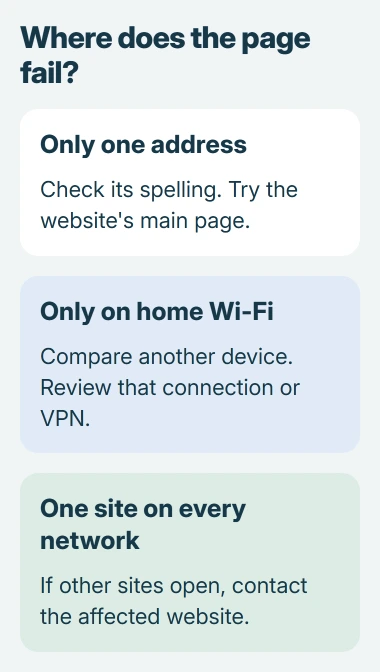
Check the website address and one unrelated site
Tap or click Safari's address field and inspect the full address. Correct any misspelling in the website name, especially in a copied link. Apple says an incorrect address or an unavailable website can prevent Safari from opening a page.
Try the site's main address, then an unrelated site such as apple.com. If the homepage loads but the saved link fails, request a fresh link from the sender or website. Do not change network settings for that one address.
Status: Apple's Safari guidance checked November 2, 2026, for iPhone, iPad and Mac. These comparisons follow vendor instructions; no device or network setting was changed here.
Read the exact warning before continuing. An invalid-address message from an app link concerns a different failure. A page that opens but remains white needs the Safari blank-page checks.
Compare the same page on another network
On an iPhone with cellular data, open Settings > Wi-Fi and switch Wi-Fi off temporarily. Reload the failed address. On an iPad or Mac, use another available internet connection, such as a phone hotspot, for the comparison.
Apple documents this network change in its iPhone and iPad Safari instructions. Restore Wi-Fi after checking. If the second connection loads the page, review the first network and the settings used with it.
Check another device on the original network too. When several devices fail there but work elsewhere, restart your router. Ask the provider about a continuing failure, or the administrator for a work or school connection.
If only one website fails on both connections, contact that website with its full address and the error. Other working sites make a general loss of internet access less likely.
Check a VPN or network filter
A VPN, security app or content filter can change how a device reaches a website. Apple states that software which monitors network connections can interfere with Safari.
For a VPN you installed yourself, disconnect it through its app, then reload the page. Record the result and reconnect it. If the page only loads with the VPN disconnected, ask that service about the failing site or its DNS settings.
Keep organization-managed protection in place and give the administrator the same comparison results. Removing a management profile is unnecessary for this check.
On a Mac using iCloud Private Relay, try View > Reload and Show IP Address for the affected page. Apple lists this site-specific check in its Mac Safari guide; the menu item requires Private Relay to be active on that network.
Review a custom DNS setting on the Mac
DNS translates website names into network addresses. A custom DNS server or proxy can prevent access even when Wi-Fi shows a connection. This step applies when such a setting was deliberately added or changed by networking software.
Open Apple menu > System Settings > Network, select the active connection, then choose Details > DNS. Apple's DNS settings guide describes this panel.
Record existing entries before editing. Restore the configuration supplied by the administrator or internet provider. If the entries are unfamiliar, ask that provider or the VPN service to review them before changing anything.
When Safari alone still fails, restart the device and install its available software updates. On Mac, Safari updates arrive with macOS. Give Apple Support the failed address, exact warning and network comparisons if the problem remains.
The Short Version
Check the address and compare the page on another connection. Check a VPN or custom DNS configuration when that comparison points to it. A single site that fails everywhere needs help from its operator.

Isaac Smith is the founder and editor of PC Glance, a website that covers computers, laptops, and technology. He is a tech enthusiast and a computer geek who loves to share his insights and help his readers make smart choices when buying tech gadgets or laptops. He is always curious and updated about the latest tech trends.