The quickest way to open Command Prompt in Windows 11 is Windows+R, then cmd, then Enter. For a repair command that needs administrator access, search for Command Prompt in Start and choose Run as administrator instead.
A tabbed Terminal window is normal on current Windows 11 PCs. Command Prompt can run inside it, so check which command line the tab is using. The window doesn't need to look like an older guide's picture.
In this guide
Open an ordinary Command Prompt with Run
Use Run for commands that don't call for administrator rights. It opens the command line directly, without making you choose between PowerShell and Command Prompt in Terminal.
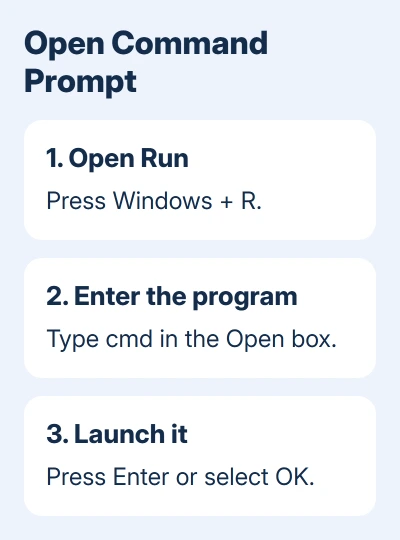
- Press R while holding the Windows key.
- Enter
cmdin the Open box. - Press Enter, or select OK.
The window should show Windows version information and a prompt ending in >. A typical prompt includes your user folder, but its exact text depends on the account and startup settings.
Type ver and press Enter for a simple confirmation. It displays the Windows version without changing settings. Once that version appears, you're ready for the next instruction in your guide.
The Run dialog starts programs by name. Typing cmd starts the Windows command interpreter, the program that reads Command Prompt commands. Don't include backticks or a guide's example prompt when entering the program name.
With the prompt ready, launch Task Manager using taskmgr when a process needs checking in its graphical window.
I'd use Run for a quick network check. It avoids opening a more powerful window than the task needs. An ordinary prompt can read plenty of information without permission to change protected settings.
Use Start when administrator access is required
Some repair and system commands need an elevated prompt. That means you must open it with administrator permissions. Opening Command Prompt normally and then pasting an administrator-only command doesn't grant those permissions.
- Press Start and type
cmdorcommand prompt. - Find Command Prompt in the results.
- Right-click that result and select Run as administrator.
- Confirm the permission request after checking the program name.
Microsoft says to use this search-and-launch route in its System File Checker instructions. The same opening method works when another repair guide calls for an administrator Command Prompt.
With an administrator account, you'll usually just need to confirm. A standard account can ask for an administrator's sign-in details. Ask your workplace or school's IT team to run the required command if you lack that access.
Look for Administrator in the window title. Its starting folder may differ from the ordinary user prompt, but a folder such as System32 by itself doesn't confirm those permissions. Check the title and remember how you opened the window.
Use the higher permissions only for the command you came to run. An elevated window can change protected files and settings, so check pasted text before pressing Enter. Close it when the job is finished.
Switch Terminal from PowerShell to Command Prompt
Right-clicking Start and choosing Terminal may open PowerShell first. Terminal supplies the window and tabs; PowerShell and Command Prompt are different programs running inside that window.
Open Terminal's tab menu beside the new-tab button and select Command Prompt. The new tab should carry that name. A line beginning with PS generally indicates PowerShell rather than the prompt expected by a Command Prompt guide.
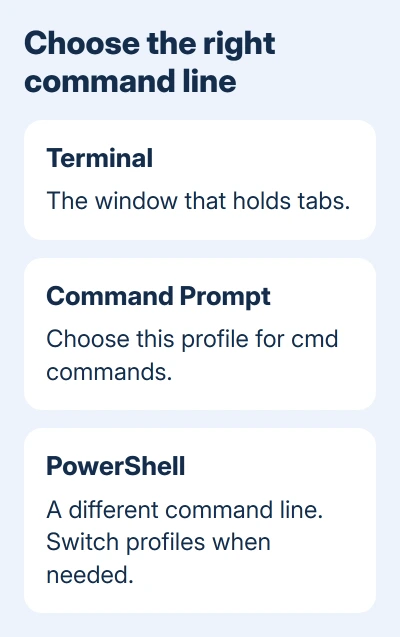
Another direct route is typing cmd in an existing PowerShell tab and pressing Enter. This runs Command Prompt in the same tab. Type exit when finished to return to the PowerShell session underneath it.
Before changing a command, choose the command line the instructions require. Similar-looking commands can behave differently in PowerShell, especially when they contain quotation marks or special characters.
For a tab that accepts typing but seems to stop running a program, check whether Command Prompt is waiting on a text selection. A paused text selection needs its own fix after the correct tab is open.
Make Command Prompt the tab Terminal opens first
For regular use, set a default profile rather than switching tabs each time. A profile is Terminal's saved choice of command line and its appearance.
- Open Terminal's tab menu and choose Settings.
- Select Startup.
- Set Default profile to Command Prompt.
- Select Save and open a fresh Terminal window to check it.
The default profile controls which command line starts in a new default tab. It doesn't make that tab an administrator session. Use Run as administrator when a task needs those permissions.
The nearby Default terminal application setting controls something else: which app supplies the window for command-line programs. Choose the profile to change the command line; choose the terminal application to change its window.
If an older application needs the traditional console window, choose Windows Console Host under Default terminal application in Terminal's Startup settings. Close the old window and launch cmd again to see the result.
You don't need to make that change just to match an older screenshot. A Command Prompt tab in Terminal still runs Command Prompt. Keep the modern host unless a particular application or workflow needs the older one.
Keep a command's result visible
Open cmd by itself first, then enter the command in that open window. Double-clicking a script or launching a command that ends its own session can leave too little time to read the output.
The command interpreter's /c option runs a command and exits; /k runs it and keeps the session open. For a beginner following a repair guide, keeping a normal Command Prompt open is usually easier than adding launch options.
If a black window appears without you launching anything, use the Command Prompt flash checks to identify the scheduled task or startup entry. Changing Terminal's default profile won't stop another program launching commands.
If neither Start nor Run opens Command Prompt, record the message. Send a policy restriction to your administrator. For a personal PC, tell Windows support what happens when you try both methods and whether Terminal opens PowerShell.
The Short Version
Use Windows+R, enter cmd, and press Enter for a normal prompt. Use Start search and Run as administrator for elevated commands. In Terminal, choose the Command Prompt profile if the first tab opens PowerShell.
Checked November 15, 2026.