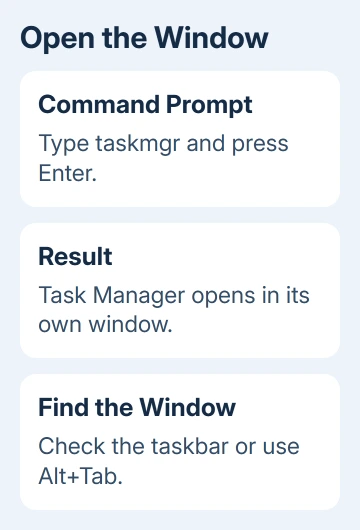
Type taskmgr in Command Prompt and press Enter to open Task Manager. The command launches its normal window in Windows 10 and 11; it doesn't list processes inside the command line. For a text list instead, use tasklist.
An ordinary Command Prompt is enough to open the tool. Administrator access matters only when the action you plan to take requires it. Start with the simplest command, then use the full program path if Windows can't find it.
In this guide
Run taskmgr in the command window
Click inside the existing Command Prompt window, type the command on a fresh prompt line, and press Enter. Leave out any sample prompt such as C:\> shown in a guide; it isn't part of the command.
taskmgrWait for the Task Manager window to appear. If Command Prompt remains in front, check the taskbar or use Alt+Tab to switch to Task Manager. Repeatedly typing the command won't help you see a window hidden behind another app.
On Windows 10, a compact Task Manager can show only running apps. Select More details to see the full set of views. Current Windows 11 layouts use navigation at the side, so their window won't match the older tabbed arrangement.
Opening Task Manager doesn't close anything. Start by selecting the view you need and reading its information. Use End task only after identifying the application and deciding that closing it is necessary.
If you still need a command window, the Windows 11 Command Prompt guide covers Run, Start, and Terminal. Open a normal session unless the repair you're doing requires administrator access.
Use start when you want the prompt available again
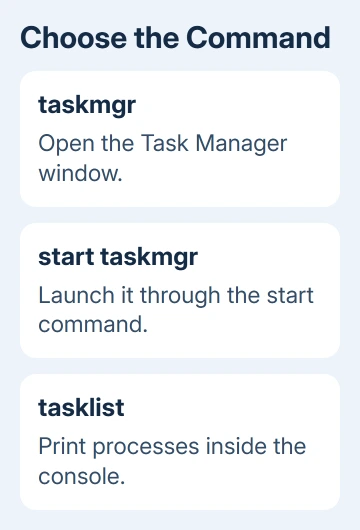
Command Prompt can also launch the program through its start command. This is useful when you're opening the graphical tool while continuing other work in the same command session.
start taskmgrThe result is still Task Manager's graphical window. This doesn't turn its interface into a command-line program or add new management permissions. It uses Command Prompt's built-in command for launching programs.
Microsoft's start command reference describes launching a program separately. With this short program name, you don't need an extra title or command options.
For a one-time launch, I'd use plain taskmgr first. The shorter command is easier to type when you're already dealing with an unresponsive app. Use the longer form when you want to keep using the prompt.
Don't use taskkill as an alternative spelling. That command stops running processes. Launching Task Manager and closing a process are separate operations, and typing the wrong command changes the job completely.
Use the full path if Windows can't find taskmgr
If Command Prompt reports that the name isn't recognized, try the executable's normal Windows location. This avoids depending on the folders Windows searches when you enter a short program name.
%SystemRoot%\System32\Taskmgr.exeSystemRoot expands to the Windows installation folder. Using it avoids assuming Windows must be installed in a folder with the same drive letter as somebody else's PC. Run the line and check whether the Task Manager window opens.
If only the full path works, tell support which command fails when asking about the folders Windows searches. Task Manager itself can launch, so reinstalling it isn't the problem to solve first.
Record the exact message for a missing file or blocked launch. A missing program file, an administrator restriction, and a crash at startup need different repairs. Avoid unknown sites offering a replacement Taskmgr.exe.
Send the error to IT on an employer-managed or school-managed PC. A warning that an administrator disabled Task Manager won't be bypassed by spelling out its program path.
Keep a Terminal tab's command language in mind
Windows Terminal can contain Command Prompt or PowerShell tabs. Being in Terminal doesn't tell you which shell, or command language, you're using. Check its tab title or open the Command Prompt profile when following these commands exactly.
Plain taskmgr also works in PowerShell. The %SystemRoot% full path uses Command Prompt syntax, however. Pasting that expression unchanged into PowerShell can fail even with the program present.
In PowerShell, use this full-path command:
& "$env:SystemRoot\System32\Taskmgr.exe"The leading ampersand runs the program named by the quoted path. You only need this different syntax for the full path. Plain taskmgr is still the simplest choice in either shell.
Choose tasklist when you need command-line output
To keep process information in the console, enter tasklist. It prints running process names and their process IDs, rather than opening Task Manager. A process ID, or PID, is the number identifying a running process.
tasklistThe process-ID guidance explains this built-in command. Use tasklist /? to inspect its supported options when you need a filtered list or a particular output format.
For a simple comparison, look at a known app's name in the output, then find it in Task Manager's Details view. Both views should show the same running process, even if Task Manager's app label differs from the program file's name.
A text list is useful for recording a process name, while Task Manager is easier for watching changing CPU or memory use. Choose the output that answers the question rather than expecting one command to display both interfaces.
When Task Manager opens but its list is empty or filtered, the missing-process checks cover the view itself. Changing how you launch the program won't remove a filter inside its window.
If restarting Windows doesn't help, tell IT or Microsoft support the command, error, and full-path result. Mention whether Ctrl+Shift+Esc works. That helps them tell a command search problem from Task Manager itself failing.
The Short Version
Run taskmgr for its window or tasklist for console output. Try the System32 executable path when the short name isn't found. Use the right shell syntax, and ask the managing IT team about administrator restrictions.
Checked November 16, 2026.