Task Manager can show a blank process list because the wrong view or a search filter is hiding the entries. Clear the search box and open Processes first. On Windows 10, select More details if only a small list of open apps appears.
Rows that stay visible but never change need a different check: the update speed may be paused. A window that ignores clicks altogether is a freeze, so don't treat every missing-list complaint as the same fault.
In this guide
1. Clear the filter and select the process list
On current Windows 11, look at the search box across the top of Task Manager. Delete any text in it, then choose Processes in the left navigation. Use the navigation menu if the page names are hidden.
The search box filters the list rather than searching your computer for files. A leftover name or process ID can hide every row that doesn't match, including when you move to another supported page.
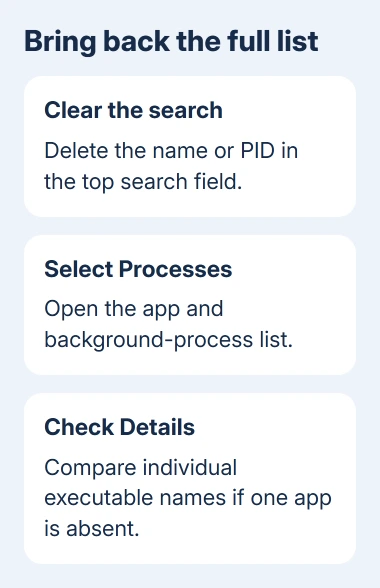
Check whether the app and background-process groups return. Microsoft explains the different Task Manager pages: Processes groups apps and background work, while Performance shows resource charts.
On Windows 10 and older Windows 11 layouts, open the Processes tab at the top instead. If the search field isn't present, skip the filter check. Its absence on an older layout doesn't mean a Windows component is missing.
A message that no items match the search is especially useful here. Clear the query before reinstalling anything or trying system repairs. If the full list returns, the filter was hiding it.
2. Expand the small view and the app groups
On Windows 10, Task Manager can open as a small list of apps. Select More details at the bottom to reveal the tabs and background processes. This opens the full view; it doesn't grant special permission to see hidden malware.
In the full Processes view, click the expand control beside the affected app group. A browser can have several child processes, so one grouped app row doesn't mean its other processes have disappeared.
Also check that you're reading the entire list. Background processes appear separately from the applications that have windows. Scroll through the list, or select Details to inspect individual executable names.
An executable name, such as notepad.exe, can differ from the label on the app's window. Games and their launchers also use separate programs. Compare the actual process name before deciding a running app is absent.
For a game that has a process but no visible window, use the game launch troubleshooting steps. That's the reverse problem: the process exists, but its window hasn't appeared.
3. Resume updates when the numbers are stuck
If you can click menus but the same rows and CPU values stay still, check Task Manager's refresh setting. A paused display keeps old information on screen, which can make a newly opened application seem absent.
On current Windows 11, open Task Manager's Settings using the gear in the left navigation. Find Real time update speed and select Normal instead of Paused, then return to Processes.
On Windows 10 and older layouts with the traditional menu, open View > Update speed > Normal. That setting controls refreshing inside Task Manager, rather than the speed of the programs it monitors.
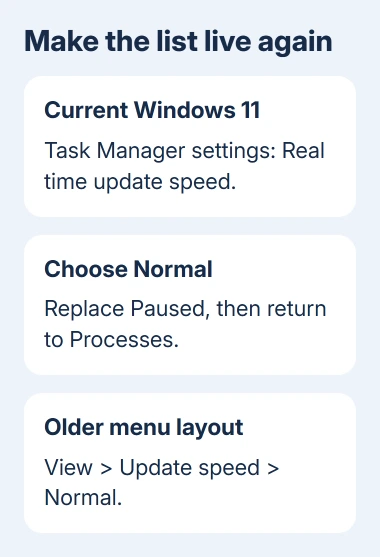
Leave the window open briefly and look for changes in CPU or memory use. Open an ordinary app you recognize and check whether its row appears. A live list that now adds it confirms the display is refreshing again.
I'd check this before restarting the PC when all the menus still work. If clicks no longer respond, use the frozen Task Manager recovery steps instead of repeatedly changing tabs.
4. Compare Details with Windows' command-line list
Open Details and clear any search filter there too. This page lists running processes individually. If Details shows the processes while Processes stays blank, Windows can still list them. The problem affects the Processes view.
For a second built-in view, open Start, type Command Prompt, and open it. Enter:
tasklistThe command prints process names and their PIDs. A PID is the process identifier Windows uses for one running instance. Compare those names and numbers with Details. The app names on Processes alone aren't enough for this comparison.
The process identification instructions describe both routes. This command lists programs; it doesn't close them or repair Task Manager.
If tasklist prints a full list while Task Manager stays empty, keep that result for support. If only one app is absent, confirm it is still running; some programs exit or hand work to another process after launch.
5. Restart, then repair a list that stays empty
Save your work and use Start > Power > Restart. After signing in, open Task Manager before your usual apps. Check Processes and Details with the filter clear and refreshing set to Normal.
For a failure that survives restarting, check for updates applicable to your Windows release. For Windows 11, open Settings > Windows Update. On Windows 10, use Settings > Update & Security > Windows Update.
If the list is still empty, search Start for Command Prompt and select Run as administrator. Enter this repair command, then let it finish running:
DISM.exe /Online /Cleanup-image /RestorehealthAfter successful completion, run:
sfc /scannowDISM repairs the component files that System File Checker needs. SFC then checks the protected files in Windows, attempting to fix damage.
Keep the final scan message. Restart the PC, reopen Task Manager, and see whether the rows return.
Get help with the exact view that still fails
If the list stays blank after those checks, open Get Help from Start or contact your organization's IT desk. Report the Windows version from Windows+R > winver, whether Details works, and whether tasklist prints processes.
Include whether the menus respond and whether the list is empty immediately after a restart.
If a warning says an administrator disabled Task Manager, ask for a policy check. If the window closes immediately instead, report that crash rather than describing it as an empty process list.
If only GPU information is missing, use the GPU visibility checks. Graphics-driver support and missing GPU columns don't explain an otherwise empty Processes page.
The Short Version
Clear the filter and open Processes. Expand the older compact view or resume Normal updates for stuck rows. Compare Details with tasklist before system repairs. Give support the failing page and command results.
Checked November 13, 2026.