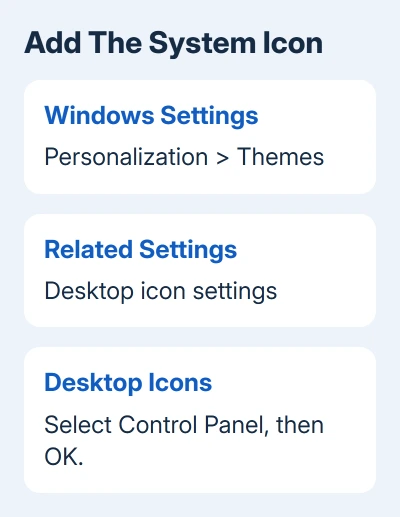
Windows 11 adds its built-in Control Panel desktop icon through Settings > Personalization > Themes > Desktop icon settings. Select Control Panel and click OK. It doesn't involve a download or registry edit.
If Control Panel already has a checkmark but the desktop looks empty, check whether desktop icons are hidden. That's a display setting, not a sign that Control Panel has been removed.
In this guide
Add the built-in icon through Themes
Press Windows + I to open Settings. Select Personalization, then Themes. Find Desktop icon settings, usually in the related-settings area, and open it. A separate, smaller window opens with the desktop icon choices.
Select the checkbox beside Control Panel. Leave other boxes unchanged unless you want those icons too. Apply saves the choice while leaving the dialog open; OK applies it and closes the window.
Return to the desktop and look for Control Panel. Double-click the icon to open the familiar settings window. Depending on your view setting, that window can show categories or a list of individual tools.
Microsoft's own steps say to use desktop icon settings through Themes for the built-in system icons. It changes what's visible on the desktop without installing a separate application.
The icon opens Control Panel. It doesn't move every Windows setting into that app, and it doesn't replace the Settings app you used to add it. Windows 11 continues to use both places for different controls.
When Control Panel is checked but nothing appears
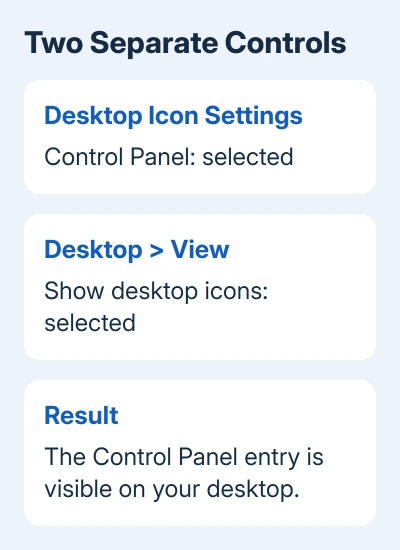
On the desktop, right-click a clear patch of wallpaper. Open View and select Show desktop icons. If that option was off, turning it on makes the desktop's visible icons return together.
This explains why an icon can be enabled in Desktop Icon Settings yet remain unseen. One setting chooses which system icons belong on the desktop; the other hides or shows the desktop icons as a group.
If other icons are visible but Control Panel is missing, reopen Desktop icon settings and confirm its checkbox was saved. Clear it, click Apply, select it again and click OK to apply that specific choice again.
Check the whole desktop rather than only the upper-left corner. Existing icon positions and your display arrangement can put the new entry somewhere else. Look for its Control Panel label rather than just its picture.
If many icons have vanished, use the missing desktop icons checks to examine the wider problem. Repeatedly creating more Control Panel shortcuts won't restore a desktop whose icons are all hidden.
Use a normal shortcut when that suits your desktop
The built-in checkbox is the simplest way to add the standard system icon. A normal shortcut is another choice when you want a custom name or prefer to create it directly from the desktop.
I'd use the checkbox first for the normal Windows entry and an easy way to remove it later. Choose the shortcut method for a custom name. Adding both methods gives you two launchers for the same app.
- Move the pointer onto the desktop wallpaper, right-click, then choose New > Shortcut.
- In the location box, enter
C:\Windows\System32\control.exefor a normal Windows installation on C:. - If Windows is installed elsewhere, use its actual Windows folder instead.
- Click Next, name the shortcut Control Panel, then click Finish.
- Double-click the new shortcut to check that it opens Control Panel.
A standard shortcut can have the small shortcut badge and a name you chose. Use the checkbox in Themes to manage the system icon. Both open the same Control Panel, despite those differences.
If the shortcut says it can't find its target, correct the file path. Right-click it, open Properties and check Target. Point it to the existing control.exe in your Windows System32 folder rather than downloading a replacement file.
Keep the icon when changing desktop themes
Desktop Icon Settings also contains Allow themes to change desktop icons. To preserve your chosen system-icon pictures across theme changes, clear this option and click OK.
This controls the icons' appearance. It isn't the switch that shows every desktop icon, and it doesn't add Control Panel by itself. Leave the Control Panel checkbox selected to show it, and use the theme option to keep its appearance.
For a larger icon, right-click the desktop and use View > Large icons or Medium icons. That changes desktop icon sizing as a group, which is useful when labels or pictures are hard to see on a high-resolution display.
To arrange the icons, use the desktop's View options rather than repeatedly dragging a system icon between crowded gaps. If your layout changes after restarting, treat that as an arrangement problem separate from adding Control Panel.
Remove the entry or open Control Panel another way
To remove the built-in entry, return to Personalization > Themes > Desktop icon settings, clear Control Panel, then click OK. Removing the icon leaves Control Panel available in Windows.
For the normal shortcut you created through New > Shortcut, delete that shortcut from the desktop. You're removing the pointer to the application, not uninstalling Control Panel or deleting its settings.
When the desktop isn't convenient, press Windows + R, type control and press Enter. Start search also finds Control Panel. The Control Panel in Windows 11 guide explains which older tools still open there.
For a computer managed by work or school, ask the administrator about restricted Personalization options. Ask for the standard Control Panel desktop entry and mention whether the checkbox is missing, disabled or fails to save.
If your own PC won't save the setting, open Windows Get Help and describe what returns after signing out or restarting. Say whether other icons are affected too, so support knows if it's this icon or the whole desktop.
The Short Version
Open Settings > Personalization > Themes > Desktop icon settings, select Control Panel and click OK. Turn on View > Show desktop icons if the desktop is empty. Use the same checkbox to remove the system entry later.
Checked November 13, 2026.