Realtek Audio Console needs a working app and a compatible audio driver. If it immediately closes, try Repair in Settings > Apps > Installed apps. Use Reset next, then check the driver if it still closes.
A console that closes is different from one that stays open with a connection error. Also check whether Windows still plays sound. That tells you whether you're repairing the controls alone or dealing with a wider audio failure.
In this guide
1. Repair the console before replacing the driver
Close Realtek Audio Console. Open Settings > Apps > Installed apps, search for Realtek Audio Console, and use the three-dot menu beside it. Choose Advanced options if that entry has the option.
Select Repair if available. Let it finish, then open the console from Start again. Check whether it stays open long enough to select a playback or recording device. Seeing the startup screen alone isn't enough.
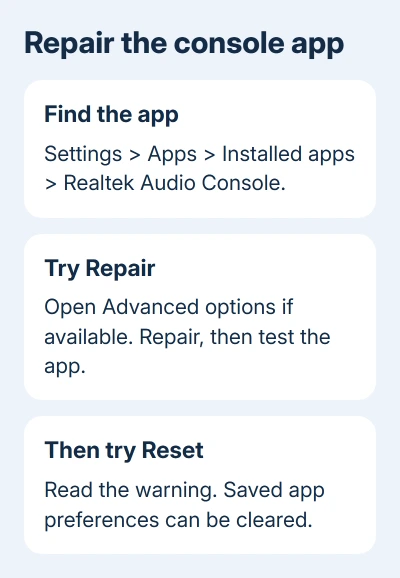
Microsoft's app repair instructions recommend Repair and then Reset for apps that aren't running correctly. Some apps don't offer Advanced options, so a missing button isn't another console fault.
If Repair didn't help, return to that page and choose Reset. Read the warning first because this resets saved preferences and other app data. Open the console again after the reset completes.
Write down any sound-effect or equalizer choices you want to recreate before resetting. Reset clears the app's saved data, so don't count on it remembering your old settings.
If the console now stays open, stop making changes. Play audio and confirm that the controls you need work. Once the app works, leave the working sound driver installed.
2. Check whether the console matches the computer
Right-click Start, choose Device Manager, then expand the Sound, video and game controllers category. Check the device names listed there. A Realtek control app isn't a universal settings panel for every speaker, headset or HDMI output.
A Bluetooth headset, USB audio device or monitor output can handle audio separately. Select the computer's built-in Realtek output in Settings > System > Sound when checking controls intended for that device.
Check the computer or motherboard model too. Its built-in audio package differs from a USB headset's software, and laptop makers customize their drivers. Use the model's supported package, rather than choosing by the Realtek name alone.
If sound works but the console closes, keep that distinction in mind. Windows can play audio while the separate control app is broken. Don't treat a broken app as a hardware failure; app repair is the smaller step to try first.
The console's Information section can show the driver and interface versions when it opens. Save those details if the crash is intermittent; they help the support team check whether the app and driver belong together.
For the specific ROG board covered by the Z790-E audio guide, check the output and board driver together. Don't assume its package is right for a different motherboard.
3. Update the app and reinstall it if needed
Open Microsoft Store > Library > Get updates. Install an offered update for Realtek Audio Console, then close and reopen it. Check for Windows updates separately in Settings > Windows Update.
If the app still closes, use Settings > Apps > Installed apps, its three-dot menu and Uninstall. Reinstall through Microsoft Store > Library: find the console and select Install. Use the maker's link for a different package.
Uninstall only the console app at this step. The similarly named Realtek Audio Driver is another component. Removing that driver is a different operation and can temporarily remove working sound.
If the Store says the app isn't compatible or can't install, save the exact message. Ask the PC maker which Realtek control app and audio driver its model supports instead of installing an unrelated driver download.
I'd keep a working driver in place while trying the app repair and reinstall. Losing audio during a meeting is a larger interruption than a console that won't open, so the smaller repair comes first.
If other Store apps also won't open or update, report that wider Store problem. If only Realtek Audio Console fails, keep the next check focused on its driver and the computer's supported audio package.
4. Check a driver change that happened before the crash
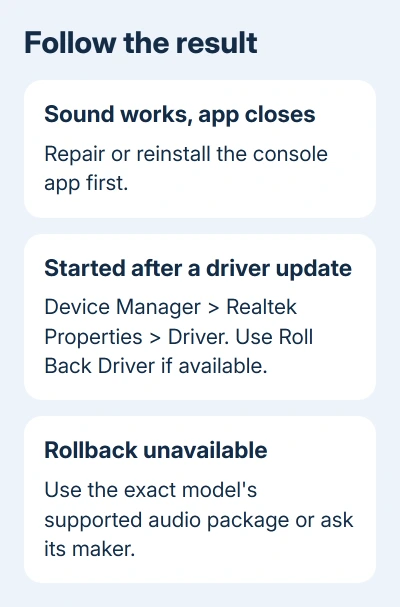
If the console started failing right after a driver update, open Device Manager > Sound, video and game controllers. Right-click the Realtek device, choose Properties, then open the Driver tab.
Note the driver version and date. Select Roll Back Driver if available, give the reason requested, and restart if prompted. Rolling back requires an administrator account and works only if the previous driver is still available.
If Roll Back Driver is unavailable, don't force the change by deleting random driver files. Keep the version details and use your computer maker's supported driver package or ask its support team for the correct replacement.
For a driver update through Windows, right-click the device and choose Update driver > Search automatically for drivers. If nothing suitable is found, Windows Update or the maker's package is the next source to check.
Choose your model's package for the installed Windows version and follow its installation instructions. Some audio systems need extra sound-processing components; a generic driver file may not include everything your model needs.
5. Escalate with the app error and driver details
After installing your model's supported app and driver, restart and open the console again. It should stay open and recognize the audio device you want to control. Test both the control you needed and ordinary sound playback.
If Windows also has no sound, follow the device-specific path, such as the Dell laptop sound checks. You'll need to check the selected output and the audio device as well as repair the console.
For continued closing or a connection error, contact the PC or motherboard maker's audio support. Give the exact model, Windows version, Realtek driver version, console version if visible, and whether sound still plays.
Include whether Repair, Reset or rollback changed the result. Ask for the supported audio driver and console combination for that model. That is a more useful repair request than asking for any newer Realtek driver.
The Short Version
Repair Realtek Audio Console, then reset or reinstall its app if needed. Check that it belongs to your computer's audio device. Roll back a recent driver change when available, or use the exact model's supported package and support team.
Checked November 13, 2026.