Windows 11's taskbar mixer is easiest to reach with Windows + Ctrl + V, which opens the sound output panel with app volume controls. If that panel won't appear, open Settings > System > Sound > Volume mixer to adjust your apps there.
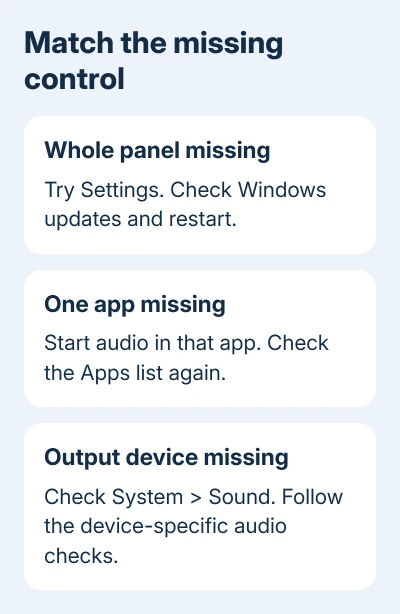
A missing panel, an absent app slider and no audio output need different checks. Check whether you can open the mixer through Settings. That gives you a working volume control and shows whether only the taskbar route is failing.
In this guide
1. Open the sound output panel directly
Hold the Windows and Ctrl keys, then press V. Use all three keys together. Windows + V opens clipboard history, so a clipboard panel means the Ctrl key wasn't included in the shortcut.
The sound output page should open with audio-device and mixer controls. Look for the application you want to adjust. Keep that app running and playing audio while checking its volume, so the mixer has sound from that app to control.
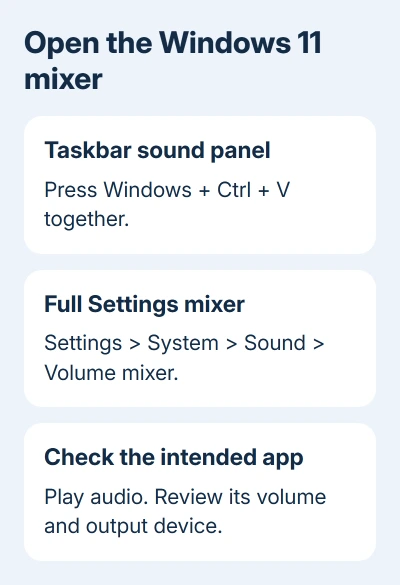
Microsoft says this keyboard combination opens the sound output page, including output devices, spatial sound and the volume mixer.
This is more precise than repeatedly clicking the speaker icon. Windows + A opens Quick Settings, while the three-key shortcut takes you straight to its sound output page on supported Windows 11 versions.
If the panel opens, adjust the app you want and listen for the change. If it doesn't open, continue through Settings. Leave your sound driver installed while you try opening the mixer through Settings.
2. Use the full mixer in Settings
Press Windows + I, then choose System > Sound > Volume mixer. Under Apps, find the program you're using. Raise its slider and make sure it isn't muted, then replay the same piece of audio.
Check the main system volume as well. A high application slider won't help when the overall output is muted. Set both to a comfortable level rather than moving everything to maximum during testing.
Check the app's Output device on this page. For example, an app can be directed to a monitor while you expect the laptop speakers. Select the device you actually want, then check the sound again.
If the app isn't listed, start playback in it and revisit the mixer. A missing app entry doesn't mean the whole taskbar panel has failed, so don't reset Windows just to make an idle program appear.
I'd use the Settings mixer to finish an urgent call or video first. Once sound is usable, it's much easier to work on a broken taskbar panel without changing unrelated audio settings.
If Settings itself closes or won't open, use the Settings repair steps. Settings needs its own repair if it won't open. That's different from a mixer that works in Settings but fails only on the taskbar.
3. Check the Windows version before chasing a missing control
Press Windows + R, type winver, and press Enter. Read the version number and OS build displayed there. Keep those details if you need support; Windows 11's controls have changed across versions.
The enhanced Quick Settings mixer arrived with the September 26, 2023 configuration update. An old Windows 11 installation can lack a panel shown in newer instructions, even though the full Settings mixer is available.
Open Settings > Windows Update > Check for updates. Install your device's offered updates and use Restart if requested. Afterward, try the sound output shortcut again and check whether its controls appear.
Don't search for that old update by itself and install a package at random. Use the updates currently offered to the device. On a work computer, an administrator may control the supported version and update timing.
Windows 10 uses another layout: open the taskbar volume icon's right-click menu, then choose Open Volume mixer. Its older desktop mixer isn't a missing copy of Windows 11's enhanced Quick Settings panel.
If you're comparing instructions from another computer, confirm its Windows version too. Different Windows releases can show different sound controls, even when both computers run Windows 11.
4. Restart when the taskbar panel alone is stuck
Save your work and use Start > Power > Restart. After signing in, try Windows + Ctrl + V before reopening lots of apps. This gives the taskbar and its panels a fresh session.
Use Restart for this check; putting the PC to sleep isn't the same thing. Note whether the panel opens immediately after sign-in or fails only after a particular app or taskbar customization loads.
If a taskbar customization was installed just before the problem started, disable it through that program's own controls and restart again. That comparison helps when Settings' mixer works but the taskbar interface doesn't.
Note whether the panel returns after you disable the customization, and tell its developer what happened. Registry edits that swap in an older mixer skip the question of why the current taskbar panel failed.
When other taskbar menus also fail, mention that wider symptom in the report. It changes the next repair: a single app's volume setting can't explain several system panels refusing to open.
5. Follow the audio-device problem only if one exists
If the mixer opens but no suitable output device appears, open Settings > System > Sound and inspect Output. Reconnect the intended headphones or speakers, then select them if they return to the list.
For Bluetooth headphones that connect but don't become an output, use the missing Bluetooth sound-output checks. Bluetooth pairing and Windows audio-device selection are separate parts of that fault.
If all output is missing or silent, open Get Help and run its audio troubleshooter. Follow its audio prompts and record the result. Check the driver for an audio-device problem, rather than changing it for every missing taskbar menu.
If the panel still won't open, report it through Feedback Hub. Include winver details, whether Settings' mixer works, and which other taskbar panels fail. For managed PCs, send that report to the organization's IT team.
The Short Version
Try Windows + Ctrl + V, then use Settings > System > Sound > Volume mixer. Check the Windows version and updates, restart a stuck taskbar session, and treat a missing app or output device as its own audio issue.
Checked November 13, 2026.