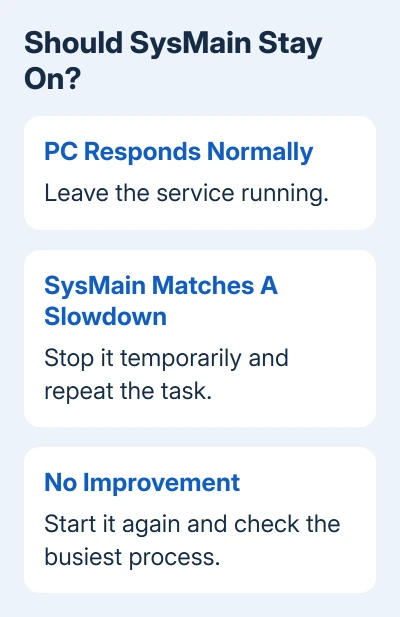
No, leave SysMain running unless its activity lines up with a real slowdown. If Service Host: SysMain keeps the disk busy while Windows 11 stalls, stop it temporarily and compare the same task before changing its startup setting.
An SSD, a gaming PC or a high memory percentage alone isn't a reason to turn it off. The useful question is whether stopping this particular service makes your computer work better.
In this guide
Leave SysMain alone when the PC runs normally
SysMain is a Windows service that helps improve performance over time. It works in the background, which means seeing its name in Task Manager isn't itself a fault. What matters is whether that activity gets in the way of what you're doing.
Open the apps you normally use. If they launch promptly, files open normally and the machine responds, changing SysMain has no clear purpose. A smaller number in Task Manager isn't the same as faster work.
The high memory usage explanation covers why a large used-memory percentage can be normal. Check whether apps are struggling and whether memory is running short before treating cached data as waste.
I'd leave it as it is on a healthy laptop. Turning off a background service without a symptom gives you no useful way to tell whether the change helped or hurt.
1. Check that SysMain matches the slowdown
Open Task Manager with Ctrl + Shift + Esc. In Windows 11, select Processes, then sort by Disk or CPU, depending on which one stays busy when your PC slows down.
Look for Service Host: SysMain. Expand the group if necessary to see the service name. A service host can contain Windows background work, so don't assume every process called Service Host is SysMain.
Watch it while the slowdown happens. A brief burst during startup or an app launch is different from sustained activity that leaves the PC unable to respond. Note which app or file operation is affected so you can repeat it later.
In Performance > Disk, compare the drive's active time with how your PC responds. A very busy drive can slow down unrelated apps, but that screen doesn't identify the cause on its own. Return to Processes to see what's using it.
If Windows Update, a file copy, your antivirus or another app is doing the work, follow that cause instead. Microsoft's Windows performance advice covers storage, startup apps and other common sources of slow performance.
2. Stop the service for a reversible comparison
Save open work, then press Windows + R, type services.msc and press Enter. This opens Services. Find SysMain, double-click it and note its current Startup type before changing anything.
Check Service status. If it says Running, click Stop. You may see an administrator prompt or need an administrator account. Leave the Startup type unchanged for this first comparison.
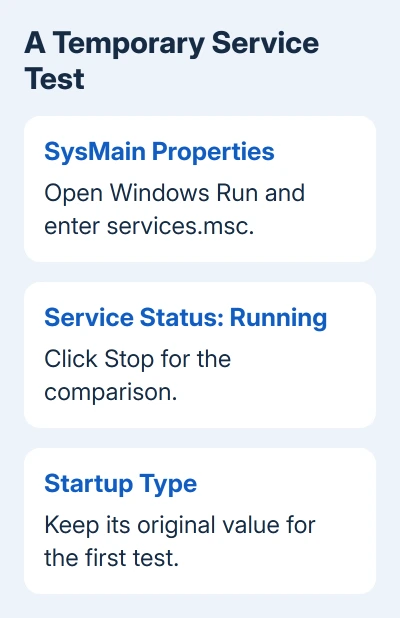
Return to the same task that was slow. Keep the workload similar: the same app, the same file and no new download in the background. Check both responsiveness and the disk activity in Task Manager.
If stopping SysMain changes nothing, return to its Properties window and click Start. That result gives you no reason to leave it disabled. Look at the process now using the disk rather than switching off more services.
If the computer becomes responsive and the activity falls, you've got a reason to compare again after a restart. One quiet moment can coincide with Windows finishing another job, so don't turn a single good result into a permanent rule.
3. Disable startup only if the improvement repeats
Use the same SysMain Properties window when the temporary test consistently helps. Change Startup type to Disabled, click Apply, then stop the service if it's still running. Close the window and restart Windows normally.
The two controls do different jobs. Stop ends the current running service. Disabled prevents Windows from starting it in the usual way. Changing only the startup setting doesn't necessarily end work already in progress.
Repeat the troublesome task after restarting, then check your usual apps. Your usual work needs to feel better too. If the delay returns or launches become worse, restore the recorded startup setting and start SysMain again.
To undo the change, open services.msc, double-click SysMain, restore that original Startup type, click Apply, then Start. Using your recorded setting avoids guessing what this particular installation used.
Keep this to SysMain. A list of unrelated services to disable would make the comparison harder and can remove features you use. Work or school PCs should go through the administrator if service controls are restricted.
Don't use an old fix as a Windows 11 diagnosis
Some advice about SysMain comes from much older Windows versions. An official SuperFetch CPU-spike article describes Windows 7 and a specific way an application was compiled. It isn't a Windows 11 instruction to disable the service.
The same care applies to individual success reports. The slow desktop shortcut guide includes an owner whose improvement after disabling SysMain lasted a month before the delay returned.
That case matters because a temporary improvement can hide a different cause. If stopping this service doesn't consistently help, move on rather than keeping a tweak simply because it helped another computer.
For persistent high disk use, install Windows updates, check free storage and identify the busiest process. If apps hang alongside drive errors or unusual drive noises, copy important files somewhere safe, then arrange a drive check.
If the same slowdown remains unexplained, use Windows Get Help and describe the affected task, disk type, busiest process and the stop/start comparison. Those details give support something concrete to work with.
The Short Version
Keep SysMain enabled on a responsive PC. When its activity matches a slowdown, stop it temporarily and compare. Disable startup only if the benefit repeats, and record the original setting so you can undo the change.
Checked November 13, 2026.